![LOGO BLUE.png]](https://knowledge.billiyo.com/hs-fs/hubfs/LOGO%20BLUE.png?height=40&name=LOGO%20BLUE.png)
Jump To
Caregiver App Experience: Recording Multilingual Remarks
Reviewing Translated Remarks in the app
Reviewing Translated Remarks on the computer
To learn how to enable and record audio remarks, please refer to this article:
Caregiver App Experience: Recording Multilingual Remarks
In the caregiver app, when your caregiver is recording their remarks, they can choose to either enter these remarks as text or an audio recording.
Type Remark Speak Remark
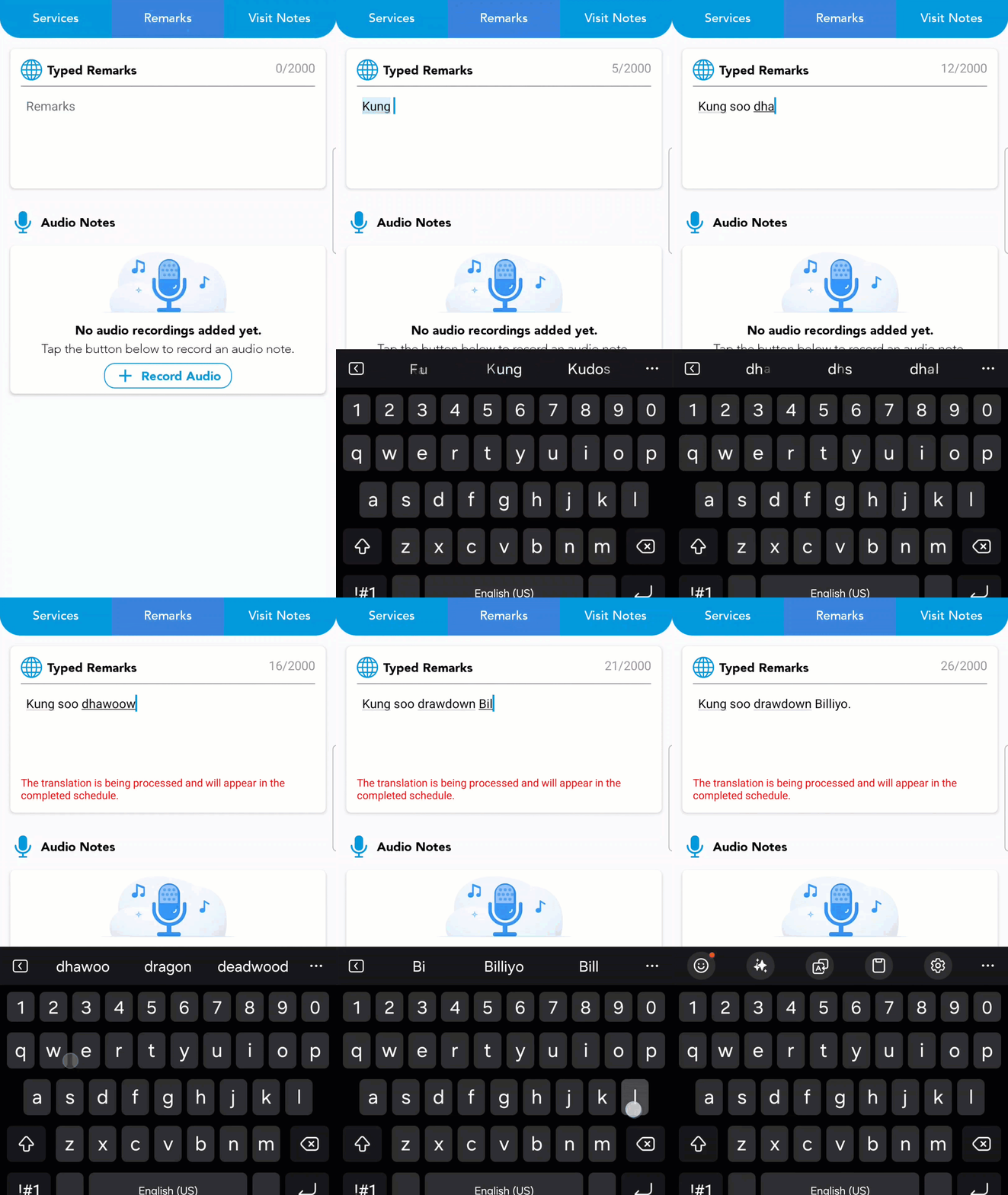
They can enter these remarks in any language that they choose. If Billiyo detects that their remark was entered in a non-English, then there will see a notification.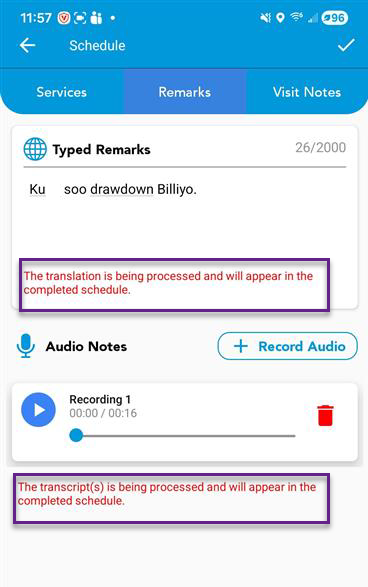
Reviewing Remarks in The App
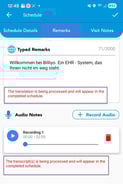
After ending the visit your employee can head to the completed schedules tab to review the remark that was entered. After a few minutes (depending on the length of their remark) they will see a translated transcription of their remark.
A red note is visible while your translation is being processed.
Reviewing Translated Text:
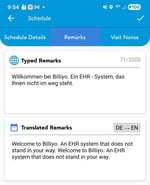
In the completed schedules tab, we can see both the original text that you entered as well as a translation of this text.
Reviewing Translated Audio
In the completed schedules tab, we can listen to the audio file that was recorded by hitting the blue play head.
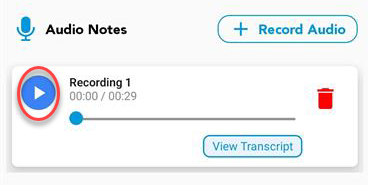
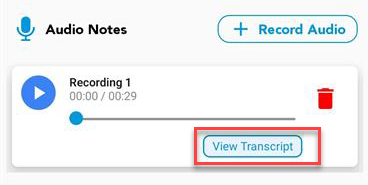
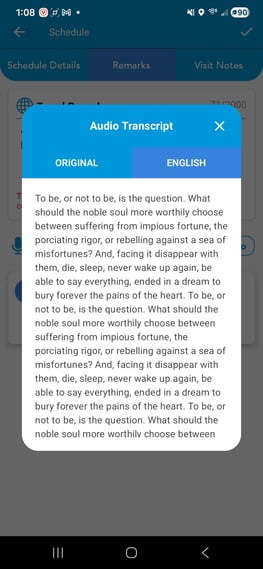
Billiyo will also transcribe your audio into text. To view this transcription, please hit the "View Transcript" button.
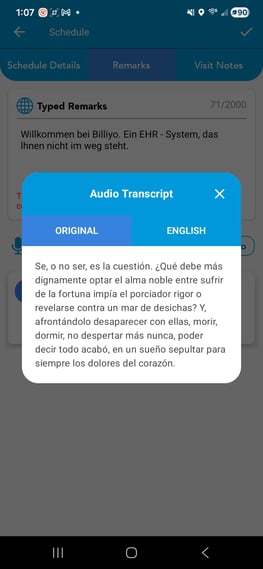
In the pop up that appears, we can see raw transcription that Billiyo recorded and, under the English tab, we can see our translated text.
Reviewing Translated Remarks On the Computer
In the schedules approval page, we can review our audio remarks that were entered into a visit. To do this, please see these remarks, please look up a client in the schedule approval page. From here, you can see which visits were given a remark:
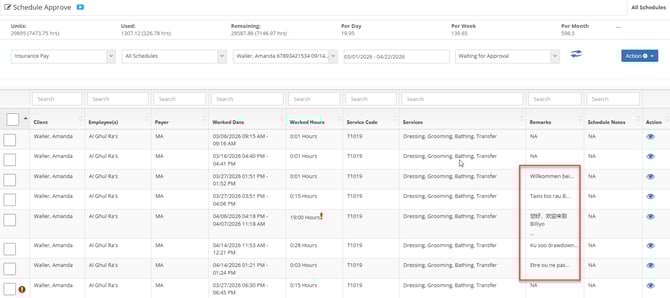
To view a remark in more detail, including its translation, please hit the blue  icon. For our non-English remarks, we can then click the
  button to view our translations.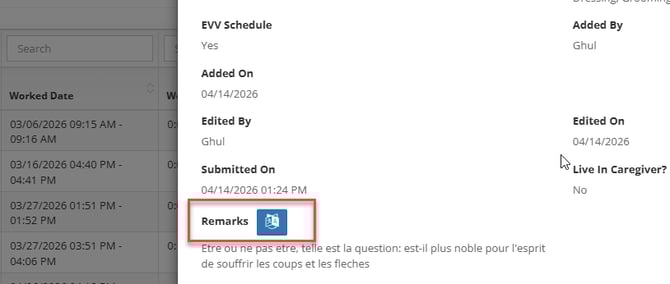
We will then see a pop up. In this pop up we can review the original remark that was entered as well as a translated script.
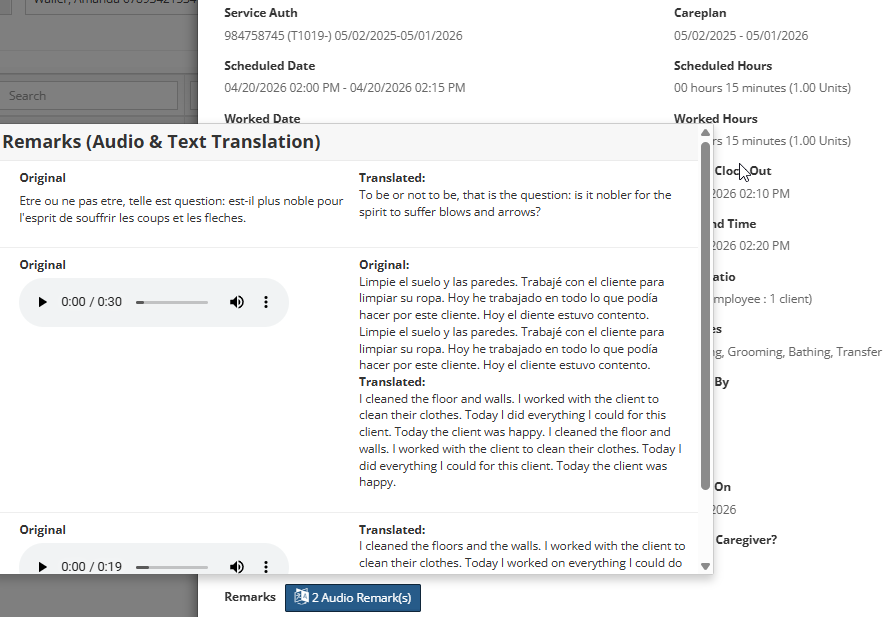 In the case of audio remarks, both a recording of the employee's statement and the transcribed (written) of their untranslated remark will be visible.
To ensure compliance, please make sure to review the original file that was entered.
To ensure the correct translation of your caregiver's remark, please make sure to review the original file that was submitted by the caregiver.