![LOGO BLUE.png]](https://knowledge.billiyo.com/hs-fs/hubfs/LOGO%20BLUE.png?height=40&name=LOGO%20BLUE.png)
Jump To:
Enable Audio Remarks
Record Audio Remarks in Caregiver App
Review Audio Remarks in Schedule Approval
Enabling Audio Remarks
To enable audio remarks, we will first head to the company configurations page.
Navigate Through:
More > Company > Company Settings.
From here, click into the "Configurations tab and then hit the blue edit button
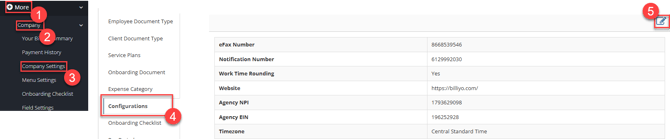
In the configurations pop up, turn on the options titled "Enable Audio Remark Recording on Mobile"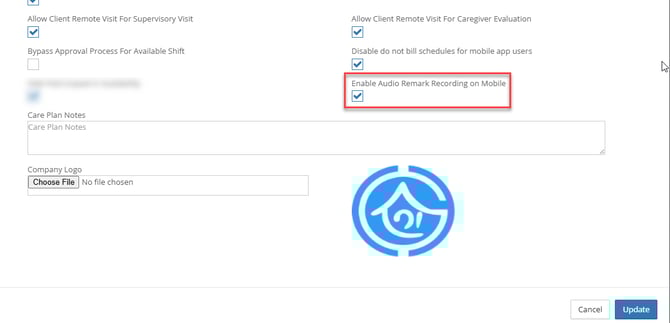
Record Audio Remarks in Caregiver App
When working a visit, we have two options for entering remarks. The first option is that we could type out a remark.
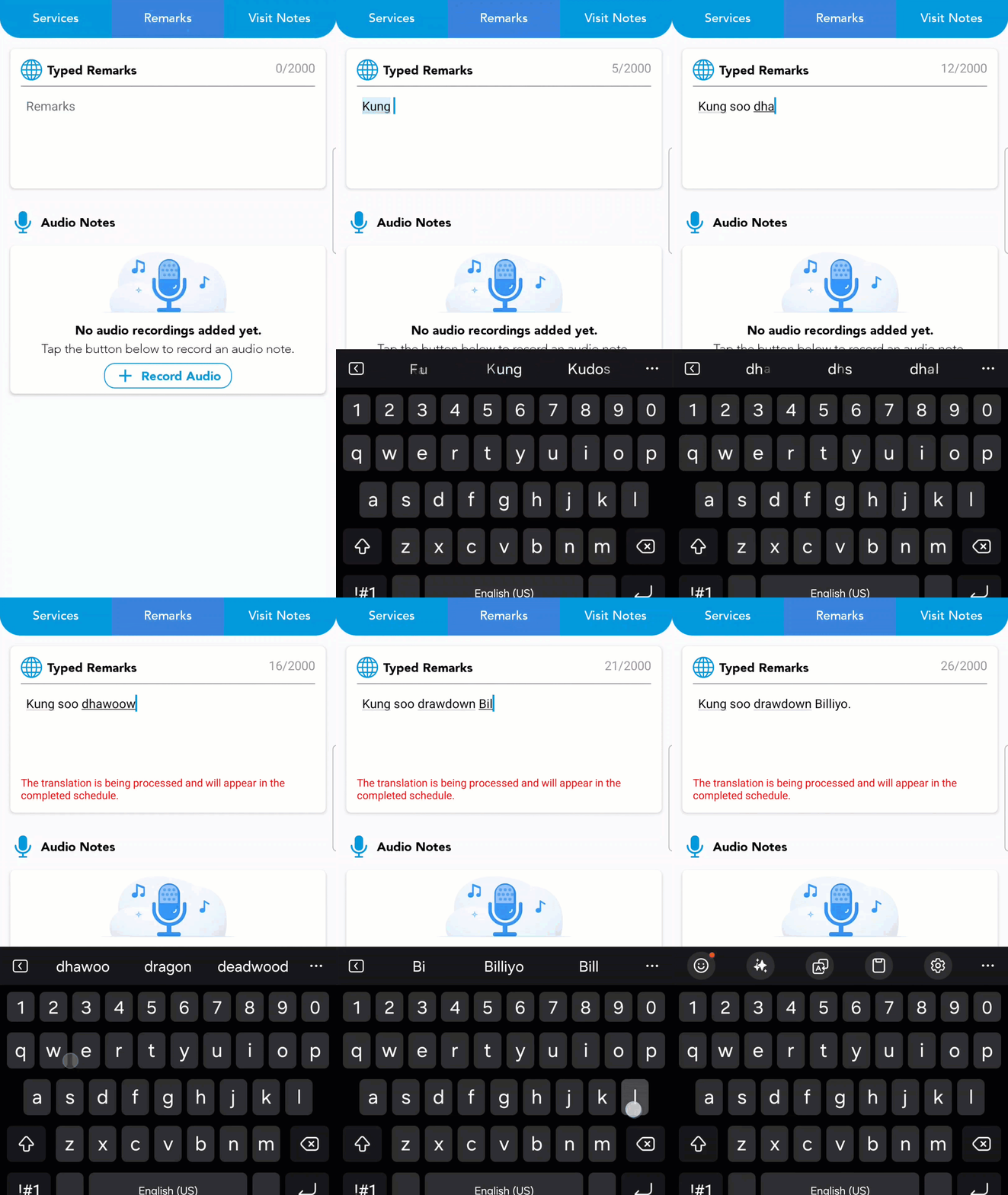
To leave an audio remark though, please look down to the microphone and tap the "Record Audio" button.
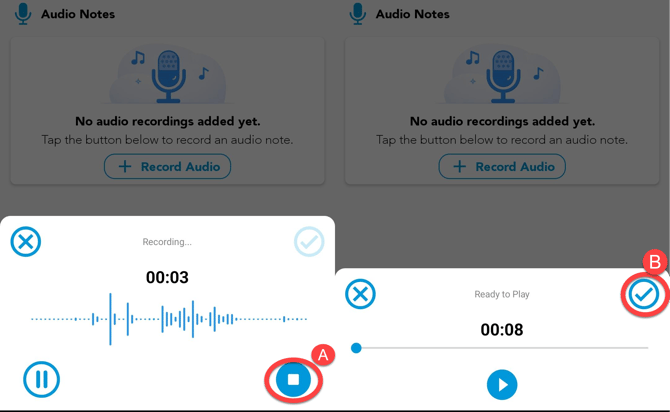
You may then see a "Terms and Conditions" pop up message. Please read through this message and then hit then agree. You may also be asked again to grant your Billiyo app permission to access your device's microphone. Please confirm this permission. You are now set to record audio. To start, please hit the blue circle and then you can speak your remark.
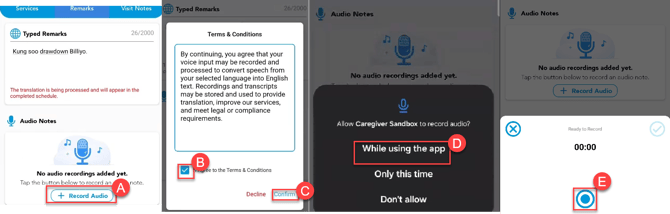
After speaking your remark, you can end the recording by hitting the blue "stop" button. Then, to save you remark, please use the check mark.
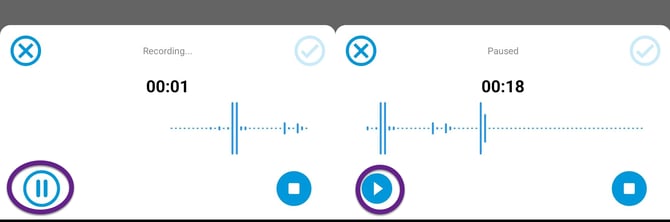
To pause your recording, please hit the pause button. To resume your remark in the same file please hit theplay button.
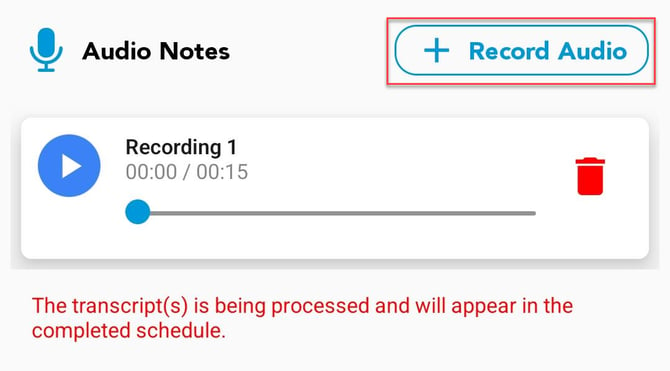
After saving you remark, it will appear in the app.
-
To review you recording, please hit the play head.

- To Delete your recording hit the trashcan.

- To add another audio recording tab "Record Audio"
Review Audio Remarks in Schedule Approval
In the schedules approval page, we can review the remarks that were entered into a visit. For translated remarks, we can see both the original remark that was entered by the caregiver as well as the translation.
To see these remarks, please look up a client in the schedule approval page. From here, you can see which visits were given a remark: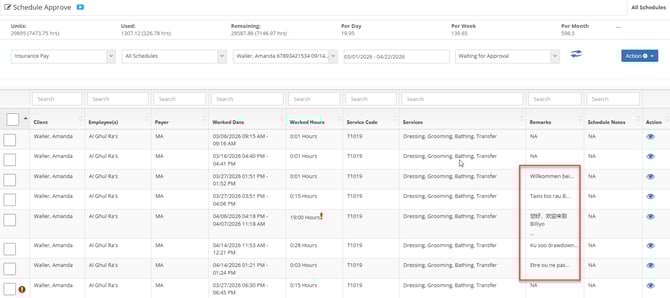
To view a remark in more detail, including its translation, please hit the blue  icon. If a visit has a recorded audio remark, then it will be indicated with a blue button.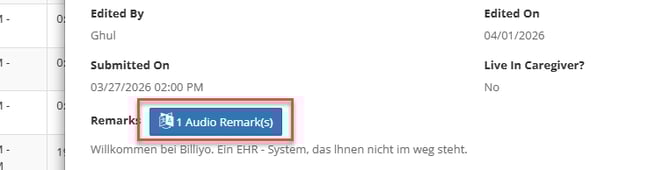
Tapping on this button will make a pop up appear. In this pop up we can:
- Play the audio

- View a transcript
- Download the audio

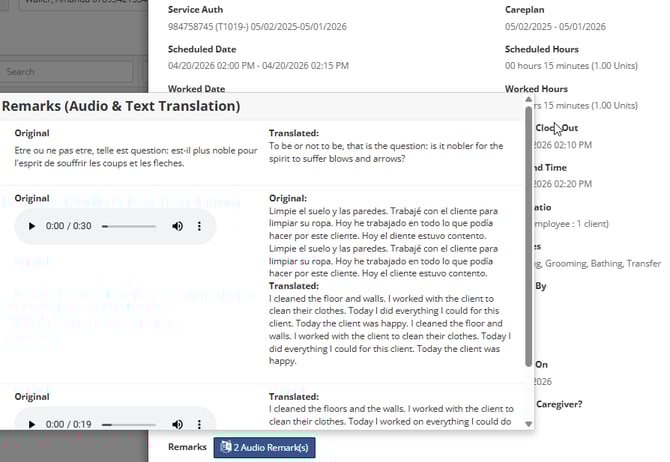
If you entered the remark in a non-English language, then we will show both a transcript of the remark and a translated copy.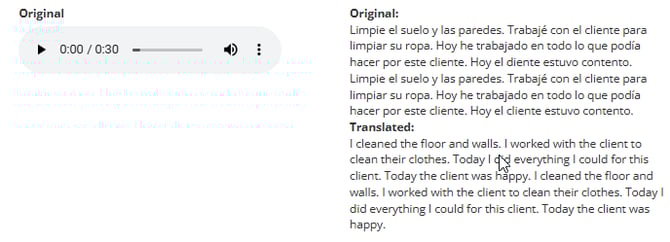
For more information on how to review translated remakrs, please refer tothis article: