![LOGO BLUE.png]](https://knowledge.billiyo.com/hs-fs/hubfs/LOGO%20BLUE.png?height=40&name=LOGO%20BLUE.png)
Table of Contents
Quick Notes
- Click here to learn how we can use the All Schedule tab to quickly review daily schedule information for all schedules, please refer to this article
- Use the EVV Compliance Report tab to review more detailed information for visits that are subject to EVV.
- Live-in caregivers are excluded from the "EVV Exception" reporting.
How to Access the Daily Schedule Review Page
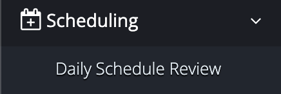
To access the Daily Schedule Review page, click here or in the left menu navigate to:

The EVV Compliance Report Tab
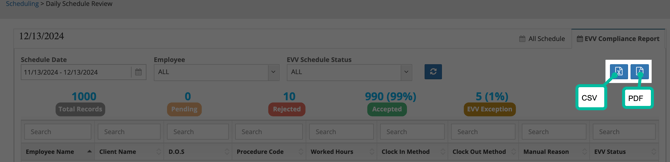
Within the "EVV Compliance Report" tab, filter for a specific date range, employee or EVV schedule status — click on the  button to refresh the results if any filters are changed.

Information about the statuses that appear:
| All | All visits subject to EVV |
| Accepted | All visits that have been accepted by the data aggregator |
| Pending | All visits that are pending acceptance by the data aggregator |
| Rejected | All visits that were rejected by the data aggregator |
Under the filter fields, analytical information can be found — each can be clicked on to reveal more information.

Information about the headings:
| Total Records | Total number of EVV visits that were submitted within selected date range. |
| Pending | Number of pending EVV visit submissions. |
| Rejected | Number of rejected EVV visit submissions. |
| Accepted | Number and percentage of accepted EVV visit submissions. Percentage calculation |
| EVV Exception | Percentage of EVV subject visits that were manually edited, manually clocked in/out for and the "swipe" schedule method was used for. EVV Exception calculation:  |

Moving down the page, a table of information will display.
About the table:
| Clock In Method | The method that was used to clock into the scheduled visit. What you'll see appear here:
|
| Clock Out Method | The method that was used to clock out of the scheduled visit. What you'll see appear here:
|
| Manual Reason | The reason that was selected within the "Manual Reason" field that appears in the Schedules Approval page. |
| EVV Status | The status that was returned by the data aggregator |
If you'd like to download information from within this tab, to be able to review offline or at a later time, you can! Above the table, options to download a CSV or PDF file will appear.
 |