![LOGO BLUE.png]](https://knowledge.billiyo.com/hs-fs/hubfs/LOGO%20BLUE.png?height=40&name=LOGO%20BLUE.png)
Table of Contents
Quick Notes
- Click Here to learn about using the Billiyo chat with the caregiver app.
- Click Here to learn about using the Billiyo chat on the web browser.
- With in-app messaging feature in Billiyo you can message an individual employee, create a group chat with multiple employees and send a message to all employees within your agency at once.
Billiyo Clinical App
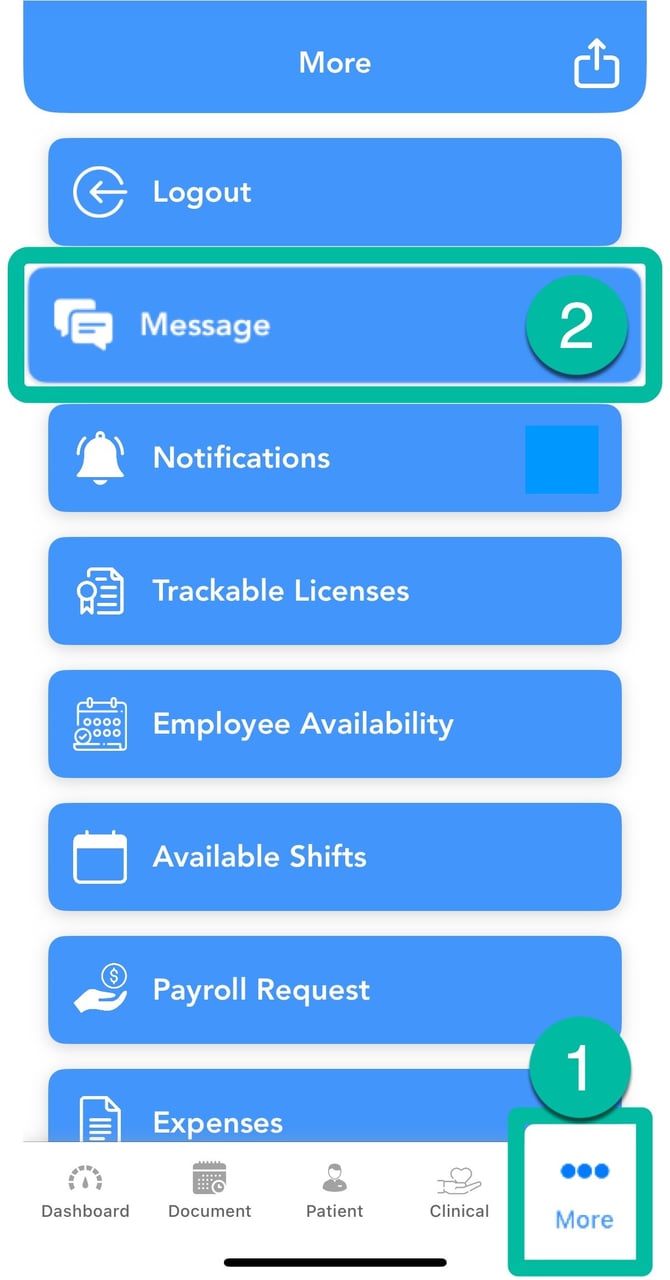
Within the Billiyo Clinical app, in-app messaging can be accessed by going to:
More > Message
 |
Within the message screen, employees can:
Create and Send New Messages
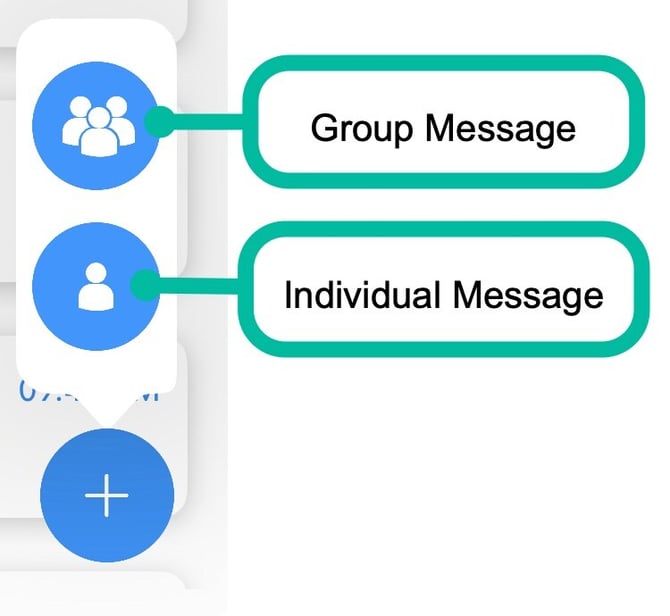
Within the message screen, employees can create new messages by touching on the  button that appears in the bottom right corner of the screen.
Upon doing so, they'll be presented with the option to create a group message with multiple employees in it or an individual message to a single person.
 |
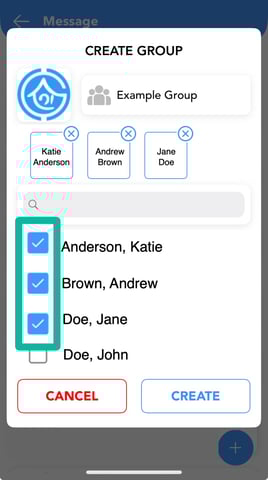
If group message is chosen:
|
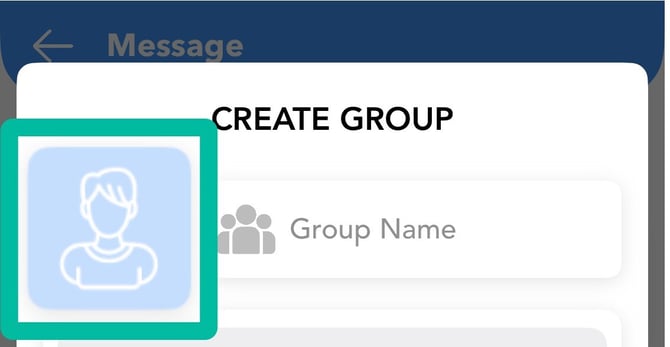
Select a group image
|
 |
| Enter a group name | 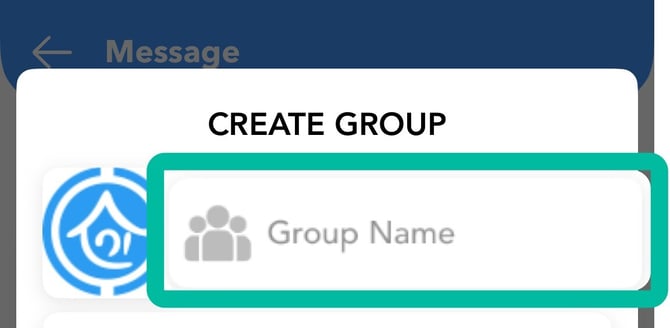 |
|
Select who is in the group
|
 |
Once the recipient(s) have been chosen, touching on the  button will allow the employee to compose their message.
|
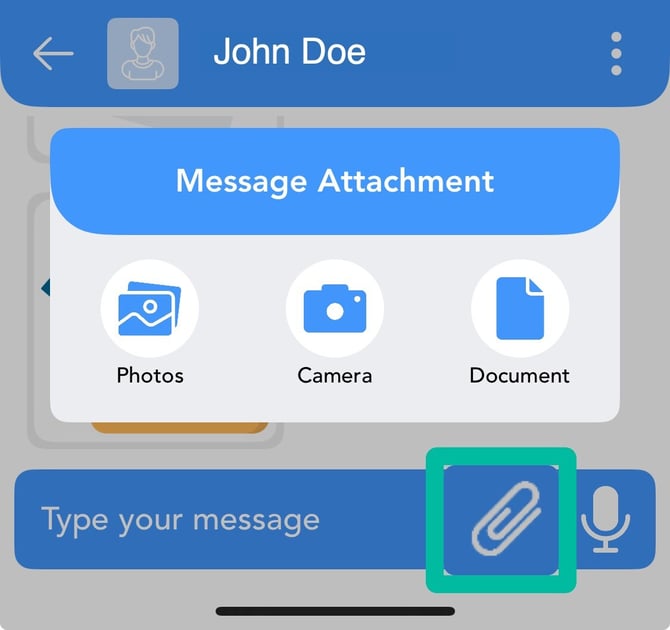
Add an attachment
|
 |
| Type a message | 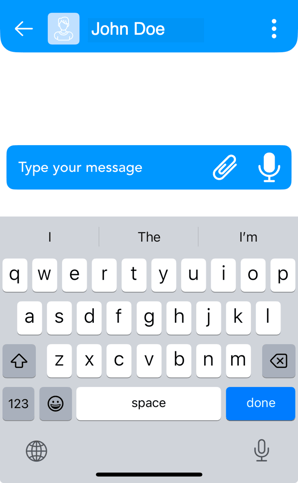 |
|
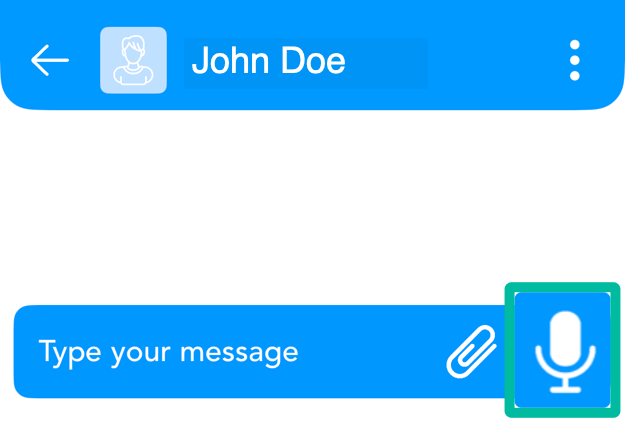
Record a voice message
|
 |
View and Respond to Messages
When entering the message screen within the Billiyo Clinical app, a list of all conversations will appear.
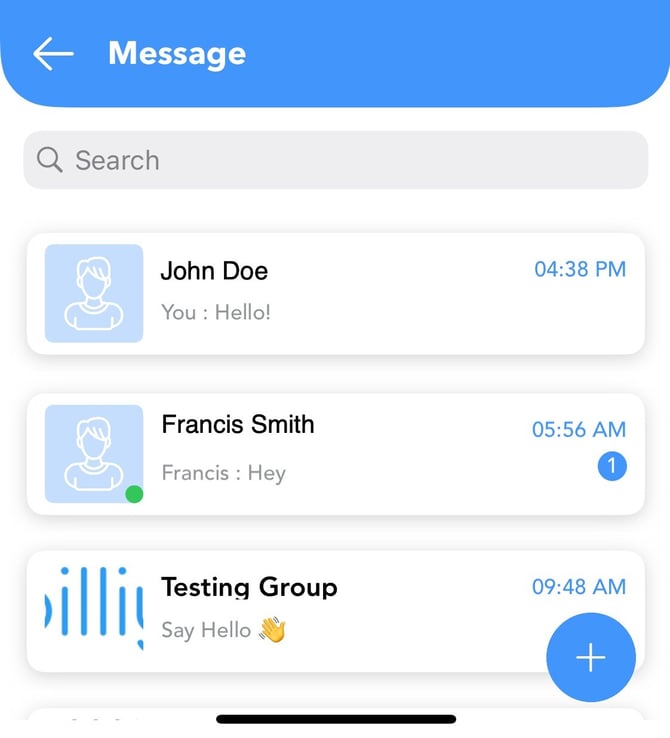 |
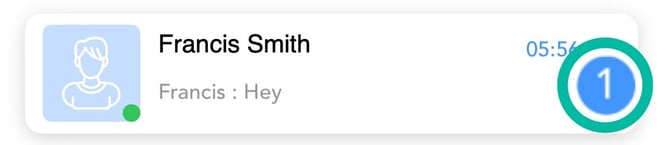
Any conversations that have a number indicator on them mean that there are unread messages.
 |
To review a conversion and respond to any messages, touch on the conversation line.
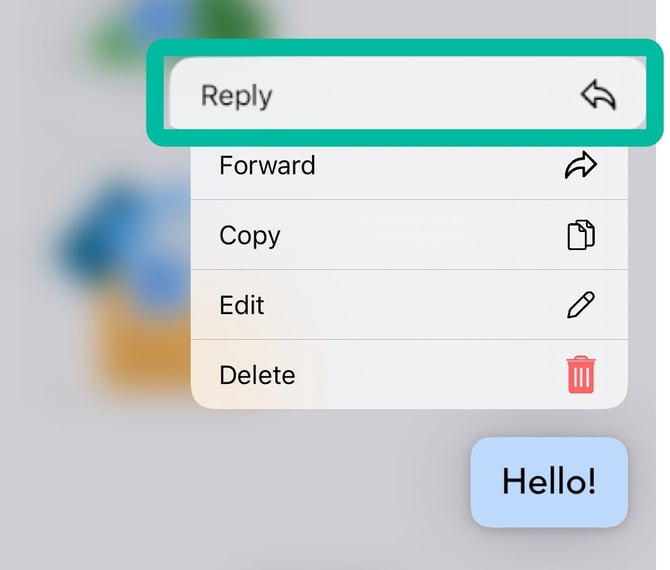
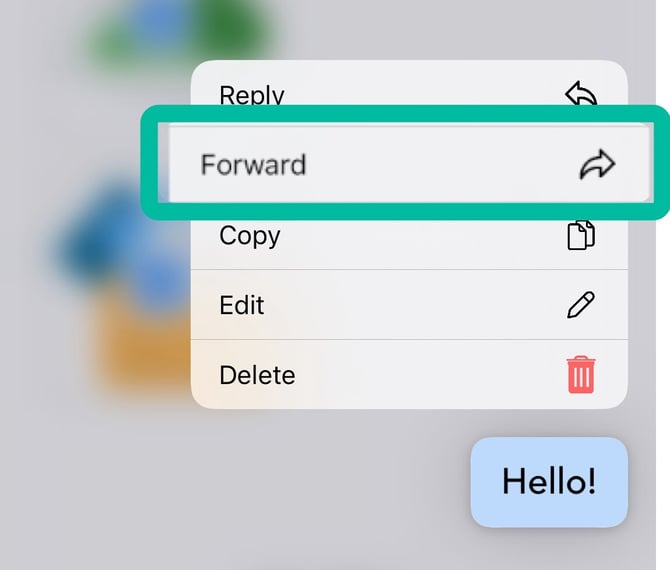
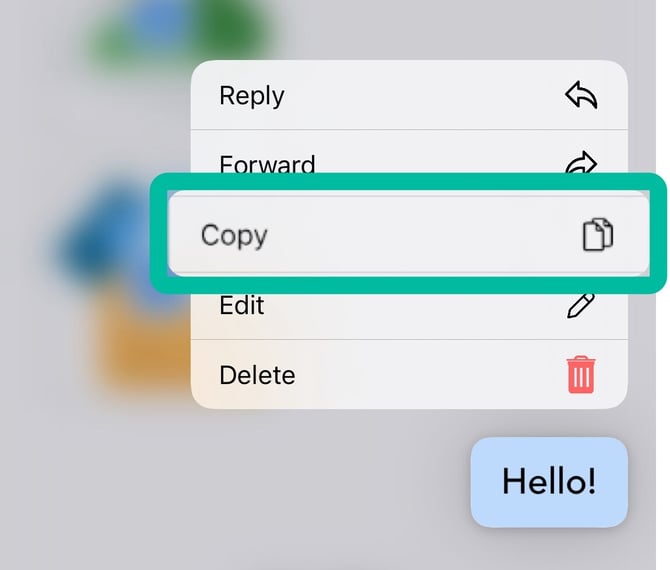
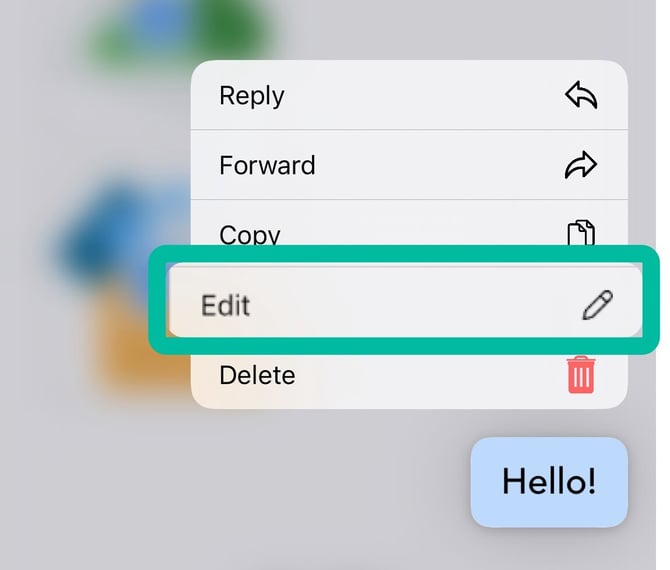
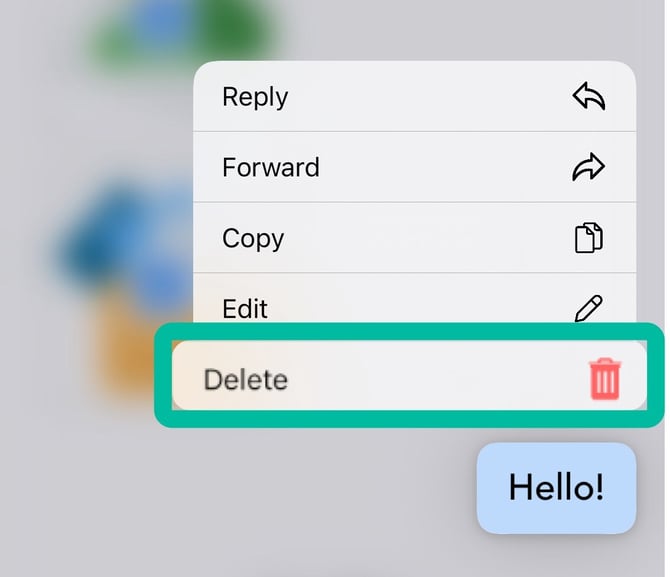
Outside of the basic functions that were available when creating a new message, the employee will also be able to do the following when pressing and holding on a message:
|
Reply Create a thread on a specific message |
 |
|
Forward |
 |
|
Copy message text |
 |
|
Edit
|
 |
|
Delete |
 |
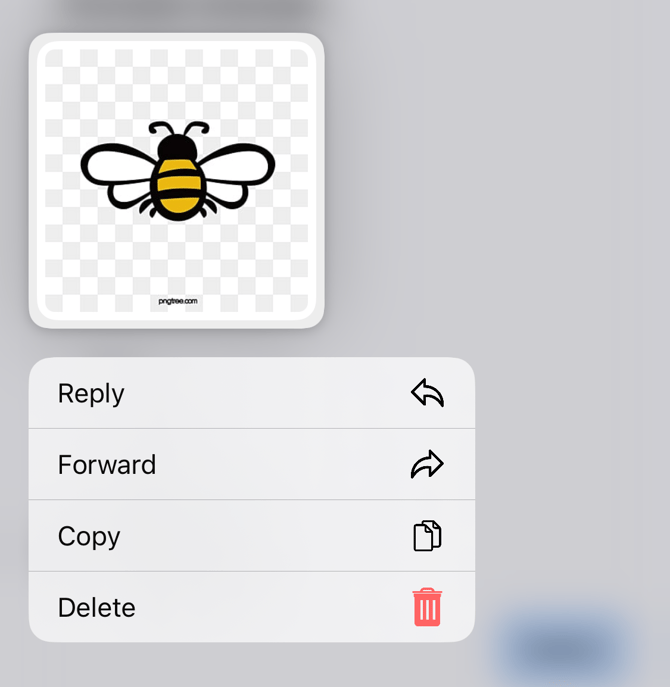
For images and documents in conversations, employees will also see an option to download to be able to view the attachment.
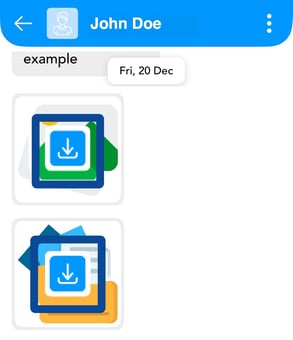 |
Once the attachment is downloaded, press and hold on it to reply, forward, copy and delete.
 |