![LOGO BLUE.png]](https://knowledge.billiyo.com/hs-fs/hubfs/LOGO%20BLUE.png?height=40&name=LOGO%20BLUE.png)
Jump to:
Add Employee Documents
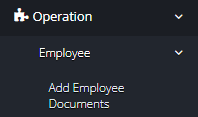
From the Main Menu, navigate to Operation > Employee > Add Employee Documents.
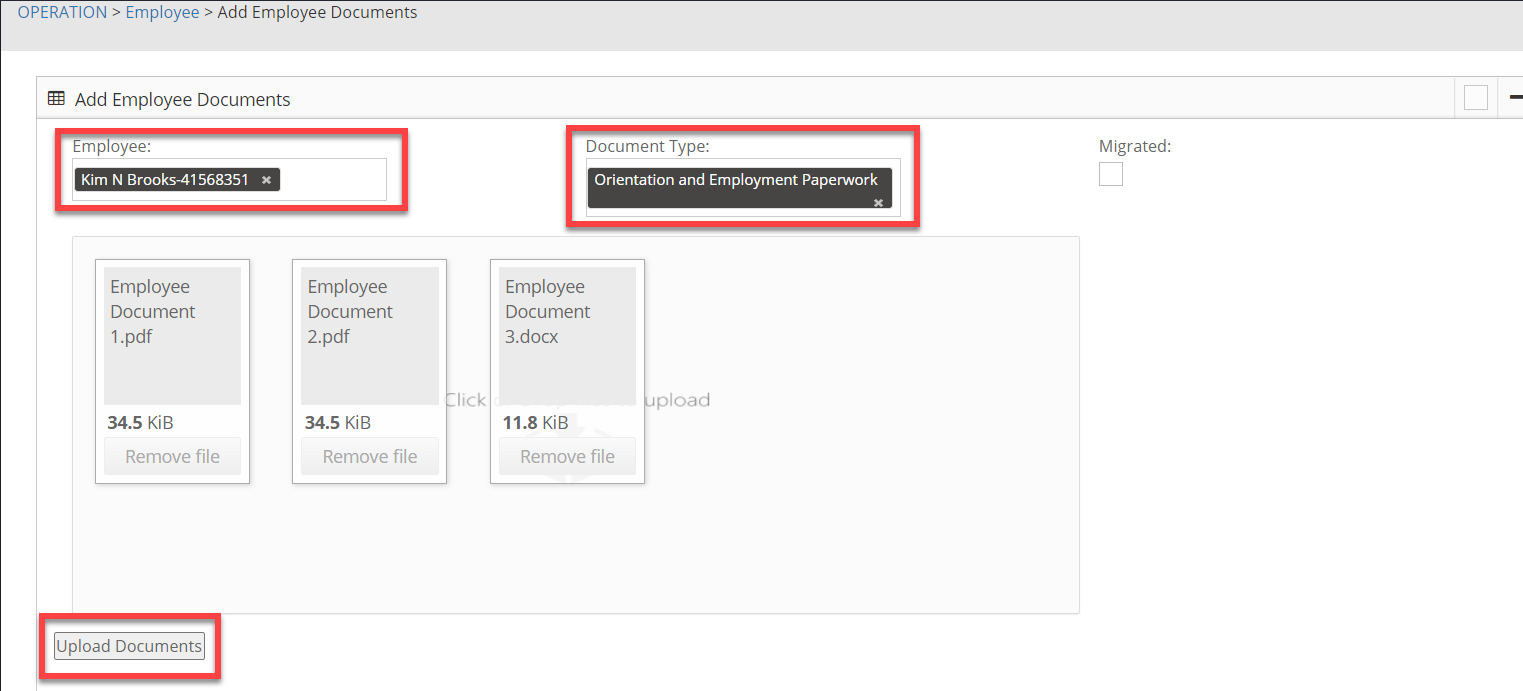
1. Choose the Employee & Document Type.
2. Drop or select files to upload (y0u may upload up to 3 documents at a time).
3. Check Migrated if you are uploading documents for your previous EHR.
4. Click Upload Documents.
Tip: You can add Word and PDF files only.
View Employee Documents
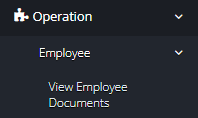
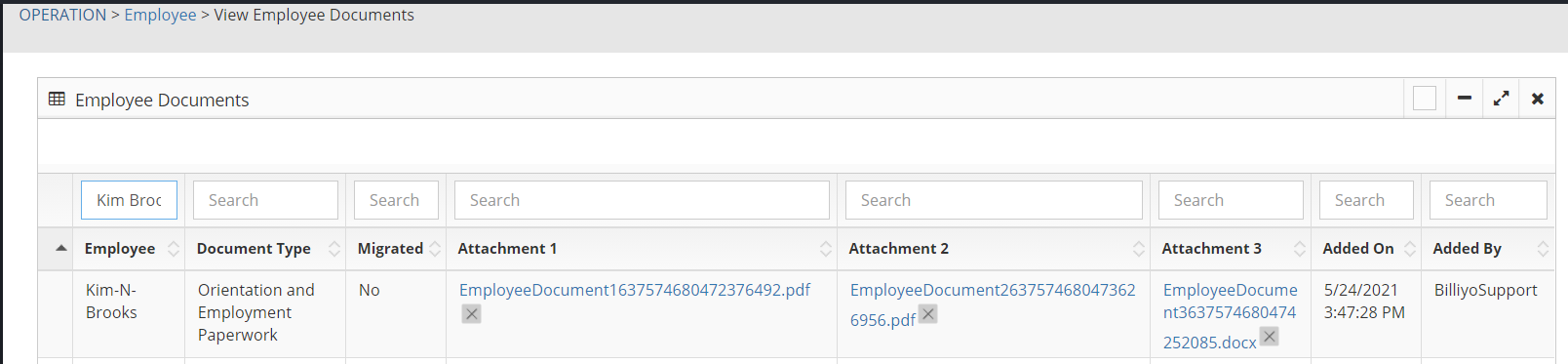
From the Main Menu, navigate to Operation> Employee > View Employee Documents.
1. Search for the Employee and/or Document Type using the filters.
2. Click the Attachment file to View or the  do Delete the Employee Document (Pop-up will appear to verify that you want to Delete the file. Select Cancel or Yes)
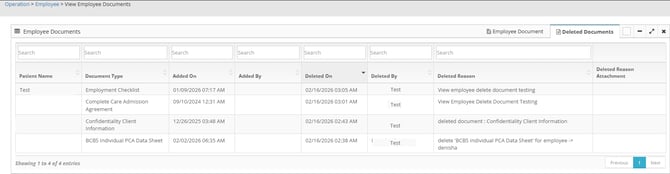
Deleted Documents
To find deleted documents and their reason for deletion, select the tab on the top right of the page titled Deleted Documents.

This will bring up a table with recently deleted documents. You'll be able to see:
-
The date a document was deleted
-
Who deleted the document
-
Deletion reason
-
And if an attachment was included with the deletion reason