![LOGO BLUE.png]](https://knowledge.billiyo.com/hs-fs/hubfs/LOGO%20BLUE.png?height=40&name=LOGO%20BLUE.png)
We can see the documents that were prepared for an individual employee in their
We can fill out documents with the generate document page.
Jump To:
Navigation
Searching for a Document
Reviewing Documents
Navigation:
To view all employee documents in Billiyo, please navigate through
Operation > Employee > View Employee

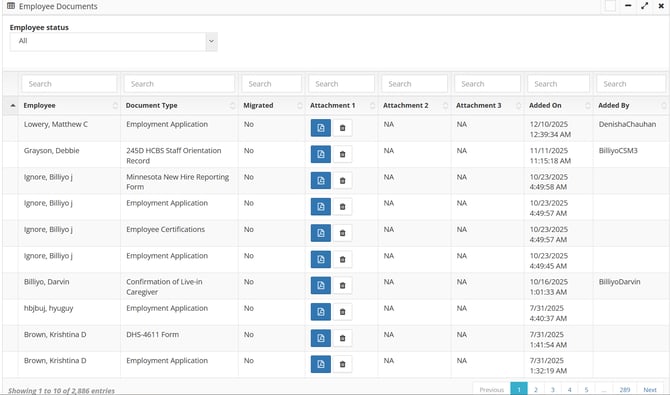
In the page that loads up, you can see all employee documents that have been added into your Billiyo account:
Searching through Documents
Filter by employee status
By default, this page will include all employees that have been added in Billiyo, including people with the Inactive and Onboarding status. To narrow your search down by employee status we can use the Status filter at the top right of the page.

Search for an employee
To search for an individual employee, please type their name into the search field above the employee name column.
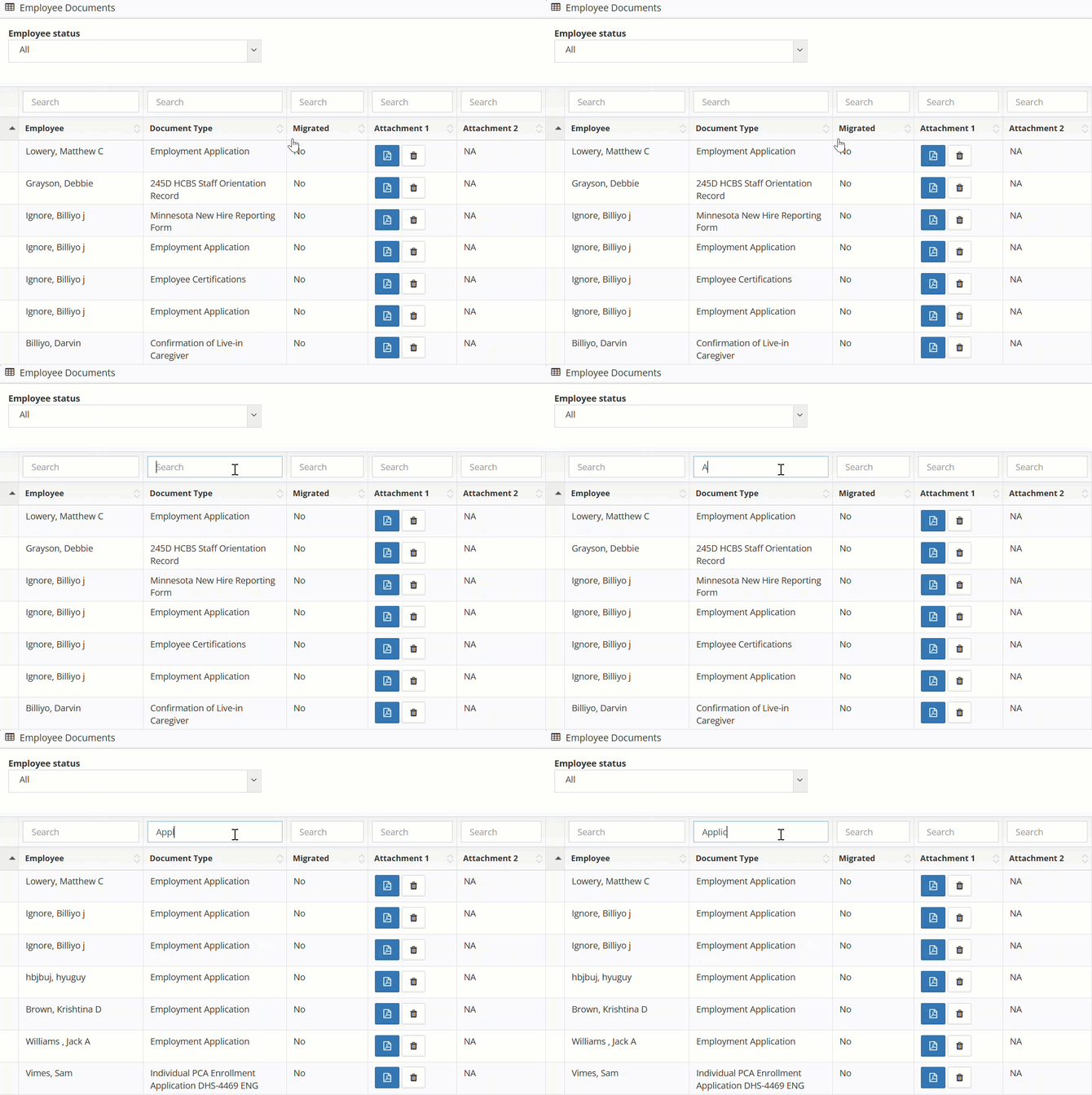
 Search for a document
To search for an individual document type, please type it into the search field above the document type column.
Review Documents
After locating the document that you want to review, you can open it up by clicking on the blue PDF icon.
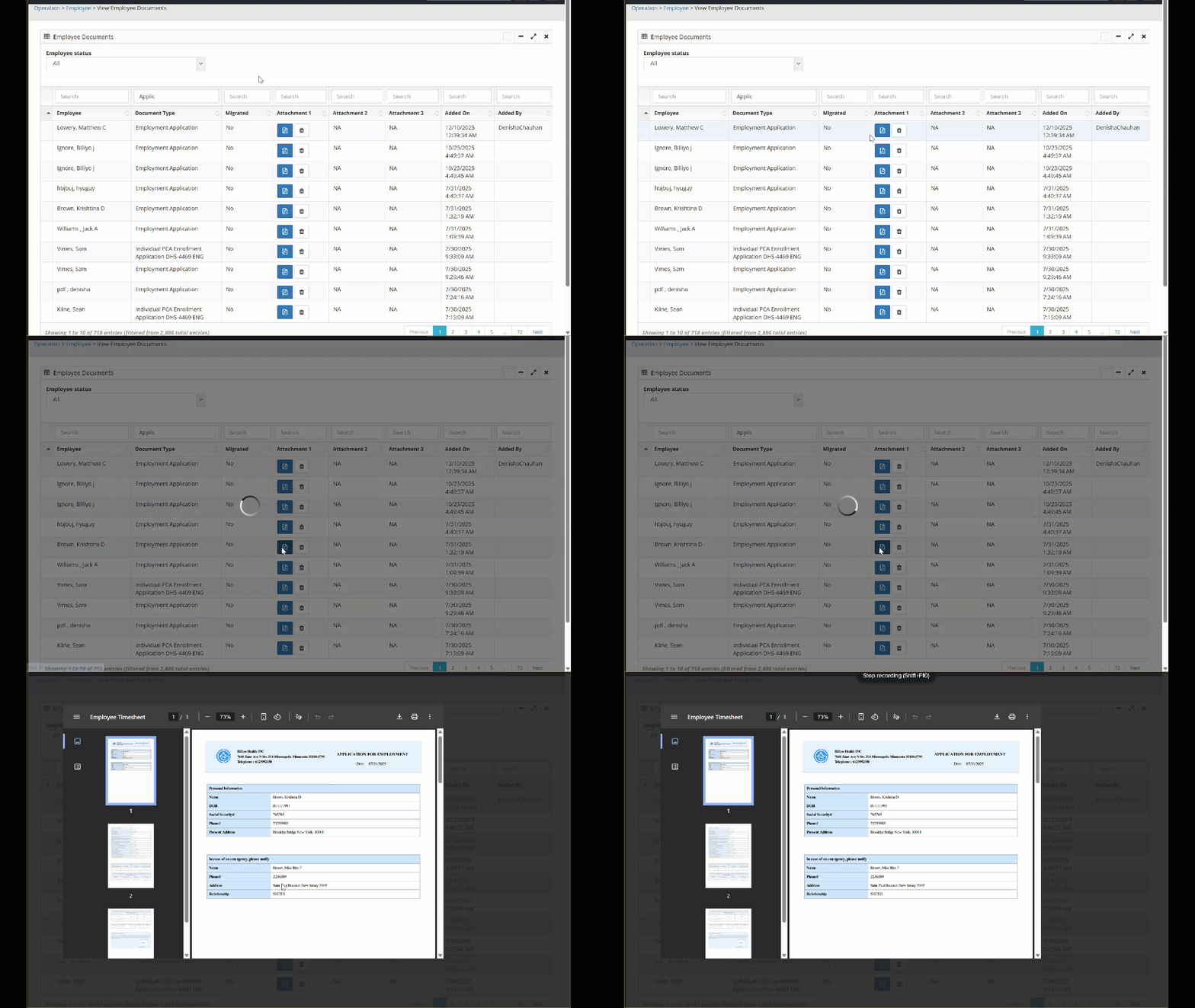
This will pop up a PDF of the document.
This PDF was either uploaded into the employee profile or was electronically completed in Billiyo.
To remove a document from this list, we can simply click on the trashcan icon:
