![LOGO BLUE.png]](https://knowledge.billiyo.com/hs-fs/hubfs/LOGO%20BLUE.png?height=40&name=LOGO%20BLUE.png)
After one week of failed payment, Billiyo will automatically block your account until payment is delivered.
Accessing Your Billing Summary Information
To review and update your payment method, look to the left menu navigate to:
More > Company > Your Billing Summary
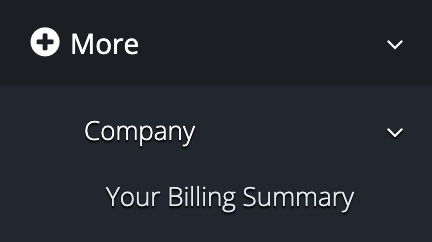
Update Your Payment Information
Within the payment method section, located in the top right corner of this page, you can see the current payment method that you have on file.
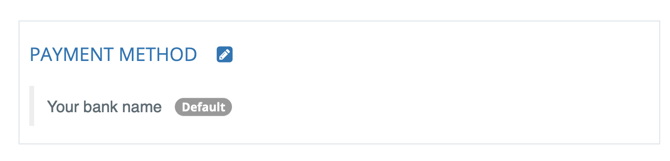 |
Additionally, in this section, you can update your payment information.
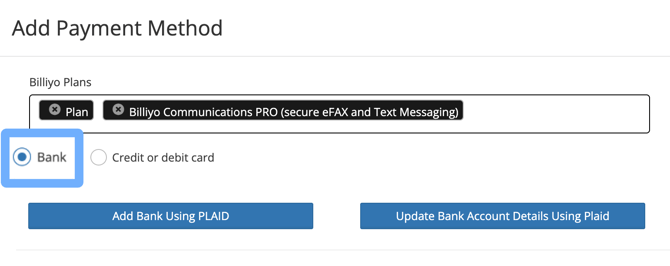
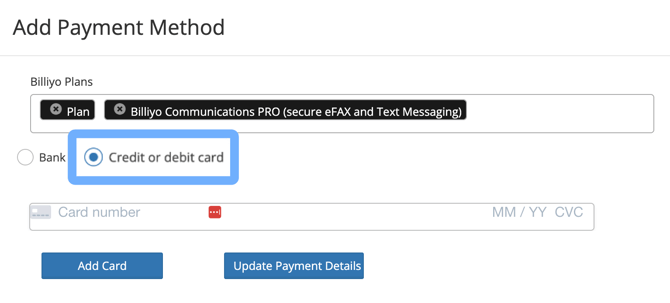
To update your payment information, click on the  that appears next to the payment method heading. On the pop-up that appears, click on the circle next to the input option you'd like to use:
 |
 |
- Bank → You'll be directed to PLAID to log into your bank account.
- Credit or debit card → You'll enter your card number, expiration date and CVC code.
Note
- A 3% processing fee is charged when "Credit or debit card" is used.
- The 3% processing fee is not charged when "Bank" is used.
- When linking a bank account ("Bank"), Billiyo receives an authorization code that allows us to charge for your subscription — your bank details are not saved.
Once you've gone through the PLAID prompts or entered your card information, click on the button that corresponds with what you are doing:
| Update Bank Account Details Using Plaid | You have used PLAID to enter your payment information in Billiyo before or have entered your card details on this screen before. |
| Update Payment Details | You have entered your card details on this screen before or have used PLAID to enter your payment information in Billiyo before. |
After updating your payment, please contact your Customer Success Manager so they can rerun your payment.