---
title: Temporary Service Authorizations
description: Temporary Service Auth
---
[Skip to content](https://knowledge.billiyo.com/knowledge/temporary-service-authorizations#main-content)
English
Show submenu for translations
[![LOGO BLUE.png\]](https://knowledge.billiyo.com/hs-fs/hubfs/LOGO%20BLUE.png?height=40&name=LOGO%20BLUE.png)](https://billiyo.com/)
Open main navigation
Close main navigation
- English
Show submenu for translations
- [Portal Login](https://billiyo.com/App/security/signin.aspx)
[Portal Login](https://billiyo.com/App/security/signin.aspx)
Looking for something specific?
- There are no suggestions because the search field is empty.
1. [Help Center](https://knowledge.billiyo.com/knowledge?hsLang=en)
2. [Clients](https://knowledge.billiyo.com/knowledge/clients?hsLang=en)
3. [Service authorization info](https://knowledge.billiyo.com/knowledge/clients?hsLang=en#service-authorization-info)
# Temporary Service Authorizations
## What to do when a Service Auth Expires, but the new one hasn't come in yet.
Manually create a non-billable, temporary SA that you can attach care plans to and make schedules for.
Once the real SA comes in, update your non-billable agreement to reflect the new Service Auth. You can then send claims for it.
Navigation: CRM\>Service Auths\>Add/View SA
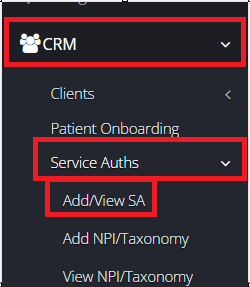
Here you will search for your client
Then click on .
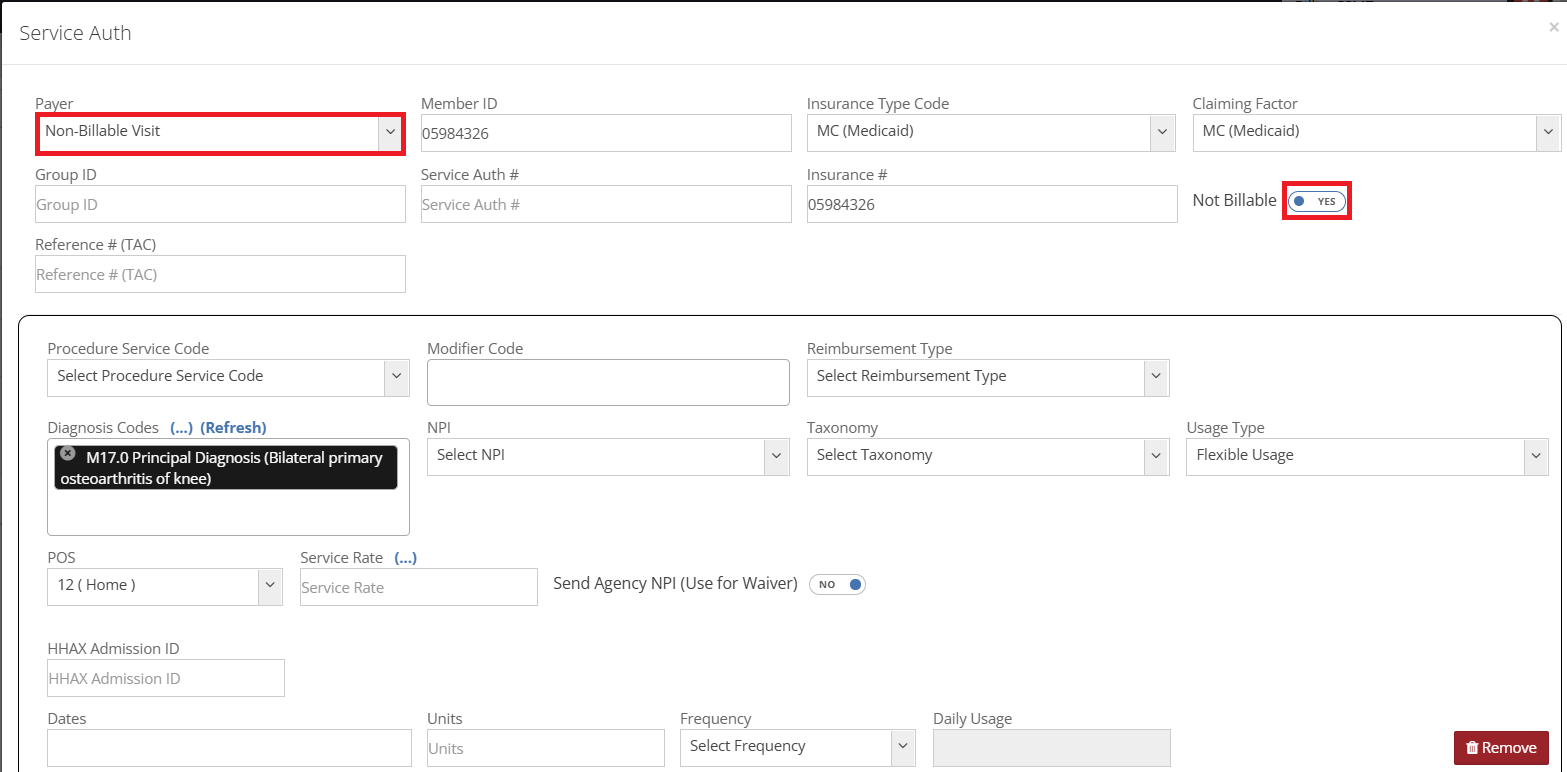
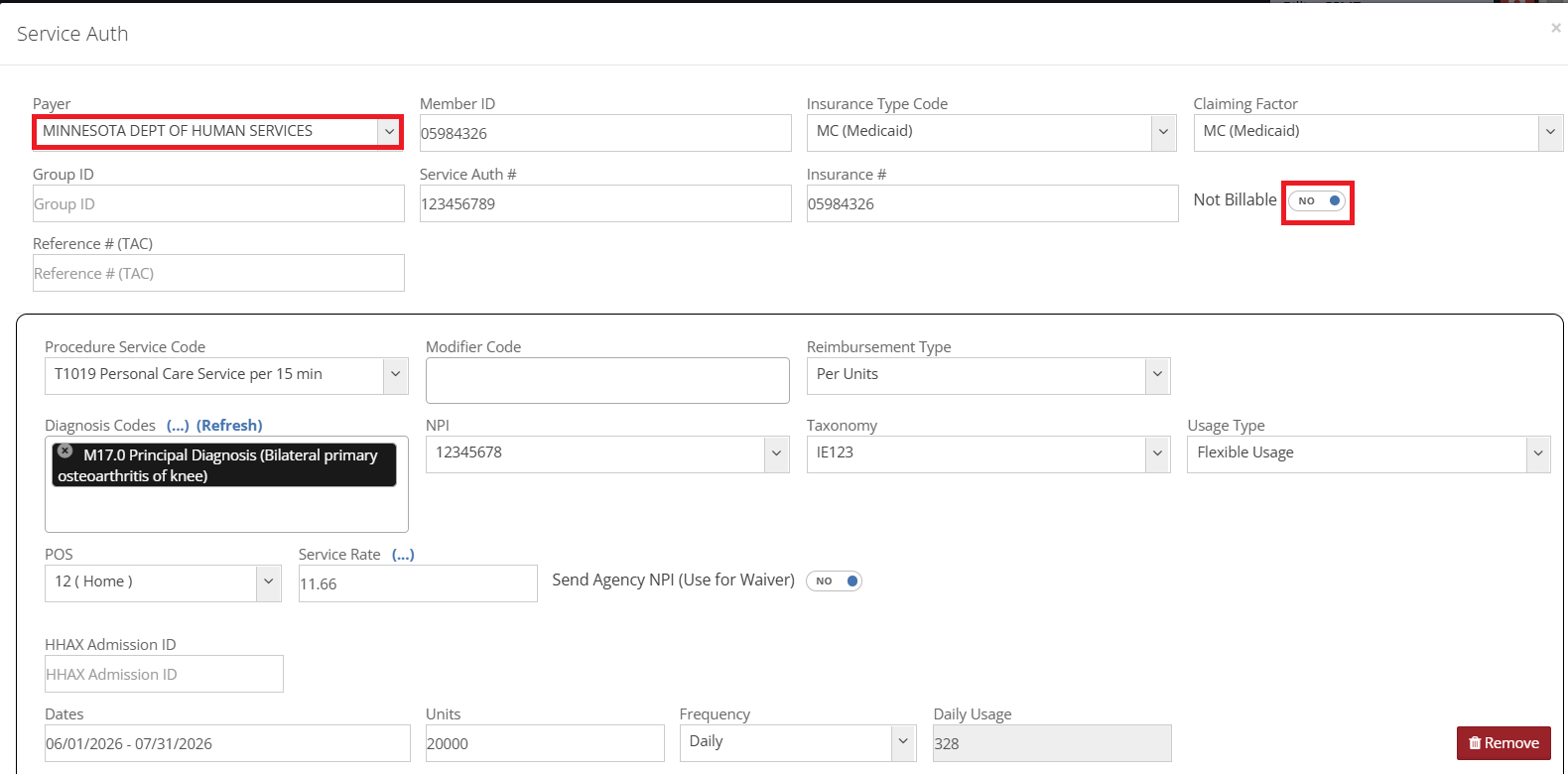
Once in the page you will choose Non-Billable Visit for the payer.
Also be sure to set the Not Billable Toggle to "Yes".
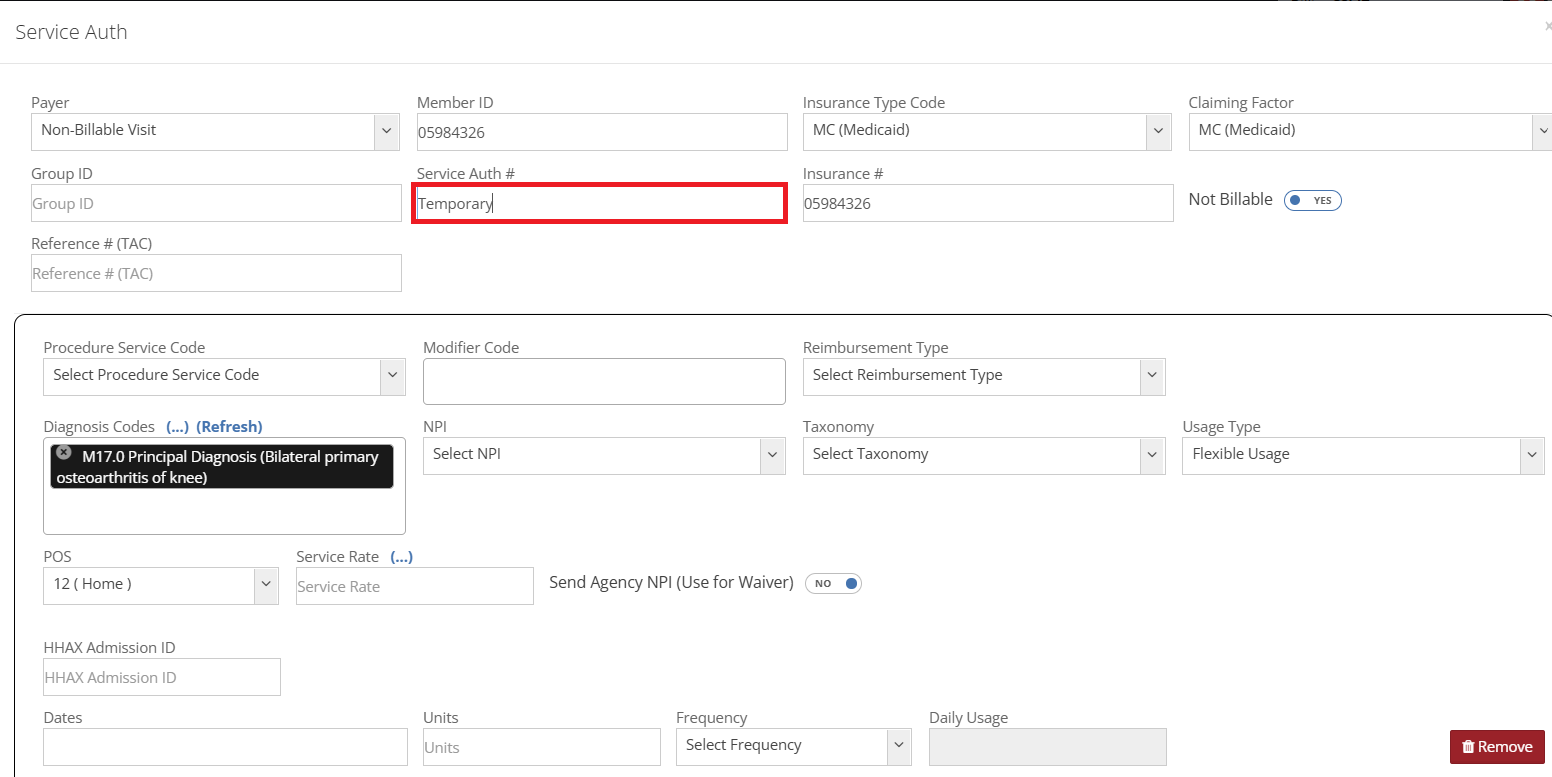
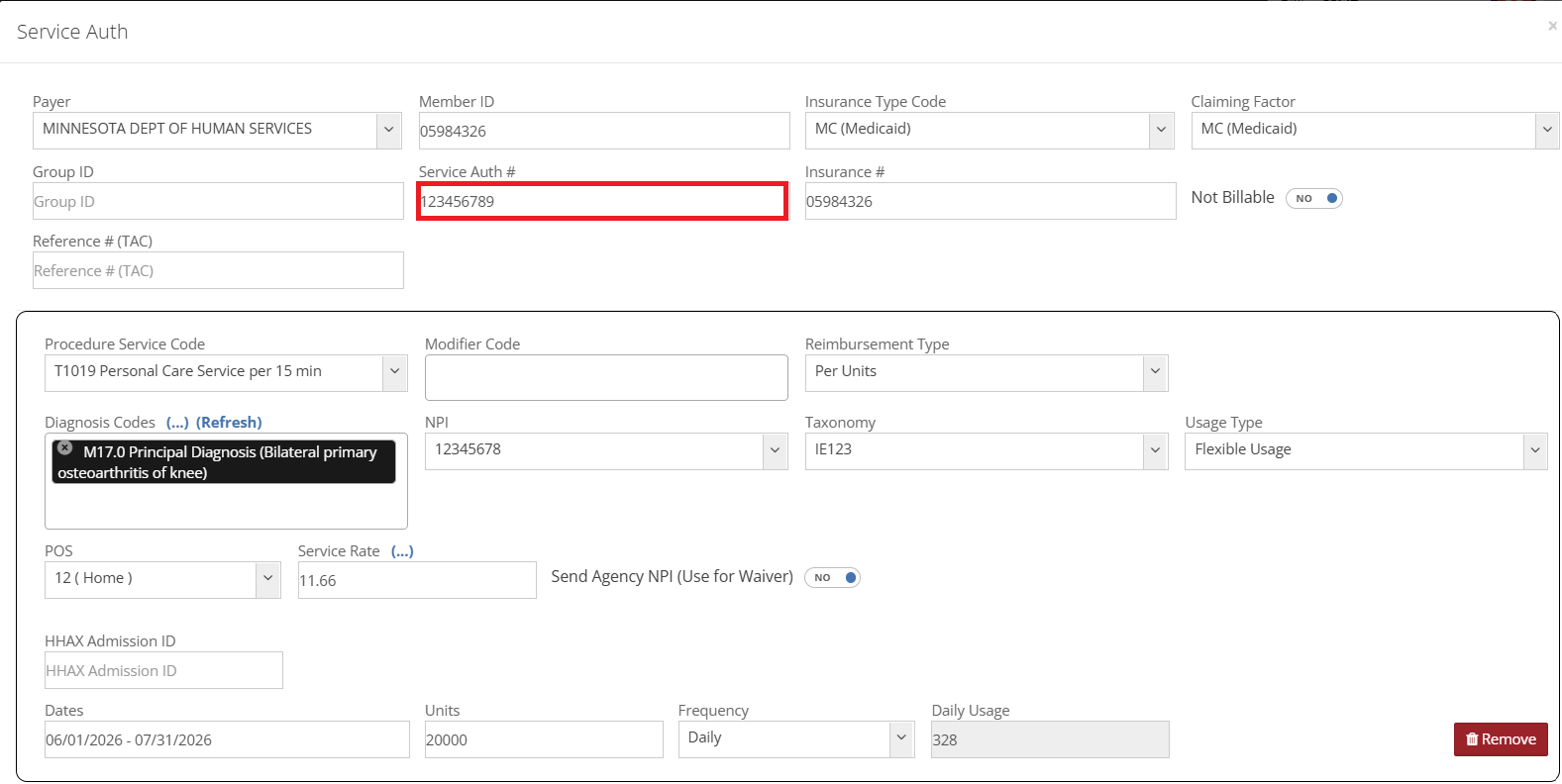
For the Service Auth Number you can Type "Temp" or "Temporary" to later easily identify which SA needs to be updated.
Continue filling out all fields and then click on ,
Once the SA is saved, move on the creating your care plan.
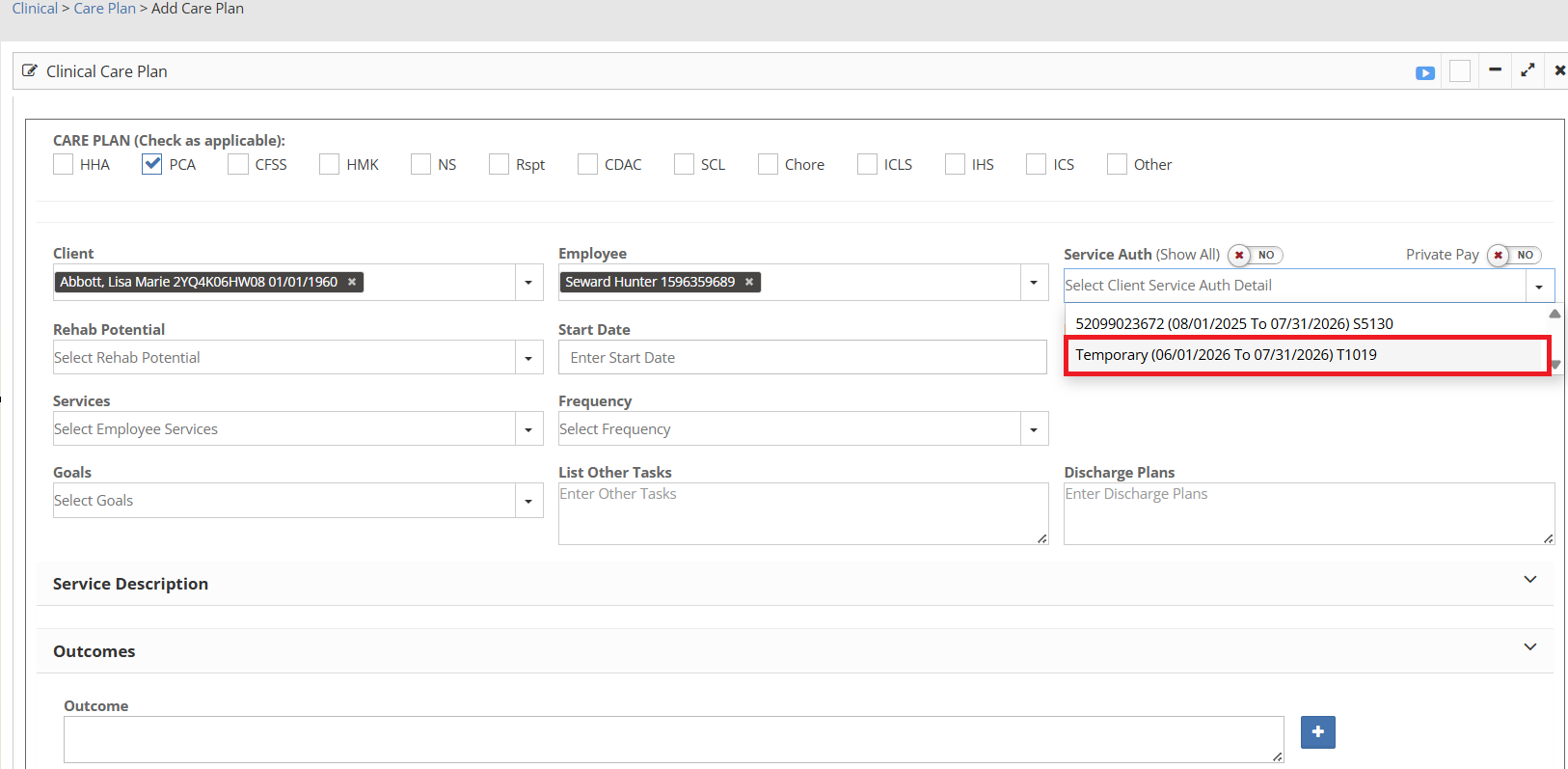
Make sure to choose the Temporary Service Auth when creating the Care Plan.
****
To learn more about care plans [click here](https://knowledge.billiyo.com/knowledge/add?hsLang=en).
Once you have saved the care plan you will be able to schedule the visits.
To learn more about creating a schedule [click here](https://knowledge.billiyo.com/knowledge/scheduling-create-schedule?hsLang=en).
Once you receive the service agreement, go back to the Service Auth and update it.
Click on the .
Then click .
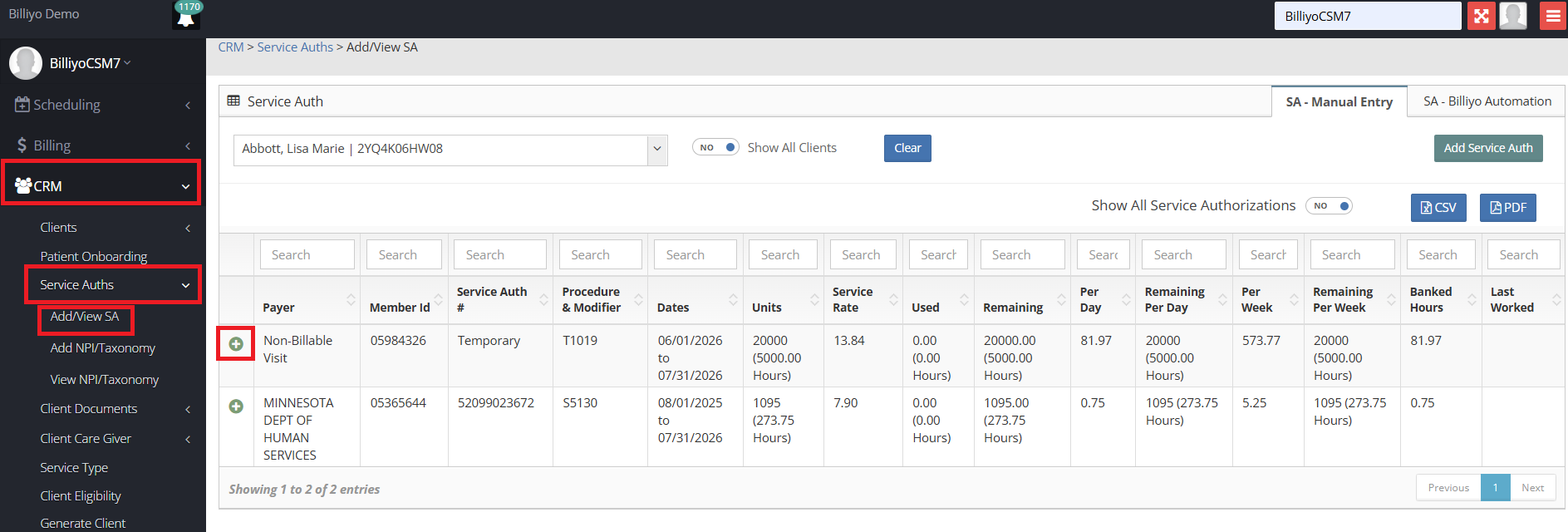
Once in the Service Auth, make sure to change the payer to the payer that the service agreement came from and also change the Not Billable Toggle to "No".
Make sure to update the Service Auth Number to reflect the one on the service agreement that you have received.
Continue filling out the service auth making changes to the rate, date, etc. as needed.
Click .
- [Getting Started](https://knowledge.billiyo.com/knowledge/getting-started?hsLang=en#main-content)
- [Onboarding trainings](https://knowledge.billiyo.com/knowledge/getting-started?hsLang=en#onboarding-trainings)
- [Clients](https://knowledge.billiyo.com/knowledge/clients?hsLang=en#main-content)
- [Profile related info](https://knowledge.billiyo.com/knowledge/clients?hsLang=en#profile-related-info)
- [Patient onboarding](https://knowledge.billiyo.com/knowledge/clients?hsLang=en#patient-onboarding)
- [Patient dashboard related info](https://knowledge.billiyo.com/knowledge/clients?hsLang=en#patient-dashboard-related-info)
- [Caregiver connection info](https://knowledge.billiyo.com/knowledge/clients?hsLang=en#caregiver-connection-info)
- [Service authorization info](https://knowledge.billiyo.com/knowledge/clients?hsLang=en#service-authorization-info)
- [Care plan info](https://knowledge.billiyo.com/knowledge/clients?hsLang=en#care-plan-info)
- [Recalibrate client location](https://knowledge.billiyo.com/knowledge/clients?hsLang=en#recalibrate-client-location)
- [User accounts & client portal](https://knowledge.billiyo.com/knowledge/clients?hsLang=en#user-accounts-client-portal)
- [Client eligibility](https://knowledge.billiyo.com/knowledge/clients?hsLang=en#client-eligibility)
- [Q and A](https://knowledge.billiyo.com/knowledge/clients?hsLang=en#q-and-a)
- [Deleting Client Documents](https://knowledge.billiyo.com/knowledge/clients?hsLang=en#deleting-client-documents)
- [Services Tab](https://knowledge.billiyo.com/knowledge/clients?hsLang=en#services-tab)
- [Client Onboarding Application](https://knowledge.billiyo.com/knowledge/clients?hsLang=en#client-onboarding-application)
- [Employee](https://knowledge.billiyo.com/knowledge/employee?hsLang=en#main-content)
- [Profile related items](https://knowledge.billiyo.com/knowledge/employee?hsLang=en#profile-related-items)
- [User account info](https://knowledge.billiyo.com/knowledge/employee?hsLang=en#user-account-info)
- [Payroll info](https://knowledge.billiyo.com/knowledge/employee?hsLang=en#payroll-info)
- [Employee Hours Summary](https://knowledge.billiyo.com/knowledge/employee?hsLang=en#employee-hours-summary)
- [Expense info](https://knowledge.billiyo.com/knowledge/employee?hsLang=en#expense-info)
- [Request app user's location](https://knowledge.billiyo.com/knowledge/employee?hsLang=en#request-app-users-location)
- [Caregiver app info](https://knowledge.billiyo.com/knowledge/employee?hsLang=en#caregiver-app-info)
- [Clinical app info](https://knowledge.billiyo.com/knowledge/employee?hsLang=en#clinical-app-info)
- [Telephony](https://knowledge.billiyo.com/knowledge/employee?hsLang=en#telephony)
- [Caregiver dashboard](https://knowledge.billiyo.com/knowledge/employee?hsLang=en#caregiver-dashboard)
- [Employee onboarding URL](https://knowledge.billiyo.com/knowledge/employee?hsLang=en#employee-onboarding-url)
- [Q and A](https://knowledge.billiyo.com/knowledge/employee?hsLang=en#q-and-a)
- [Mobile apps](https://knowledge.billiyo.com/knowledge/employee?hsLang=en#mobile-apps)
- [Deleting Employee Documents](https://knowledge.billiyo.com/knowledge/employee?hsLang=en#deleting-employee-documents)
- [Employee Services Tracking](https://knowledge.billiyo.com/knowledge/employee?hsLang=en#employee-services-tracking)
- [Reset Password](https://knowledge.billiyo.com/knowledge/employee?hsLang=en#reset-password)
- [Scheduling & Timesheets](https://knowledge.billiyo.com/knowledge/scheduling-timesheets?hsLang=en#main-content)
- [Scheduling related info](https://knowledge.billiyo.com/knowledge/scheduling-timesheets?hsLang=en#scheduling-related-info)
- [Schedules approval related info](https://knowledge.billiyo.com/knowledge/scheduling-timesheets?hsLang=en#schedules-approval-related-info)
- [Electronic timesheet info](https://knowledge.billiyo.com/knowledge/scheduling-timesheets?hsLang=en#electronic-timesheet-info)
- [Manual timesheet Info](https://knowledge.billiyo.com/knowledge/scheduling-timesheets?hsLang=en#manual-timesheet-info)
- [Manual clock in/out info](https://knowledge.billiyo.com/knowledge/scheduling-timesheets?hsLang=en#manual-clock-in-out-info)
- [Q and A](https://knowledge.billiyo.com/knowledge/scheduling-timesheets?hsLang=en#q-and-a)
- [Clinical & Documentation](https://knowledge.billiyo.com/knowledge/clinical-documentation?hsLang=en#main-content)
- [Service verification](https://knowledge.billiyo.com/knowledge/clinical-documentation?hsLang=en#service-verification)
- [Clinical forms info](https://knowledge.billiyo.com/knowledge/clinical-documentation?hsLang=en#clinical-forms-info)
- [Nursing visit](https://knowledge.billiyo.com/knowledge/clinical-documentation?hsLang=en#nursing-visit)
- [PDN info](https://knowledge.billiyo.com/knowledge/clinical-documentation?hsLang=en#pdn-info)
- [Progress note](https://knowledge.billiyo.com/knowledge/clinical-documentation?hsLang=en#progress-note)
- [Vitals log](https://knowledge.billiyo.com/knowledge/clinical-documentation?hsLang=en#vitals-log)
- [Health analysis](https://knowledge.billiyo.com/knowledge/clinical-documentation?hsLang=en#health-analysis)
- [eMar info](https://knowledge.billiyo.com/knowledge/clinical-documentation?hsLang=en#emar-info)
- [OASIS submissions](https://knowledge.billiyo.com/knowledge/clinical-documentation?hsLang=en#oasis-submissions)
- [Skilled patient task flow](https://knowledge.billiyo.com/knowledge/clinical-documentation?hsLang=en#skilled-patient-task-flow)
- [QA QI info](https://knowledge.billiyo.com/knowledge/clinical-documentation?hsLang=en#qa-qi-info)
- [Patient Dashboard](https://knowledge.billiyo.com/knowledge/clinical-documentation?hsLang=en#patient-dashboard)
- [Physician orders](https://knowledge.billiyo.com/knowledge/clinical-documentation?hsLang=en#physician-orders)
- [Upload documents info](https://knowledge.billiyo.com/knowledge/clinical-documentation?hsLang=en#upload-documents-info)
- [QP visit documentation](https://knowledge.billiyo.com/knowledge/clinical-documentation?hsLang=en#qp-visit-documentation)
- [Digitalized documents info](https://knowledge.billiyo.com/knowledge/clinical-documentation?hsLang=en#digitalized-documents-info)
- [Q and A](https://knowledge.billiyo.com/knowledge/clinical-documentation?hsLang=en#q-and-a)
- [Medication](https://knowledge.billiyo.com/knowledge/clinical-documentation?hsLang=en#medication)
- [Claims & Invoices](https://knowledge.billiyo.com/knowledge/claims-invoices?hsLang=en#main-content)
- [Claim related info](https://knowledge.billiyo.com/knowledge/claims-invoices?hsLang=en#claim-related-info)
- [Invoice related info](https://knowledge.billiyo.com/knowledge/claims-invoices?hsLang=en#invoice-related-info)
- [EVV claim related info](https://knowledge.billiyo.com/knowledge/claims-invoices?hsLang=en#evv-claim-related-info)
- [Claim Detail Report info](https://knowledge.billiyo.com/knowledge/claims-invoices?hsLang=en#claim-detail-report-info)
- [Denial Analysis Report info](https://knowledge.billiyo.com/knowledge/claims-invoices?hsLang=en#denial-analysis-report-info)
- [Electronic Remittance info](https://knowledge.billiyo.com/knowledge/claims-invoices?hsLang=en#electronic-remittance-info)
- [Q and A](https://knowledge.billiyo.com/knowledge/claims-invoices?hsLang=en#q-and-a)
- [Service Verification Failed](https://knowledge.billiyo.com/knowledge/claims-invoices?hsLang=en#service-verification-failed)
- [Reporting](https://knowledge.billiyo.com/knowledge/reporting?hsLang=en#main-content)
- [Dashboards info (excluding "Caregiver Dashboard")](https://knowledge.billiyo.com/knowledge/reporting?hsLang=en#dashboards-info-excluding-caregiver-dashboard)
- [Contact Masters](https://knowledge.billiyo.com/knowledge/reporting?hsLang=en#contact-masters)
- [ServiceAuth](https://knowledge.billiyo.com/knowledge/reporting?hsLang=en#serviceauth)
- [LEIE](https://knowledge.billiyo.com/knowledge/reporting?hsLang=en#leie)
- [Balance And Aging](https://knowledge.billiyo.com/knowledge/reporting?hsLang=en#balance-and-aging)
- [Batch Detail](https://knowledge.billiyo.com/knowledge/reporting?hsLang=en#batch-detail)
- [Late/Missed Schedule](https://knowledge.billiyo.com/knowledge/reporting?hsLang=en#late-missed-schedule)
- [Dynamic Report](https://knowledge.billiyo.com/knowledge/reporting?hsLang=en#dynamic-report)
- [Cost Report](https://knowledge.billiyo.com/knowledge/reporting?hsLang=en#cost-report)
- [Financial Reports](https://knowledge.billiyo.com/knowledge/reporting?hsLang=en#financial-reports)
- [Q and A](https://knowledge.billiyo.com/knowledge/reporting?hsLang=en#q-and-a)
- [Download Documents](https://knowledge.billiyo.com/knowledge/reporting?hsLang=en#download-documents)
- [Settings & Setup](https://knowledge.billiyo.com/knowledge/settings-setup?hsLang=en#main-content)
- [Billiyo subscription info](https://knowledge.billiyo.com/knowledge/settings-setup?hsLang=en#billiyo-subscription-info)
- [Company settings info](https://knowledge.billiyo.com/knowledge/settings-setup?hsLang=en#company-settings-info)
- [Surveyor user account info](https://knowledge.billiyo.com/knowledge/settings-setup?hsLang=en#surveyor-user-account-info)
- [Service type management info](https://knowledge.billiyo.com/knowledge/settings-setup?hsLang=en#service-type-management-info)
- [Q and A](https://knowledge.billiyo.com/knowledge/settings-setup?hsLang=en#q-and-a)
- [Basic Company Information](https://knowledge.billiyo.com/knowledge/settings-setup?hsLang=en#basic-company-information)
- [Communication & Tasks](https://knowledge.billiyo.com/knowledge/communication-tasks?hsLang=en#main-content)
- [Chat](https://knowledge.billiyo.com/knowledge/communication-tasks?hsLang=en#chat)
- [Tasks](https://knowledge.billiyo.com/knowledge/communication-tasks?hsLang=en#tasks)
- [Mass communications](https://knowledge.billiyo.com/knowledge/communication-tasks?hsLang=en#mass-communications)
- [Reconciling eFax](https://knowledge.billiyo.com/knowledge/communication-tasks?hsLang=en#reconciling-efax)
- [View Fax](https://knowledge.billiyo.com/knowledge/communication-tasks?hsLang=en#view-fax)
- [Patient Dashboard Communications](https://knowledge.billiyo.com/knowledge/communication-tasks?hsLang=en#patient-dashboard-communications)
- [Employee Communications](https://knowledge.billiyo.com/knowledge/communication-tasks?hsLang=en#employee-communications)
- [Product Updates](https://knowledge.billiyo.com/knowledge/product-updates?hsLang=en#main-content)
- [Product updates](https://knowledge.billiyo.com/knowledge/product-updates?hsLang=en#product-updates)
- [Electronic Visit Verification (EVV)](https://knowledge.billiyo.com/knowledge/electronic-visit-verification-evv?hsLang=en#main-content)
- [Minnesota (MN) EVV](https://knowledge.billiyo.com/knowledge/electronic-visit-verification-evv?hsLang=en#minnesota-mn-evv)
- [Review EVV](https://knowledge.billiyo.com/knowledge/electronic-visit-verification-evv?hsLang=en#review-evv)
- [More](https://knowledge.billiyo.com/knowledge/more?hsLang=en#main-content)
- [Company](https://knowledge.billiyo.com/knowledge/more?hsLang=en#company)
- [User Account](https://knowledge.billiyo.com/knowledge/more?hsLang=en#user-account)
- [Product Updates](https://knowledge.billiyo.com/knowledge/more?hsLang=en#product-updates)
- [Mobile Apps](https://knowledge.billiyo.com/knowledge/mobile-apps?hsLang=en#main-content)
- [Billiyo for Caregiver App](https://knowledge.billiyo.com/knowledge/mobile-apps?hsLang=en#billiyo-for-caregiver-app)
- [Billiyo Clinical App](https://knowledge.billiyo.com/knowledge/mobile-apps?hsLang=en#billiyo-clinical-app)
- [Mobile Applications](https://knowledge.billiyo.com/knowledge/mobile-apps?hsLang=en#mobile-applications)
- [Billiyo for Adult Day Care App](https://knowledge.billiyo.com/knowledge/mobile-apps?hsLang=en#billiyo-for-adult-day-care-app)
- [CRM](https://knowledge.billiyo.com/knowledge/crm?hsLang=en#main-content)
- [Service Auths](https://knowledge.billiyo.com/knowledge/crm?hsLang=en#service-auths)
- [Dashboards](https://knowledge.billiyo.com/knowledge/dashboards?hsLang=en#main-content)
- [Document Hub](https://knowledge.billiyo.com/knowledge/dashboards?hsLang=en#document-hub)
- [Announcements](https://knowledge.billiyo.com/knowledge/announcements?hsLang=en)
- [Adult Day Care](https://knowledge.billiyo.com/knowledge/adult-day-care?hsLang=en#main-content)
- [Adult Daycare App](https://knowledge.billiyo.com/knowledge/adult-day-care?hsLang=en#adult-daycare-app)
[](http://billiyo.com)
Billiyo Help Center
Copyright © 2026, Billiyo Health Inc.