---
title: Submitting Non-EVV Schedules with Visit Notes
description: Learn how to submit visit notes without requiring EVV
---
[Skip to content](https://knowledge.billiyo.com/knowledge/submitting-visit-notes-for-non-evv-visits#main-content)
English
Show submenu for translations
[![LOGO BLUE.png\]](https://knowledge.billiyo.com/hs-fs/hubfs/LOGO%20BLUE.png?height=40&name=LOGO%20BLUE.png)](https://billiyo.com/)
Open main navigation
Close main navigation
- English
Show submenu for translations
- [Portal Login](https://billiyo.com/App/security/signin.aspx)
[Portal Login](https://billiyo.com/App/security/signin.aspx)
Looking for something specific?
- There are no suggestions because the search field is empty.
1. [Help Center](https://knowledge.billiyo.com/knowledge?hsLang=en)
2. [Employee](https://knowledge.billiyo.com/knowledge/employee?hsLang=en)
3. [Caregiver app info](https://knowledge.billiyo.com/knowledge/employee?hsLang=en#caregiver-app-info)
# Submitting Non-EVV Schedules with Visit Notes
## Learn how to submit visit notes without requiring EVV
[Click here](https://knowledge.billiyo.com/knowledge/submitting-schedules-without-clock-in/clock-out-manual-timesheet?hsLang=en) to learn how to submit non-EVV visits without requiring remarks
Jump To:
[How to Enable Visit Notes for Non-EVV Visits](https://knowledge.billiyo.com/knowledge/submitting-visit-notes-for-non-evv-visits#enable)
[App Work Flow](https://knowledge.billiyo.com/knowledge/submitting-visit-notes-for-non-evv-visits#App)
### How to Enable Visit Notes for Non-EVV Visits
To manage remarks for non-EVV visits, in the left menu navigate to:
```
More > Company > Company Settings
```
Next, click on the "Configurations" tab and then the  icon in the upper right corner.
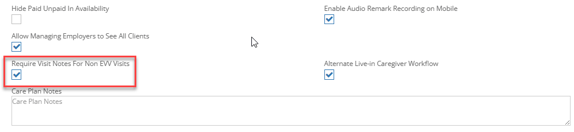
On the pop-up that appears, locate the " Require Visit Notes For Non EVV Visits " checkbox. If the checkbox is checked this feature is enabled, if it is unchecked the feature is disabled.
### App Work Flow
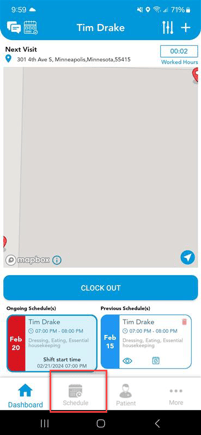
To submit non-EVV visits, we will first tap the **'Schedule'** icon at the bottom of the screen.
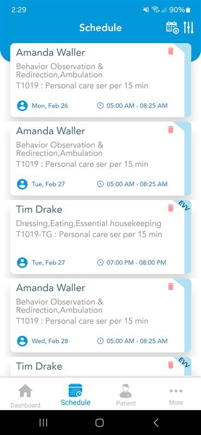
If required, we can search for date and client by tapping on the filter  icon in the top right of the page. We can now locate the visits that we need to enter visit notes for and submit.
To submit these schedules, first swipe the appointment box to the right. This will mark the schedule as worked
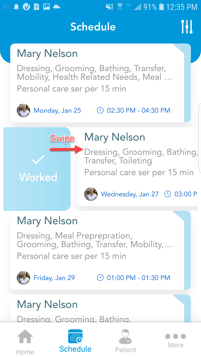
You can swipe multiple schedules to submit at the same time.
Once you have swiped your schedules, tap the checkmark  icon. This will take you to a page where we can document the serves that were completed.
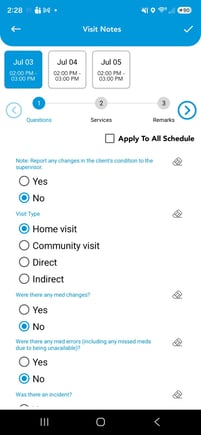
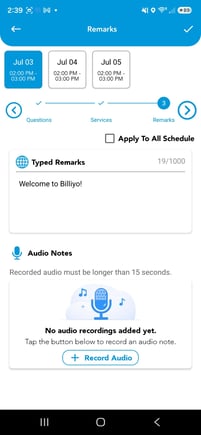
At the top of this page we can see the visits that were selected and below that are three sections: Questions, Services and Remarks.
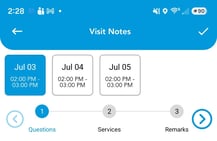
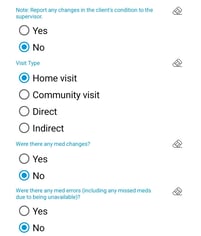
**Questions**
In this first section we will answer any questions that have been set up by your agency. For assistance on entering custom visit questions, please reach out to your customer success manager.
To advance to the next page we will use the  button.
**Services**
In the following tab, we can document the services and outcomes that were preformed during the visit. These services and outcomes were set up in the [care plan](https://knowledge.billiyo.com/knowledge/add?hsLang=en) that was prepared for the visit.
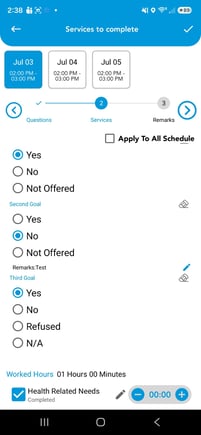
To advance to the next page we will use the  button.
**Remarks**
In the following page, we can enter a custom text or audio remark on the visit. Please [click here](https://knowledge.billiyo.com/knowledge/enter-audio-remarks-into-visits?hsLang=en) to learn more about how to enable audio remarks.
**Apply To All Schedules**
In the first day that was selected, there is a checkbox titled "Apply To All Schedules"
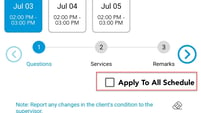
Enabling this field will copy the responses you entered onto the other days. For example, if you complete the services tab, and then select "Apply to All," the responses you documented will be copied into the services tab for every day that you selected. With this feature we can reduce the need to enter duplicate information.
**Signatures**
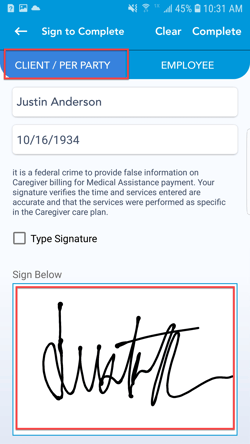
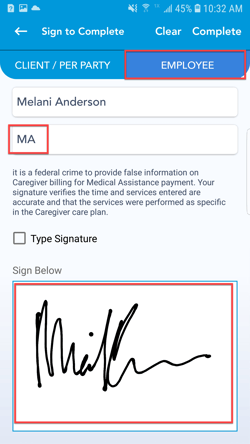
After competing your visit notes, please hit the white check mark, , to the top right of the page. You can then receive a client and employee signature onto the visit.
To do this, first request a signature from the client. This is to indicate that they are successfully signing off on the shift. Then the caregiver will then sign and initial, indicating that all of the information they provided is accurate. Finally, tap on 'Complete' to submit the visit.
If you and/or the client cannot provide a written signature, you may type the signature by checking the box next to '**Type Signature**'.
- [Getting Started](https://knowledge.billiyo.com/knowledge/getting-started?hsLang=en#main-content)
- [Onboarding trainings](https://knowledge.billiyo.com/knowledge/getting-started?hsLang=en#onboarding-trainings)
- [Clients](https://knowledge.billiyo.com/knowledge/clients?hsLang=en#main-content)
- [Profile related info](https://knowledge.billiyo.com/knowledge/clients?hsLang=en#profile-related-info)
- [Patient onboarding](https://knowledge.billiyo.com/knowledge/clients?hsLang=en#patient-onboarding)
- [Patient dashboard related info](https://knowledge.billiyo.com/knowledge/clients?hsLang=en#patient-dashboard-related-info)
- [Caregiver connection info](https://knowledge.billiyo.com/knowledge/clients?hsLang=en#caregiver-connection-info)
- [Service authorization info](https://knowledge.billiyo.com/knowledge/clients?hsLang=en#service-authorization-info)
- [Care plan info](https://knowledge.billiyo.com/knowledge/clients?hsLang=en#care-plan-info)
- [Recalibrate client location](https://knowledge.billiyo.com/knowledge/clients?hsLang=en#recalibrate-client-location)
- [User accounts & client portal](https://knowledge.billiyo.com/knowledge/clients?hsLang=en#user-accounts-client-portal)
- [Client eligibility](https://knowledge.billiyo.com/knowledge/clients?hsLang=en#client-eligibility)
- [Q and A](https://knowledge.billiyo.com/knowledge/clients?hsLang=en#q-and-a)
- [Deleting Client Documents](https://knowledge.billiyo.com/knowledge/clients?hsLang=en#deleting-client-documents)
- [Services Tab](https://knowledge.billiyo.com/knowledge/clients?hsLang=en#services-tab)
- [Client Onboarding Application](https://knowledge.billiyo.com/knowledge/clients?hsLang=en#client-onboarding-application)
- [Employee](https://knowledge.billiyo.com/knowledge/employee?hsLang=en#main-content)
- [Profile related items](https://knowledge.billiyo.com/knowledge/employee?hsLang=en#profile-related-items)
- [User account info](https://knowledge.billiyo.com/knowledge/employee?hsLang=en#user-account-info)
- [Payroll info](https://knowledge.billiyo.com/knowledge/employee?hsLang=en#payroll-info)
- [Employee Hours Summary](https://knowledge.billiyo.com/knowledge/employee?hsLang=en#employee-hours-summary)
- [Expense info](https://knowledge.billiyo.com/knowledge/employee?hsLang=en#expense-info)
- [Request app user's location](https://knowledge.billiyo.com/knowledge/employee?hsLang=en#request-app-users-location)
- [Caregiver app info](https://knowledge.billiyo.com/knowledge/employee?hsLang=en#caregiver-app-info)
- [Clinical app info](https://knowledge.billiyo.com/knowledge/employee?hsLang=en#clinical-app-info)
- [Telephony](https://knowledge.billiyo.com/knowledge/employee?hsLang=en#telephony)
- [Caregiver dashboard](https://knowledge.billiyo.com/knowledge/employee?hsLang=en#caregiver-dashboard)
- [Employee onboarding URL](https://knowledge.billiyo.com/knowledge/employee?hsLang=en#employee-onboarding-url)
- [Q and A](https://knowledge.billiyo.com/knowledge/employee?hsLang=en#q-and-a)
- [Mobile apps](https://knowledge.billiyo.com/knowledge/employee?hsLang=en#mobile-apps)
- [Deleting Employee Documents](https://knowledge.billiyo.com/knowledge/employee?hsLang=en#deleting-employee-documents)
- [Employee Services Tracking](https://knowledge.billiyo.com/knowledge/employee?hsLang=en#employee-services-tracking)
- [Reset Password](https://knowledge.billiyo.com/knowledge/employee?hsLang=en#reset-password)
- [Scheduling & Timesheets](https://knowledge.billiyo.com/knowledge/scheduling-timesheets?hsLang=en#main-content)
- [Scheduling related info](https://knowledge.billiyo.com/knowledge/scheduling-timesheets?hsLang=en#scheduling-related-info)
- [Schedules approval related info](https://knowledge.billiyo.com/knowledge/scheduling-timesheets?hsLang=en#schedules-approval-related-info)
- [Electronic timesheet info](https://knowledge.billiyo.com/knowledge/scheduling-timesheets?hsLang=en#electronic-timesheet-info)
- [Manual timesheet Info](https://knowledge.billiyo.com/knowledge/scheduling-timesheets?hsLang=en#manual-timesheet-info)
- [Manual clock in/out info](https://knowledge.billiyo.com/knowledge/scheduling-timesheets?hsLang=en#manual-clock-in-out-info)
- [Q and A](https://knowledge.billiyo.com/knowledge/scheduling-timesheets?hsLang=en#q-and-a)
- [Clinical & Documentation](https://knowledge.billiyo.com/knowledge/clinical-documentation?hsLang=en#main-content)
- [Service verification](https://knowledge.billiyo.com/knowledge/clinical-documentation?hsLang=en#service-verification)
- [Clinical forms info](https://knowledge.billiyo.com/knowledge/clinical-documentation?hsLang=en#clinical-forms-info)
- [Nursing visit](https://knowledge.billiyo.com/knowledge/clinical-documentation?hsLang=en#nursing-visit)
- [PDN info](https://knowledge.billiyo.com/knowledge/clinical-documentation?hsLang=en#pdn-info)
- [Progress note](https://knowledge.billiyo.com/knowledge/clinical-documentation?hsLang=en#progress-note)
- [Vitals log](https://knowledge.billiyo.com/knowledge/clinical-documentation?hsLang=en#vitals-log)
- [Health analysis](https://knowledge.billiyo.com/knowledge/clinical-documentation?hsLang=en#health-analysis)
- [eMar info](https://knowledge.billiyo.com/knowledge/clinical-documentation?hsLang=en#emar-info)
- [OASIS submissions](https://knowledge.billiyo.com/knowledge/clinical-documentation?hsLang=en#oasis-submissions)
- [Skilled patient task flow](https://knowledge.billiyo.com/knowledge/clinical-documentation?hsLang=en#skilled-patient-task-flow)
- [QA QI info](https://knowledge.billiyo.com/knowledge/clinical-documentation?hsLang=en#qa-qi-info)
- [Patient Dashboard](https://knowledge.billiyo.com/knowledge/clinical-documentation?hsLang=en#patient-dashboard)
- [Physician orders](https://knowledge.billiyo.com/knowledge/clinical-documentation?hsLang=en#physician-orders)
- [Upload documents info](https://knowledge.billiyo.com/knowledge/clinical-documentation?hsLang=en#upload-documents-info)
- [QP visit documentation](https://knowledge.billiyo.com/knowledge/clinical-documentation?hsLang=en#qp-visit-documentation)
- [Digitalized documents info](https://knowledge.billiyo.com/knowledge/clinical-documentation?hsLang=en#digitalized-documents-info)
- [Q and A](https://knowledge.billiyo.com/knowledge/clinical-documentation?hsLang=en#q-and-a)
- [Medication](https://knowledge.billiyo.com/knowledge/clinical-documentation?hsLang=en#medication)
- [Claims & Invoices](https://knowledge.billiyo.com/knowledge/claims-invoices?hsLang=en#main-content)
- [Claim related info](https://knowledge.billiyo.com/knowledge/claims-invoices?hsLang=en#claim-related-info)
- [Invoice related info](https://knowledge.billiyo.com/knowledge/claims-invoices?hsLang=en#invoice-related-info)
- [EVV claim related info](https://knowledge.billiyo.com/knowledge/claims-invoices?hsLang=en#evv-claim-related-info)
- [Claim Detail Report info](https://knowledge.billiyo.com/knowledge/claims-invoices?hsLang=en#claim-detail-report-info)
- [Denial Analysis Report info](https://knowledge.billiyo.com/knowledge/claims-invoices?hsLang=en#denial-analysis-report-info)
- [Electronic Remittance info](https://knowledge.billiyo.com/knowledge/claims-invoices?hsLang=en#electronic-remittance-info)
- [Q and A](https://knowledge.billiyo.com/knowledge/claims-invoices?hsLang=en#q-and-a)
- [Service Verification Failed](https://knowledge.billiyo.com/knowledge/claims-invoices?hsLang=en#service-verification-failed)
- [Reporting](https://knowledge.billiyo.com/knowledge/reporting?hsLang=en#main-content)
- [Dashboards info (excluding "Caregiver Dashboard")](https://knowledge.billiyo.com/knowledge/reporting?hsLang=en#dashboards-info-excluding-caregiver-dashboard)
- [Contact Masters](https://knowledge.billiyo.com/knowledge/reporting?hsLang=en#contact-masters)
- [ServiceAuth](https://knowledge.billiyo.com/knowledge/reporting?hsLang=en#serviceauth)
- [LEIE](https://knowledge.billiyo.com/knowledge/reporting?hsLang=en#leie)
- [Balance And Aging](https://knowledge.billiyo.com/knowledge/reporting?hsLang=en#balance-and-aging)
- [Batch Detail](https://knowledge.billiyo.com/knowledge/reporting?hsLang=en#batch-detail)
- [Late/Missed Schedule](https://knowledge.billiyo.com/knowledge/reporting?hsLang=en#late-missed-schedule)
- [Dynamic Report](https://knowledge.billiyo.com/knowledge/reporting?hsLang=en#dynamic-report)
- [Cost Report](https://knowledge.billiyo.com/knowledge/reporting?hsLang=en#cost-report)
- [Financial Reports](https://knowledge.billiyo.com/knowledge/reporting?hsLang=en#financial-reports)
- [Q and A](https://knowledge.billiyo.com/knowledge/reporting?hsLang=en#q-and-a)
- [Download Documents](https://knowledge.billiyo.com/knowledge/reporting?hsLang=en#download-documents)
- [Settings & Setup](https://knowledge.billiyo.com/knowledge/settings-setup?hsLang=en#main-content)
- [Billiyo subscription info](https://knowledge.billiyo.com/knowledge/settings-setup?hsLang=en#billiyo-subscription-info)
- [Company settings info](https://knowledge.billiyo.com/knowledge/settings-setup?hsLang=en#company-settings-info)
- [Surveyor user account info](https://knowledge.billiyo.com/knowledge/settings-setup?hsLang=en#surveyor-user-account-info)
- [Service type management info](https://knowledge.billiyo.com/knowledge/settings-setup?hsLang=en#service-type-management-info)
- [Q and A](https://knowledge.billiyo.com/knowledge/settings-setup?hsLang=en#q-and-a)
- [Basic Company Information](https://knowledge.billiyo.com/knowledge/settings-setup?hsLang=en#basic-company-information)
- [Communication & Tasks](https://knowledge.billiyo.com/knowledge/communication-tasks?hsLang=en#main-content)
- [Chat](https://knowledge.billiyo.com/knowledge/communication-tasks?hsLang=en#chat)
- [Tasks](https://knowledge.billiyo.com/knowledge/communication-tasks?hsLang=en#tasks)
- [Mass communications](https://knowledge.billiyo.com/knowledge/communication-tasks?hsLang=en#mass-communications)
- [Reconciling eFax](https://knowledge.billiyo.com/knowledge/communication-tasks?hsLang=en#reconciling-efax)
- [View Fax](https://knowledge.billiyo.com/knowledge/communication-tasks?hsLang=en#view-fax)
- [Patient Dashboard Communications](https://knowledge.billiyo.com/knowledge/communication-tasks?hsLang=en#patient-dashboard-communications)
- [Employee Communications](https://knowledge.billiyo.com/knowledge/communication-tasks?hsLang=en#employee-communications)
- [Product Updates](https://knowledge.billiyo.com/knowledge/product-updates?hsLang=en#main-content)
- [Product updates](https://knowledge.billiyo.com/knowledge/product-updates?hsLang=en#product-updates)
- [Electronic Visit Verification (EVV)](https://knowledge.billiyo.com/knowledge/electronic-visit-verification-evv?hsLang=en#main-content)
- [Minnesota (MN) EVV](https://knowledge.billiyo.com/knowledge/electronic-visit-verification-evv?hsLang=en#minnesota-mn-evv)
- [Review EVV](https://knowledge.billiyo.com/knowledge/electronic-visit-verification-evv?hsLang=en#review-evv)
- [More](https://knowledge.billiyo.com/knowledge/more?hsLang=en#main-content)
- [Company](https://knowledge.billiyo.com/knowledge/more?hsLang=en#company)
- [User Account](https://knowledge.billiyo.com/knowledge/more?hsLang=en#user-account)
- [Product Updates](https://knowledge.billiyo.com/knowledge/more?hsLang=en#product-updates)
- [Mobile Apps](https://knowledge.billiyo.com/knowledge/mobile-apps?hsLang=en#main-content)
- [Billiyo for Caregiver App](https://knowledge.billiyo.com/knowledge/mobile-apps?hsLang=en#billiyo-for-caregiver-app)
- [Billiyo Clinical App](https://knowledge.billiyo.com/knowledge/mobile-apps?hsLang=en#billiyo-clinical-app)
- [Mobile Applications](https://knowledge.billiyo.com/knowledge/mobile-apps?hsLang=en#mobile-applications)
- [Billiyo for Adult Day Care App](https://knowledge.billiyo.com/knowledge/mobile-apps?hsLang=en#billiyo-for-adult-day-care-app)
- [CRM](https://knowledge.billiyo.com/knowledge/crm?hsLang=en#main-content)
- [Service Auths](https://knowledge.billiyo.com/knowledge/crm?hsLang=en#service-auths)
- [Dashboards](https://knowledge.billiyo.com/knowledge/dashboards?hsLang=en#main-content)
- [Document Hub](https://knowledge.billiyo.com/knowledge/dashboards?hsLang=en#document-hub)
- [Announcements](https://knowledge.billiyo.com/knowledge/announcements?hsLang=en)
- [Adult Day Care](https://knowledge.billiyo.com/knowledge/adult-day-care?hsLang=en#main-content)
- [Adult Daycare App](https://knowledge.billiyo.com/knowledge/adult-day-care?hsLang=en#adult-daycare-app)
[](http://billiyo.com)
Billiyo Help Center
Copyright © 2026, Billiyo Health Inc.