![LOGO BLUE.png]](https://knowledge.billiyo.com/hs-fs/hubfs/LOGO%20BLUE.png?height=40&name=LOGO%20BLUE.png)
Jump To:
How to Use Smart Text
How to Access This Page
Creating a Smart Text
Reviewing Smart Texts
Editing a Smart Text
Deleting a Smart Text
How to Use Smart Text
Currently, Smart Text cannot be used in all pages.
As of 2/11/2026, Smart Text can only be used in:
-
“CRM” > “Clients” > “Patient Dashboard”, in the “Medications” tab under “Medication Review”
-
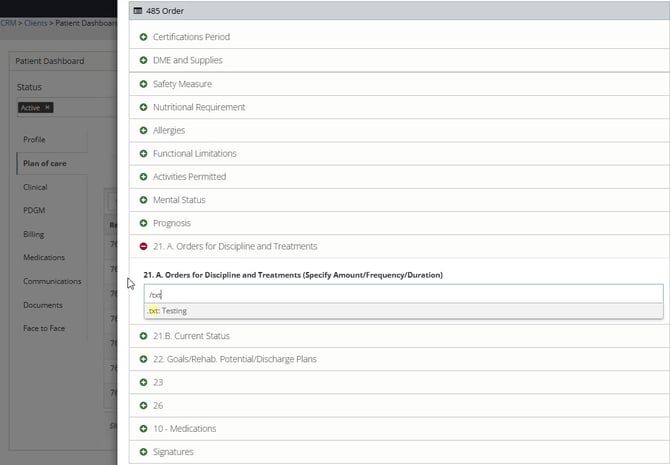
“CRM” > “Clients” > “Patient Dashboard”, under the “Plan of Care” tab in the following fields when adding a 485 Order:
-
21.A
-
21.B
-
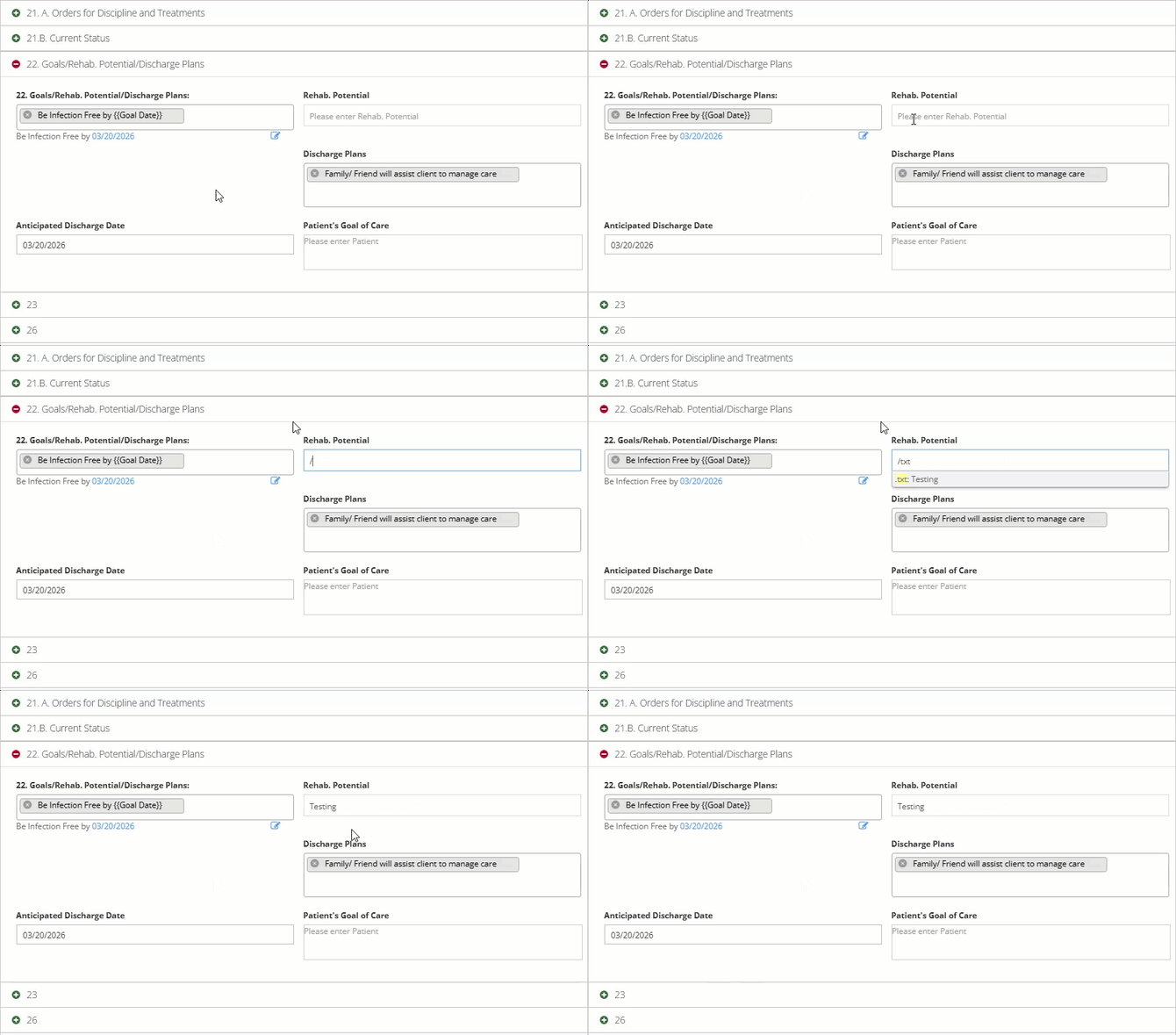
22 (Rehab. Potential)
-
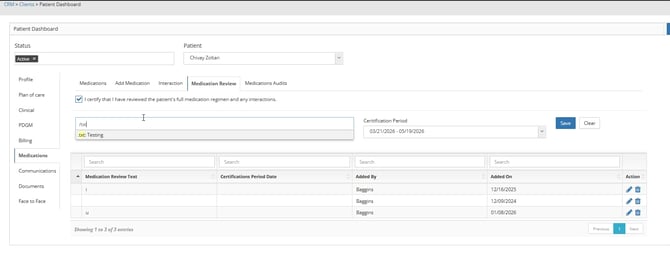
To use a Smart Text, when typing out a field, please type a “/”. Then enter a trigger for your Smart Text.
Below we will discuss how to set up and review these Smart Text Triggers
For example:
Navigation
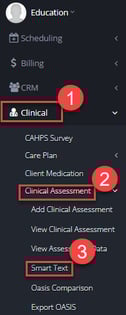
To access the Smart Text set up page, head to “Clinical” > “Clinical Assessments” > “Smart Text”.
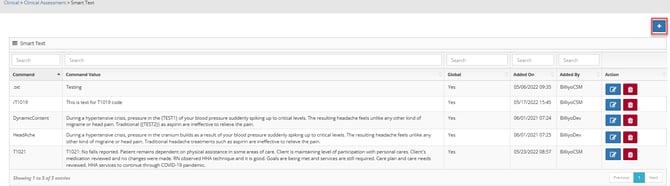
To create Smart Text, click on the blue button with the “+” sign toward the top right corner of this page.
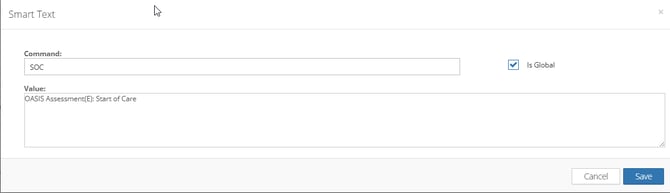
Upon doing so, a pop-up will appear with the following fields:
1. Command - The text abbreviation that triggers the the Smart Text autofill
2. Is Global - Enable if this Smart Text applies to all users, otherwise it will apply to just you
3. Value - The content that autofill's when Smart Text is triggered.
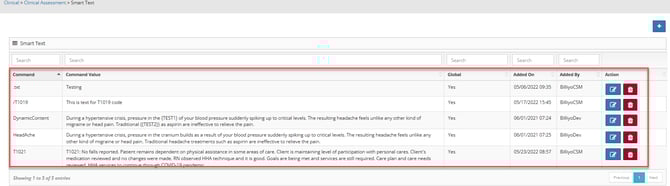
After clicking into the "Smart Text" page, we will see the Smart Texts that you’ve added. From this page we can see the information that was added for each Smart Text entry.
To edit a Smart Text entry, please head to the “Action” column on the table that appears. Here there will be a blue button with a “pencil” icon on it. Clicking on this will allow you to edit the:
-
Command
-
Is Global
-
Value
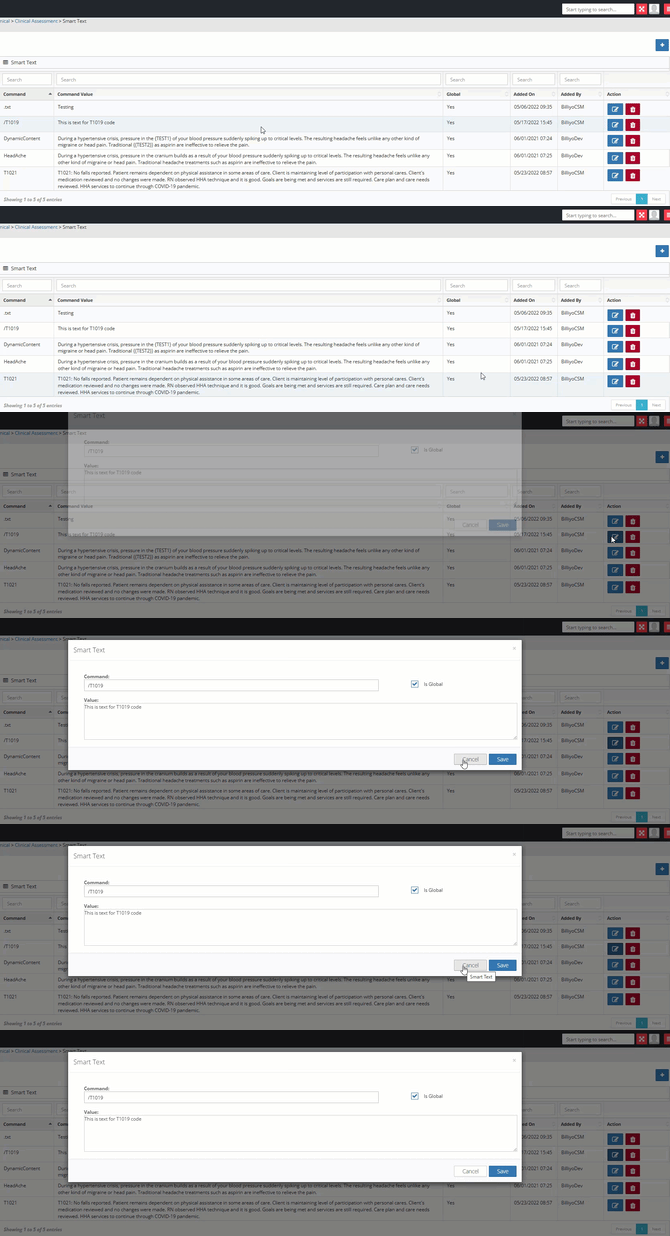
To save your changes, please click on the blue “Save” button.
To delete a smart text, click on the red button that has a “trash can” on it under the “Action” column in the table.
Upon doing so, a pop-up will appear. Click on the “Delete” button to confirm deletion.