![LOGO BLUE.png]](https://knowledge.billiyo.com/hs-fs/hubfs/LOGO%20BLUE.png?height=40&name=LOGO%20BLUE.png)
For agencies that have the Simple Scrubber we have developed the OASIS Dashboard.
Navigation: Dashboards>OASIS Dashboard
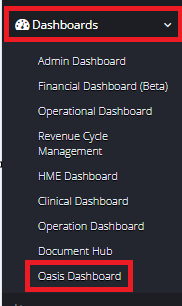
You will only see this Dashboard in Billiyo if you have signed up with Simple Health. If you are interested in Learning More please reach out to your CSM.
In order to submit an assessment to Simple all validation errors must be resolved.
To view the errors, click on the action icon and click on view errors

A Pop Up will appear listing the section of the error, the field of the error and the warning message.
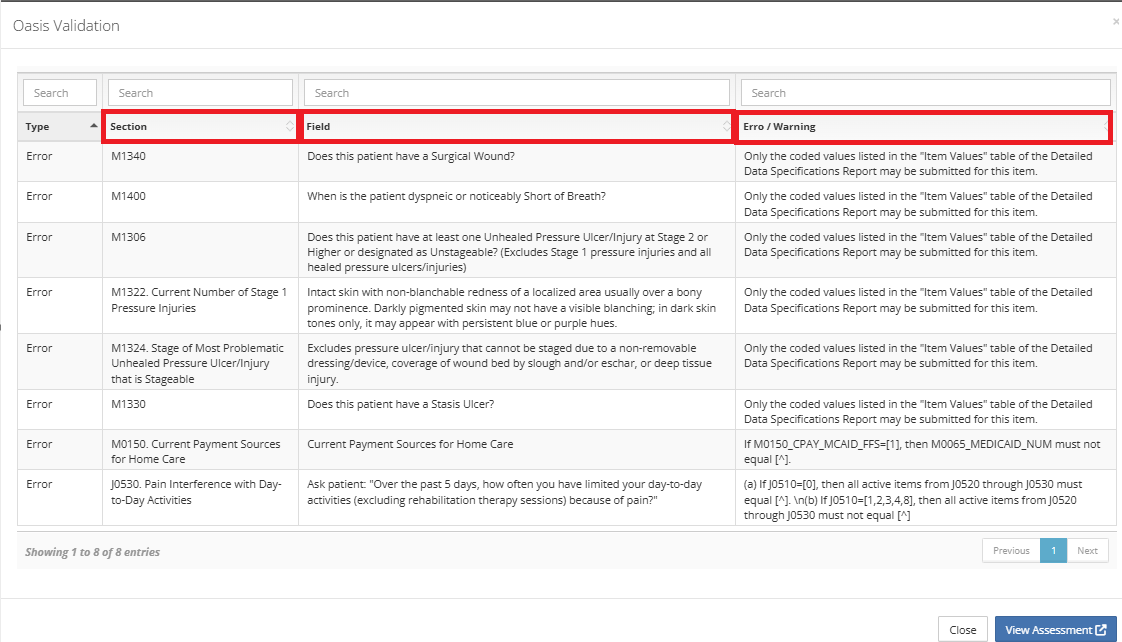
From here you can head on over to the assessment without leaving the page: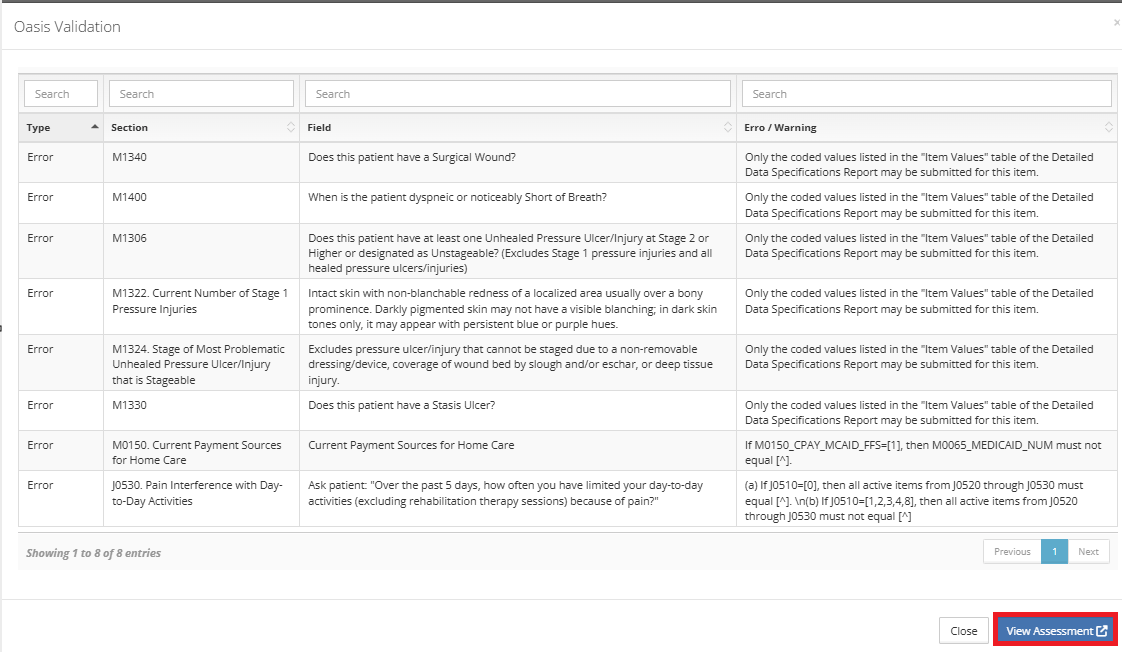
Once inside of the assessment you will see the section with error is identified by red text.
Click on the section identified with red text to view the questions in that section.
The question with the error is identified by a red dot.
Once the question is clicked on a red script will display with the warning message.
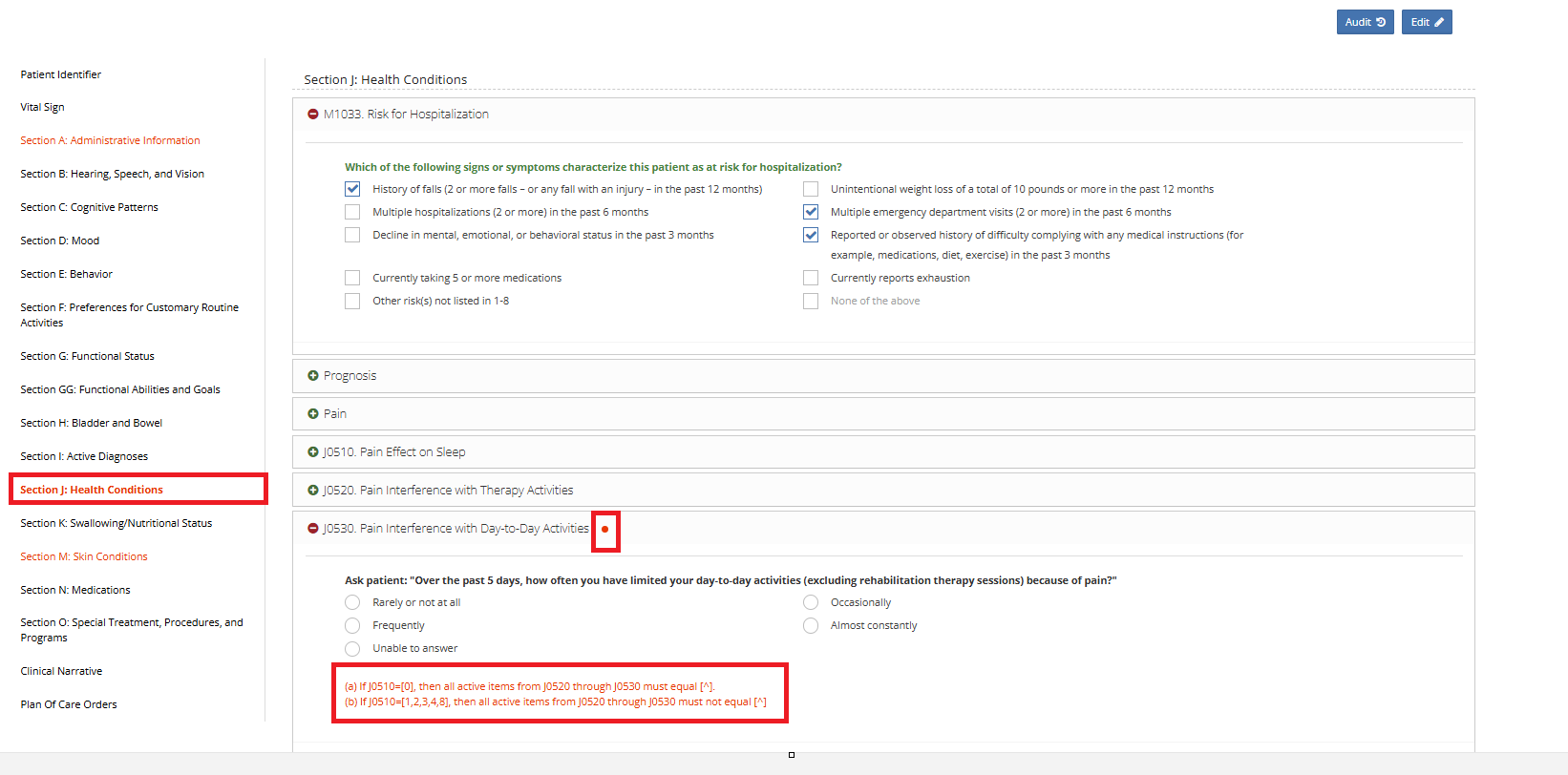
You will need to correct the error to make the red dot disappear.
You can either send the assessment back to the nurse for corrections or a clinician can make the edits here.
To make corrections click on Edit.
Then Save.
Continue to correct all questions with the red dot indicator until the assessment has no red text.
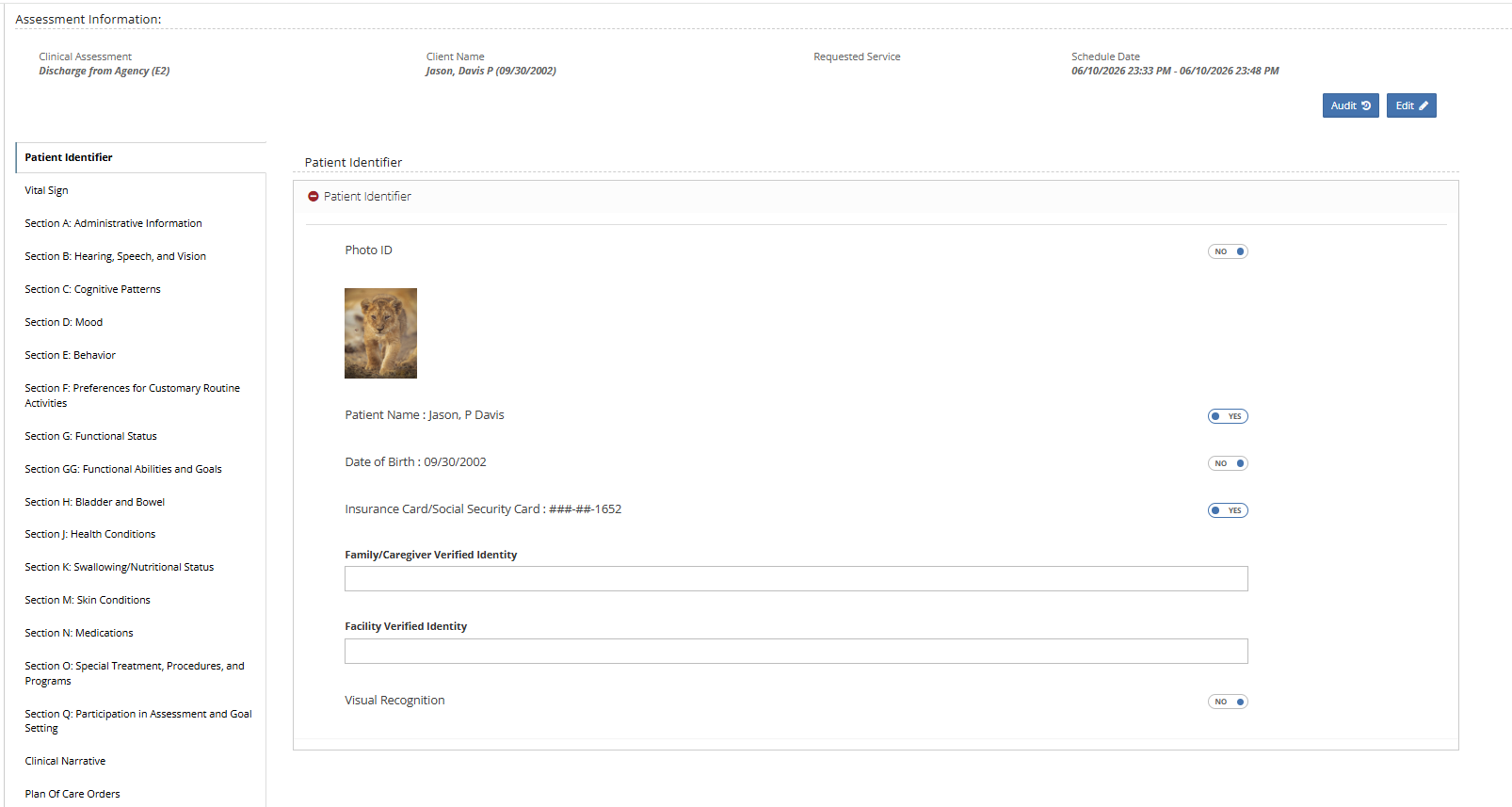
For more information on Auditing an Assessment Click Here.
Once the assessment has no error the status will change to "Ready to Submit" in the OASIS Dashboard.

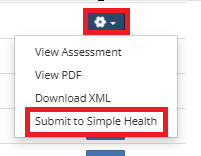
Once the Assessment is "Ready to Submit" you can take action and "Submit to Simple Health".
If no errors are found Simple will submit the OASIS to iQUIES.
Simple will send a response back to Billiyo of “Accepted”, “Rejected” or “Validation Errors”

Responses from Simple should take no more than 15 minutes once the OASIS is submitted to Simple.
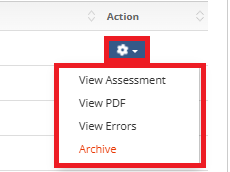
For Oasis with Validation errors, you can:
▪View assessment
▪View PDF
▪View Errors
▪Archive
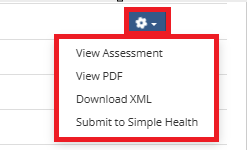
For OASIS that are ready to submit, you can:
▪View assessment
▪View PDF
▪Download XML
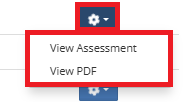
For OASIS that have been accepted by Simple, you can:
▪View assessment
▪View PDF
Other items to take note of:
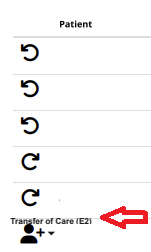
▪You can however over the icon at the left of the page to view which type of assessment this is
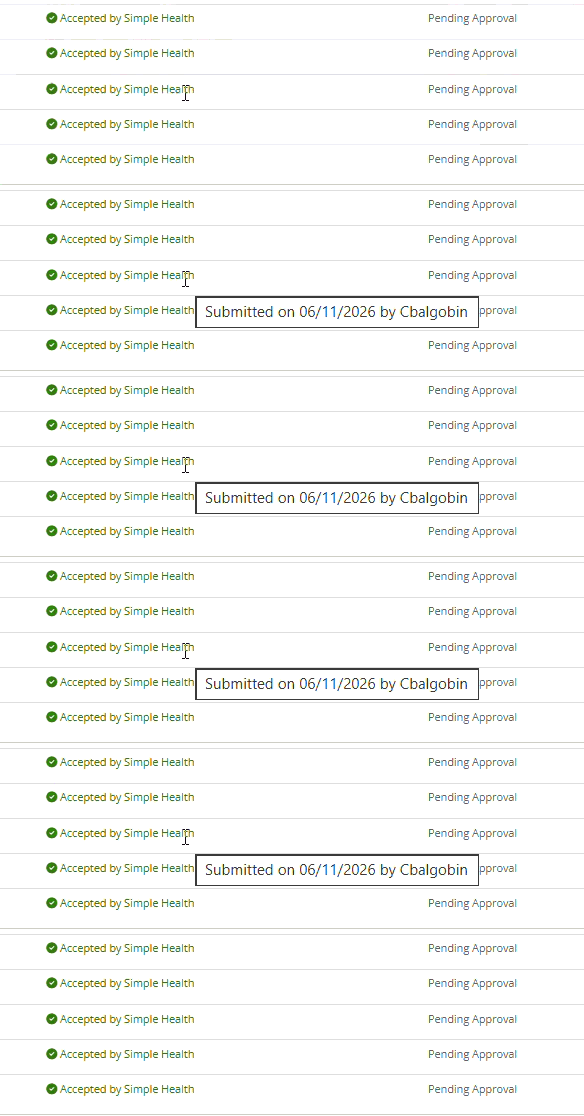
▪You can hover over the “Accepted by Simple” status to view when the assessment was submitted