![LOGO BLUE.png]](https://knowledge.billiyo.com/hs-fs/hubfs/LOGO%20BLUE.png?height=40&name=LOGO%20BLUE.png)
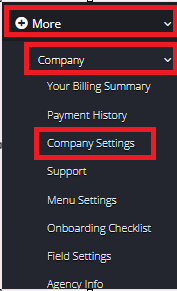
To enable this feature head on over to More>Company>Company Settings
Click on  .
.
And click  to edit.
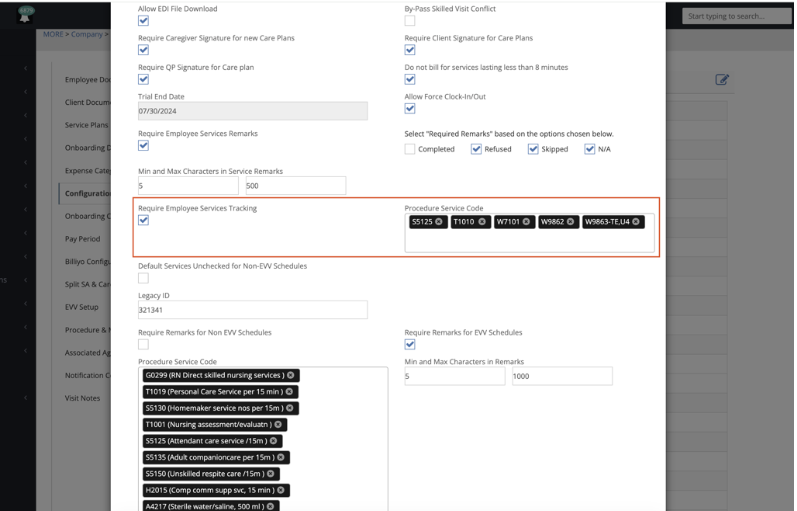
Here you will be able to enable the feature by clicking the box for "Require Employee Services Tracking":
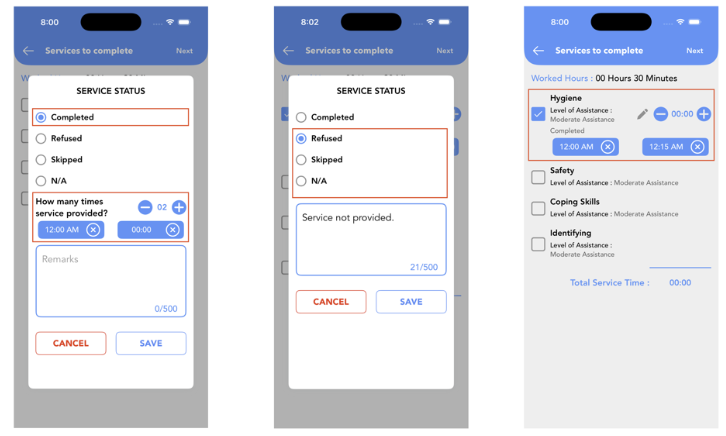
Once the setting is enabled, caregivers can use the Caregiver App to specify service times when marking a service as Completed.
They can select the number of times the service was provided and specify the corresponding service times. Maximum of 10 service time entries can be added for a single service.
For other service statuses such as Refused, Skipped, or N/A, service time selection will not be available.
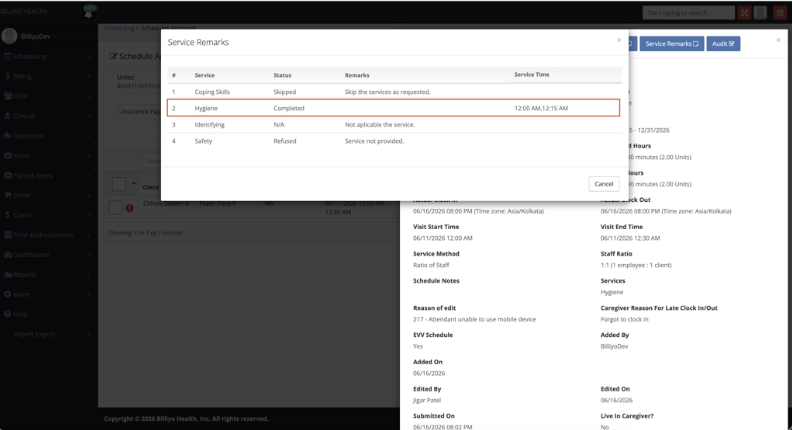
Once the schedule is submitted, the recorded service times can be viewed in the Service Remarks list on the Schedule Approval page.
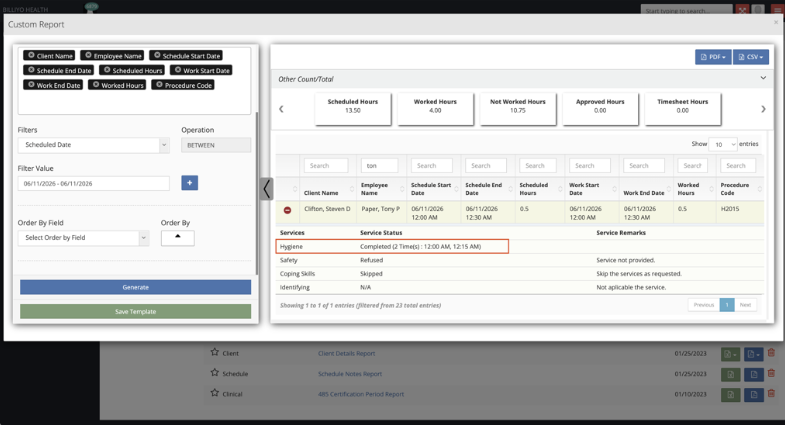
On the Dynamic Report page, you can generate a report for the submitted service times by selecting the "Client Schedule Report" report type under the "Schedule" category.