![LOGO BLUE.png]](https://knowledge.billiyo.com/hs-fs/hubfs/LOGO%20BLUE.png?height=40&name=LOGO%20BLUE.png)
Jump To:
Navigation
Add New Incident
Reviewing and Update Incidents
Navigation
To record an incident report that was filed in regards to an employee, we first need to navigate to their employee profile (Operations > Employees > View Employees). After entering an employee profile, we can see their incident reports by scrolling to the bottom of the page and clicking into the "Incidents" tab. 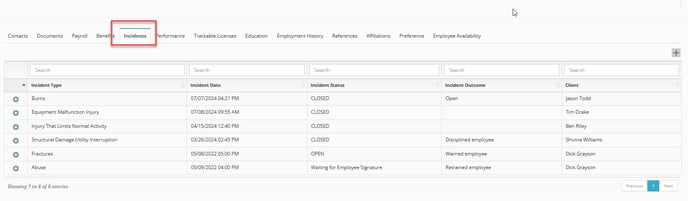
Here, we can see a list of all incident reports that involve our chosen employee.
The "incidents" that appear in the tab can also be recorded in the:
- Incident Report page
- Incident tab in the client profile
- Clinical tab in the Clinical App
- More tab in the caregiver app.
Add New Incident
To add a new incident to the "Incidents" tab, we can hit the grey  plus sign to the top right of the table.

In the pop up that appears we can document the incident report we want to enter.
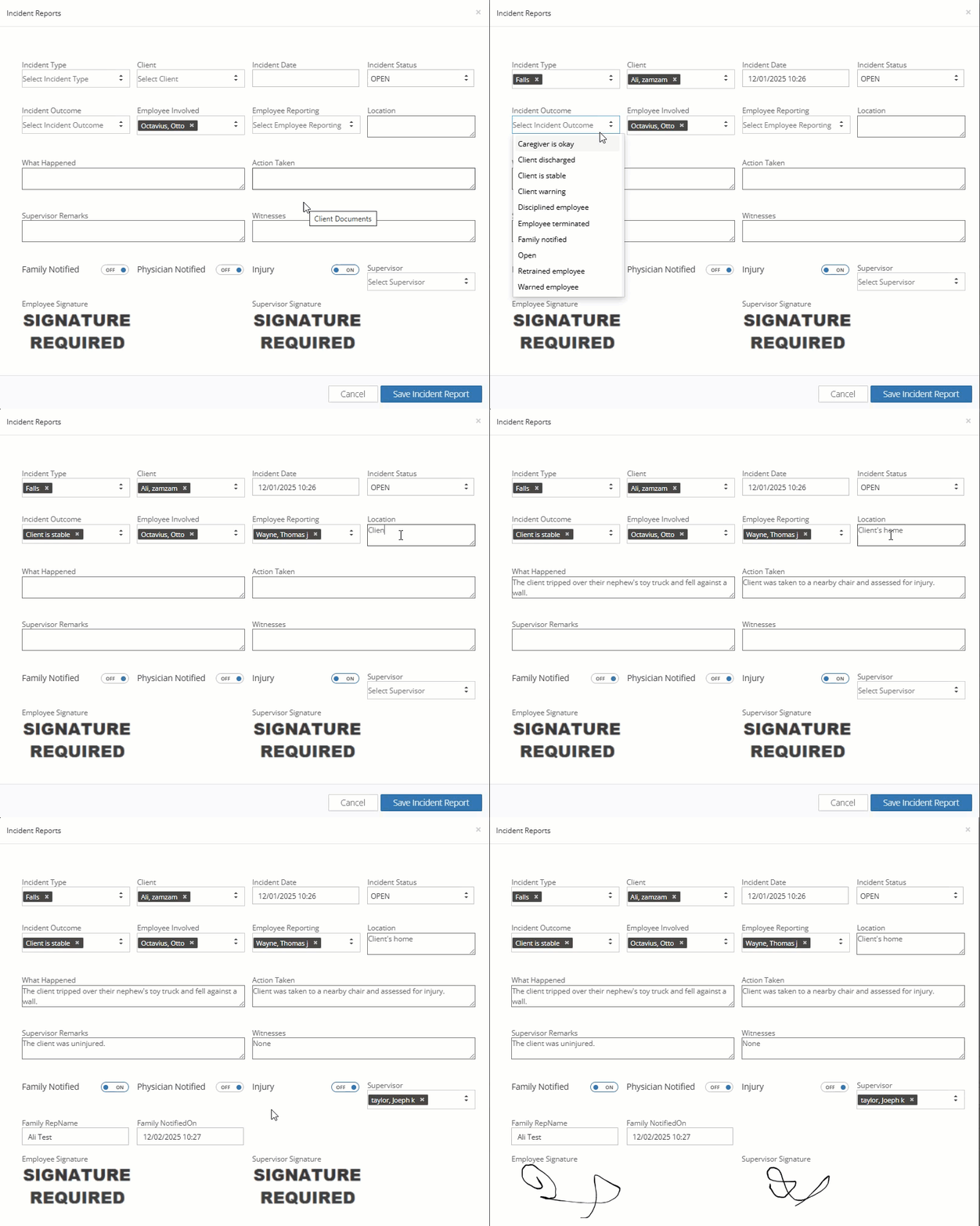
The fields we will be asked to enter are as follows:
(Required fields indicated with a *)
- *Incident Type - Please select an incident type from the drop down.
- *Client - Which patient was involved in the incident.
- *Incident Date - When did the incident occur.
- *Incident Status- Please select an incident status from the drop down.
- Incident Outcome - When the incident is resolved, please enter an outcome.
- *Employee Involved - This will autofill with the caregiver's profile.
- *Employee Reporting
- Location - Where did the incident occur.
- What Happened - Describe the incident.
- Action Taken - What actions have been taken as a result of the incident.
- Supervisor Remarks
- Witnesses - Who saw this incident occur.
- Family Notified - Please toggle to "On" when the family is notified of the incident.
- Physician Notified - Toggle to "On" when the physician is notified of the incident.
- Injury - Please toggle to "On" if the patient was injured as a result of the incident.
- *Supervisor - Who supervises the employee that was involved in the incident.
- *Employee Signature
- *Supervisor Signature
After filling out an incident report, we can save it by hitting the blue "Save Incident Report" button.
Reviewing and Update Incidents
Review an incident
To Review and update an incident we will head back to the "Incidents" tab in the employee profile and then locate the incident we want to work with. After finding the correct report, we and expand it by hitting the green plus sign.
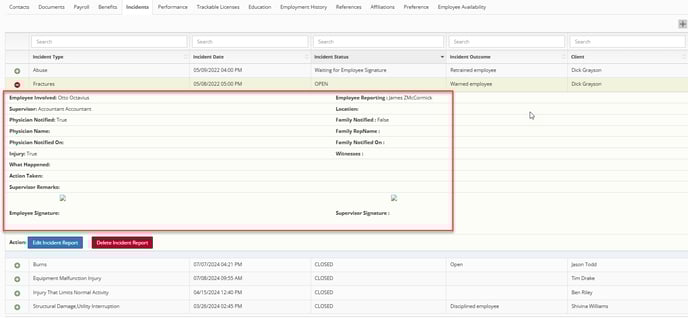
In this expanded view we can see the information that was entered into an incident report.
Delete an incident
If we want to delete this incident, we can click the red "Delete Incident Report" button.
Edit an incident
To edit an incident we will click on the blue Edit Incident Report button. This will trigger the same pop up as when we we first created the incident report.
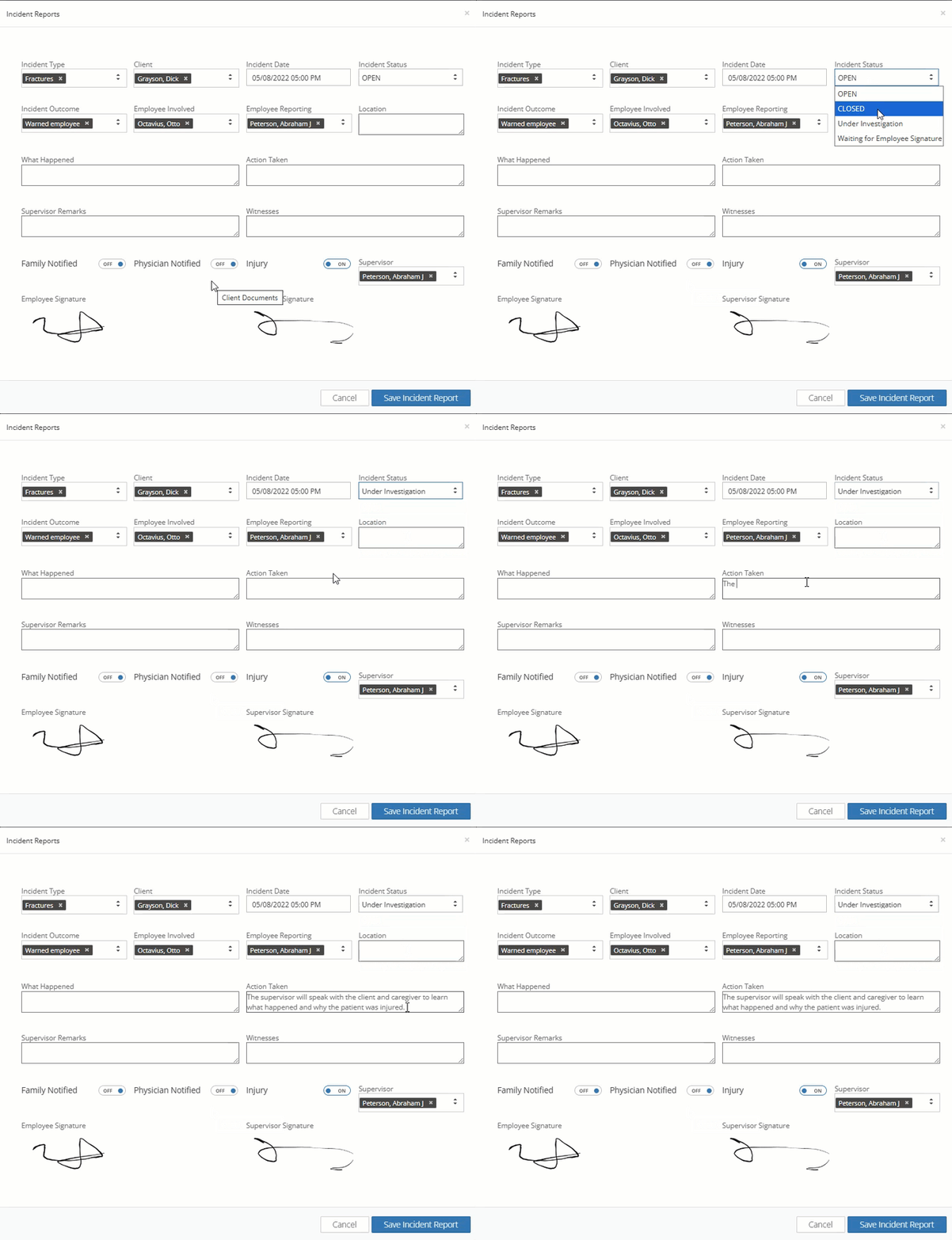
After updating the incident report, we can save our changes by hitting the blue "Save Incident Report" button.