---
title: Employee Management Dashboard
description: Quickly review your employee's availability, licenses and documentation with one page.
---
[Skip to content](https://knowledge.billiyo.com/knowledge/employee-management-dashboard1#main-content)
English
Show submenu for translations
[![LOGO BLUE.png\]](https://knowledge.billiyo.com/hs-fs/hubfs/LOGO%20BLUE.png?height=40&name=LOGO%20BLUE.png)](https://billiyo.com/)
Open main navigation
Close main navigation
- English
Show submenu for translations
- [Portal Login](https://billiyo.com/App/security/signin.aspx)
[Portal Login](https://billiyo.com/App/security/signin.aspx)
Looking for something specific?
- There are no suggestions because the search field is empty.
1. [Help Center](https://knowledge.billiyo.com/knowledge?hsLang=en)
2. [Dashboards](https://knowledge.billiyo.com/knowledge/dashboards?hsLang=en)
# Employee Management Dashboard
## Quickly review your employee's availability, licenses and documentation with one page.
Jump To:
- [Quick Notes](https://knowledge.billiyo.com/knowledge/employee-management-dashboard1#quick)
- [Accessing the Employee Management Dashboard](https://knowledge.billiyo.com/knowledge/employee-management-dashboard1#navigation)
- [Date](https://knowledge.billiyo.com/knowledge/employee-management-dashboard1#Date)
- [Analytics](https://knowledge.billiyo.com/knowledge/employee-management-dashboard1#Analytics)
- [Select Documents, Trackable Licenses and Availability Types](https://knowledge.billiyo.com/knowledge/employee-management-dashboard1#filter)
- [Documents](https://knowledge.billiyo.com/knowledge/employee-management-dashboard1#Documents)
- [Trackable Licenses](https://knowledge.billiyo.com/knowledge/employee-management-dashboard1#trackable)
- [Availability](https://knowledge.billiyo.com/knowledge/employee-management-dashboard1#availability)
---
### Quick Notes
- The *Employee Management Dashboard* was created so you could easily oversee your employee records and when they are due.
- The *Employee Management Dashboard* allows you to select the availability status, licenses and document types that you want to see
- To see documents in this page, you need have a subscription to the Billiyo Document Hub,
- Click here to learn more about [the document hub](https://knowledge.billiyo.com/knowledge/document-hub-as-an-add-on-service?hsLang=en)
- Click Here to learn more about [trackable licenses](https://knowledge.billiyo.com/knowledge/trackable-licenses?hsLang=en)
- Click Here to learn more about [employee availability](https://knowledge.billiyo.com/knowledge/availability?hsLang=en)
---
### Accessing the Employee Management Dashboard
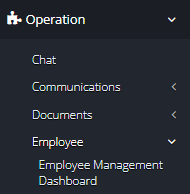
To access the *Employee Management Dashboard*, in the left menu navigate to:
```
Operations > Employee > Employee Management Dashboard
```
|  |
| --- |
---
### Analytics
At the top of the page, we will see analytics.

In these analytics we can see how many documents and trackable licenses are over due and about to be due.
The "Documents" analytic will only appear if you have signed up with the Document Hub addon
The blue number in each section indicates how many licenses/documents are about to be due.
For instance, let's take a look at this analytic:
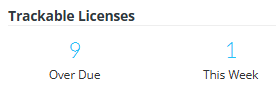
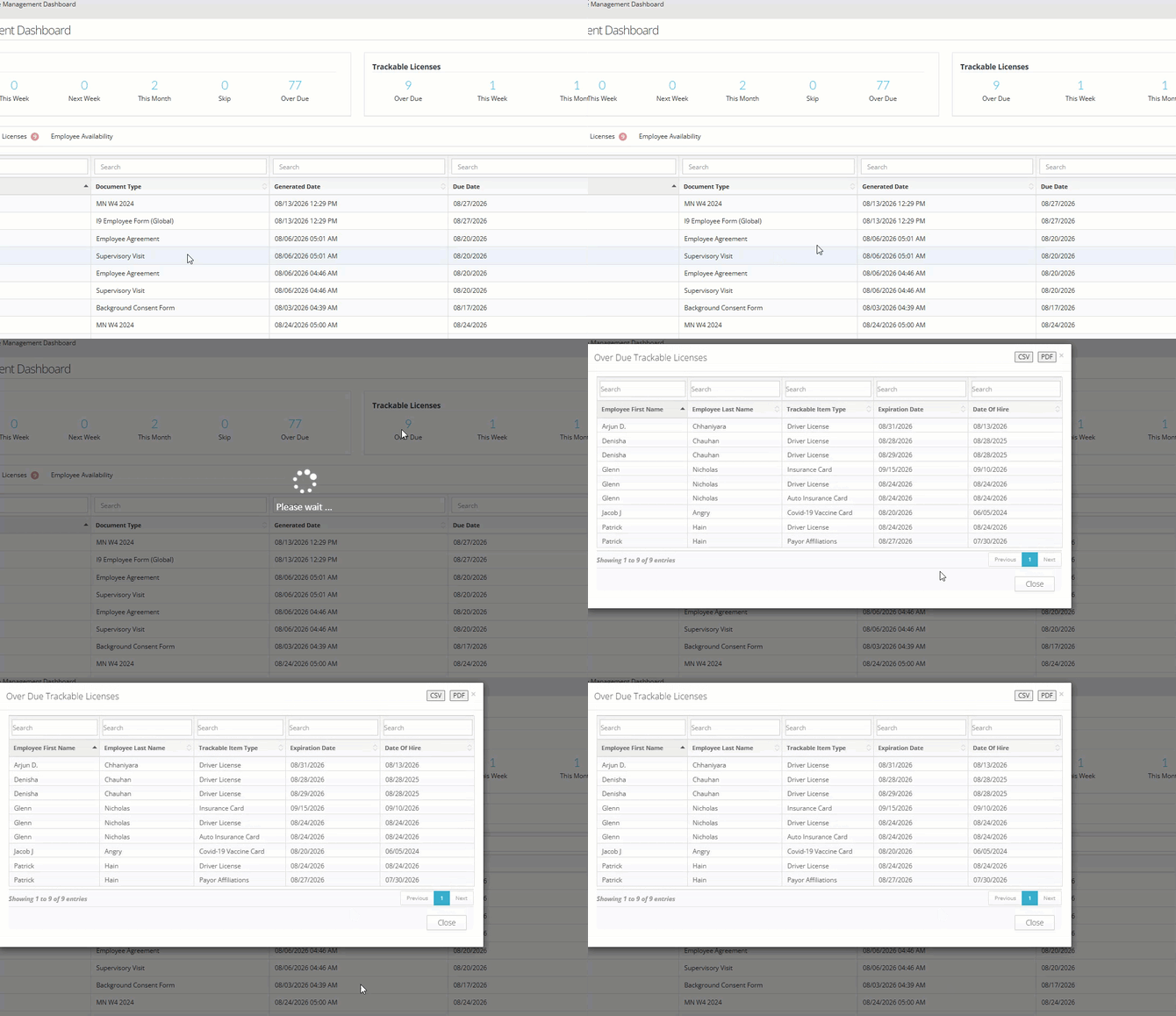
Here I can see that there is are nine overdue trackable licenses and one license that will be due this week. In order to see the individual documents/licenses that are included in these analytics, we can click in the blue text.
---
### Date
At top right of the page is a date filter. 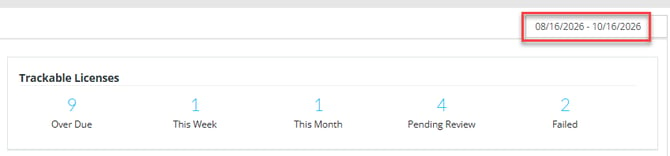
---
Licenses, document types and availability requests will only appear if they were active in the selected date range.
This date filter can be adjusted, but please note that selecting a longer date ranges will mean that the page has more information to pull and may result in data loading errors.
---
### Select Documents, Trackable Licenses and Availability Types
The "Documents" filter will only appear if you have signed up with the Document Hub addon
Below the analytics is a table. In this table we can see documents, trackable licenses, and employee availability requests. In the top right of this table, is a  button. Hitting this button will trigger a pop up.
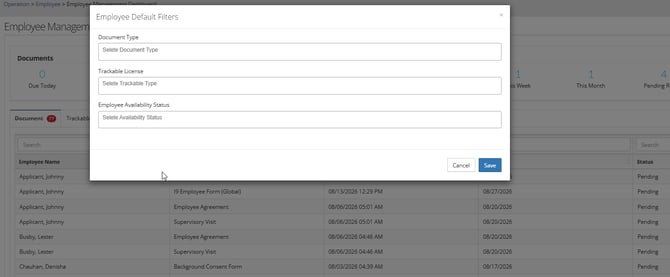 In In this pop up we can search for document and license types as well as availability statuses. Then, the table will adjust to only show the information that you selected.
For example, if I choose "Driver's License" as my license type, the Trackable License tab will adjust to only show the Driver's Licenses that have been entered in Billiyo.
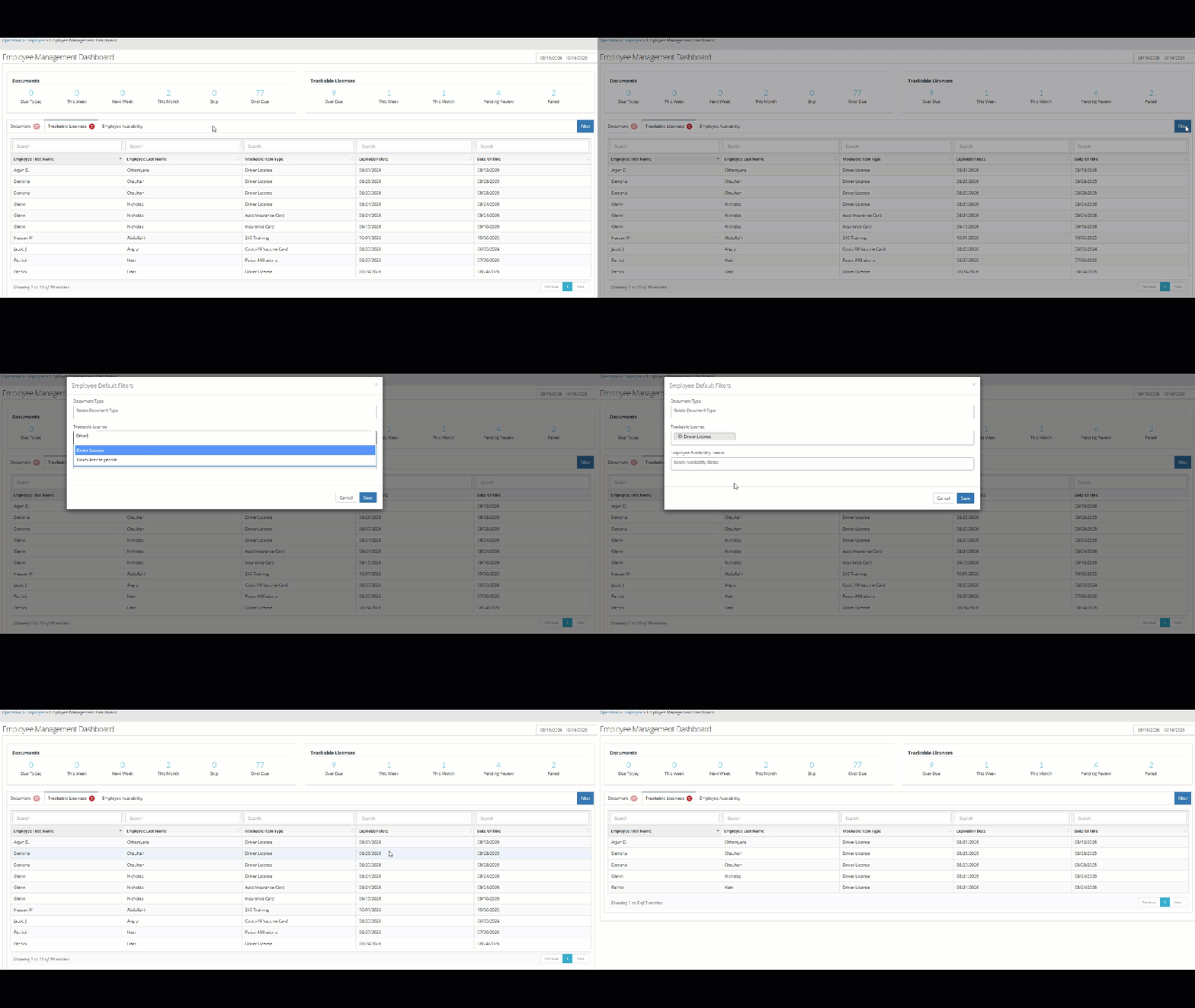
These filters are multi-select.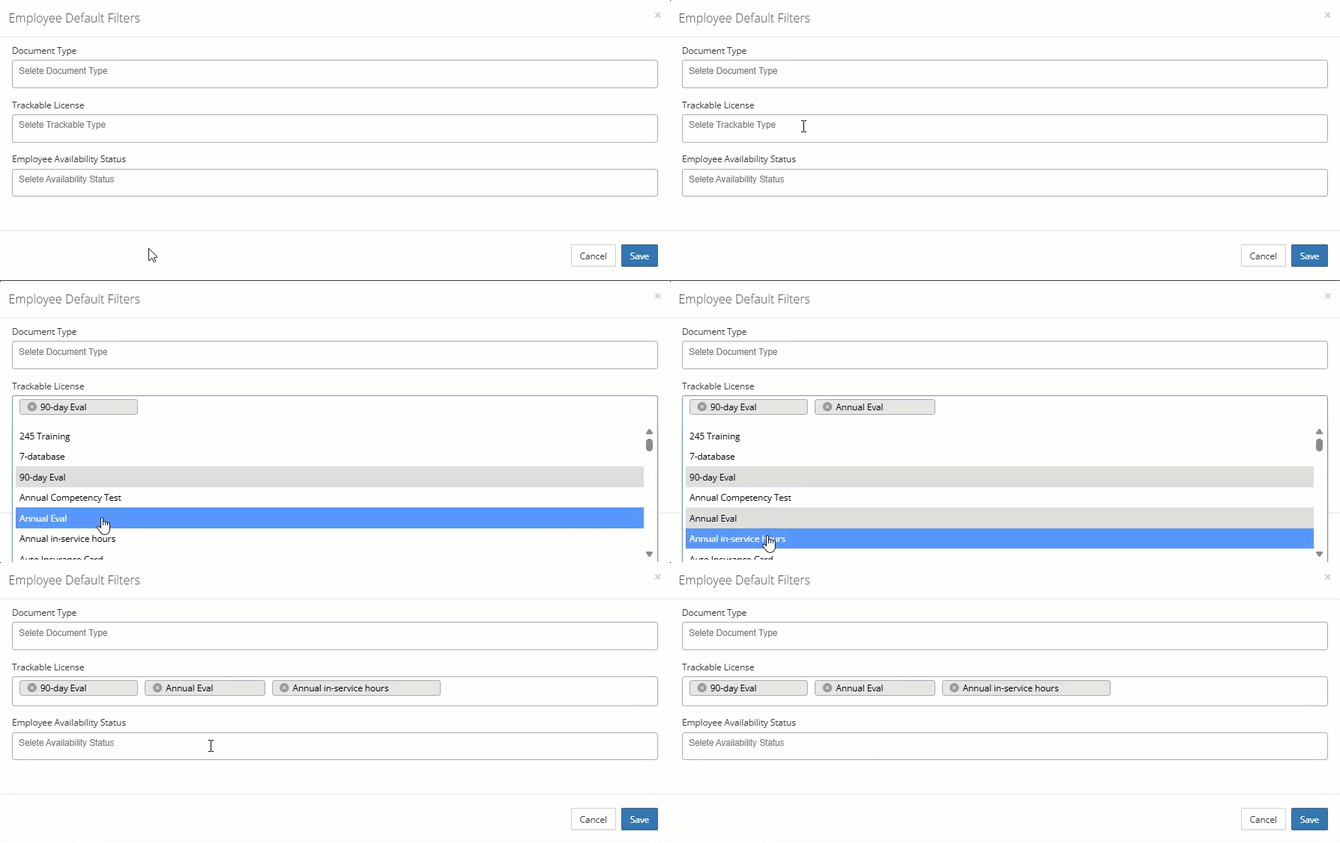
The filter's that you enter will be saved in Billiyo and will be automatically applied every time you enter the Employee Management Dashboard.
---
### Documents
The "Documents" table is only visible if you have signed up with the Document Hub addon
While looking at this table, we will be seeing the employee document that have been entered.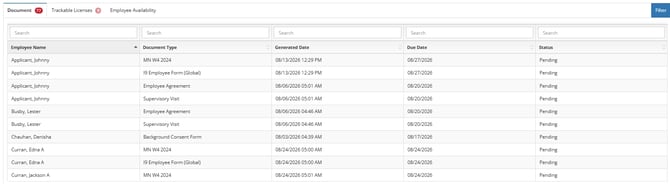
The generate date and due date are based on the configurations that were entered into Document Hub Set Up. To learn more about this set up, [click here](https://knowledge.billiyo.com/knowledge/document-hub-employees?hsLang=en)!
---
### Trackable Licenses
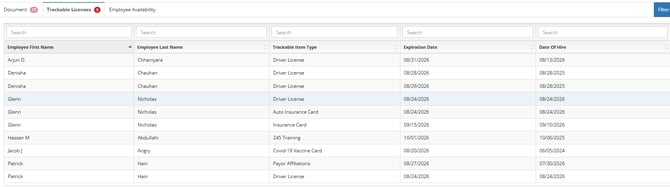
In the trackable license table, we can review the trackable licenses that were entered for your employees.
---
### Employee Availability
[Click here](https://knowledge.billiyo.com/knowledge/employee-availability-1?hsLang=en) for more information on how your staff can file availability requests with their app.
[Click here](https://knowledge.billiyo.com/knowledge/availability?hsLang=en) for more information on how to review and approve availability requests.
In the availability tab, we can see availability requests that your staff has requested through the app.
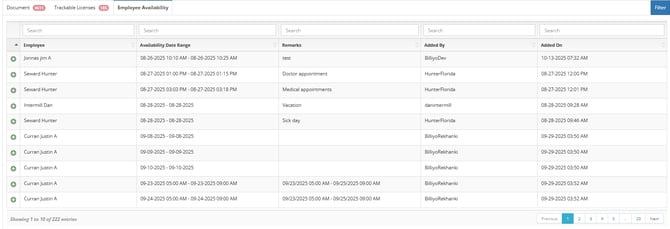
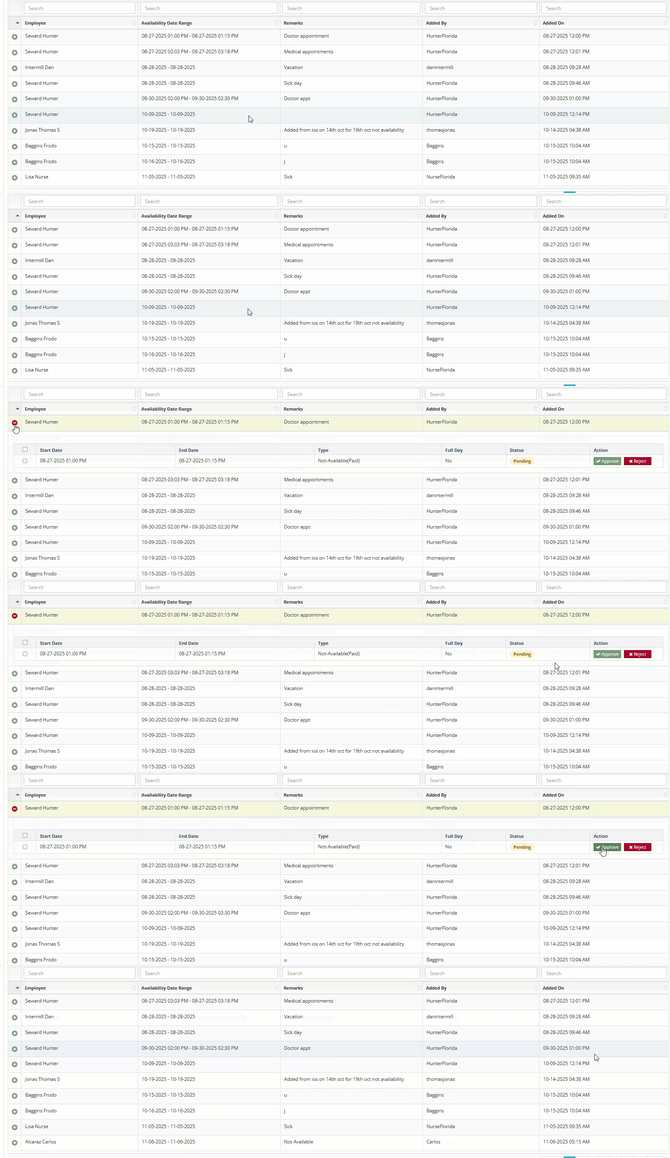
We can also approve and decline these requests. To do this, we will hit the green plus sign and, in the expanded view, we will can choose to either approve or reject the request.

- [Getting Started](https://knowledge.billiyo.com/knowledge/getting-started?hsLang=en#main-content)
- [Onboarding trainings](https://knowledge.billiyo.com/knowledge/getting-started?hsLang=en#onboarding-trainings)
- [Clients](https://knowledge.billiyo.com/knowledge/clients?hsLang=en#main-content)
- [Profile related info](https://knowledge.billiyo.com/knowledge/clients?hsLang=en#profile-related-info)
- [Patient onboarding](https://knowledge.billiyo.com/knowledge/clients?hsLang=en#patient-onboarding)
- [Patient dashboard related info](https://knowledge.billiyo.com/knowledge/clients?hsLang=en#patient-dashboard-related-info)
- [Caregiver connection info](https://knowledge.billiyo.com/knowledge/clients?hsLang=en#caregiver-connection-info)
- [Service authorization info](https://knowledge.billiyo.com/knowledge/clients?hsLang=en#service-authorization-info)
- [Care plan info](https://knowledge.billiyo.com/knowledge/clients?hsLang=en#care-plan-info)
- [Recalibrate client location](https://knowledge.billiyo.com/knowledge/clients?hsLang=en#recalibrate-client-location)
- [User accounts & client portal](https://knowledge.billiyo.com/knowledge/clients?hsLang=en#user-accounts-client-portal)
- [Client eligibility](https://knowledge.billiyo.com/knowledge/clients?hsLang=en#client-eligibility)
- [Q and A](https://knowledge.billiyo.com/knowledge/clients?hsLang=en#q-and-a)
- [Deleting Client Documents](https://knowledge.billiyo.com/knowledge/clients?hsLang=en#deleting-client-documents)
- [Services Tab](https://knowledge.billiyo.com/knowledge/clients?hsLang=en#services-tab)
- [Client Onboarding Application](https://knowledge.billiyo.com/knowledge/clients?hsLang=en#client-onboarding-application)
- [Employee](https://knowledge.billiyo.com/knowledge/employee?hsLang=en#main-content)
- [Profile related items](https://knowledge.billiyo.com/knowledge/employee?hsLang=en#profile-related-items)
- [User account info](https://knowledge.billiyo.com/knowledge/employee?hsLang=en#user-account-info)
- [Payroll info](https://knowledge.billiyo.com/knowledge/employee?hsLang=en#payroll-info)
- [Employee Hours Summary](https://knowledge.billiyo.com/knowledge/employee?hsLang=en#employee-hours-summary)
- [Expense info](https://knowledge.billiyo.com/knowledge/employee?hsLang=en#expense-info)
- [Request app user's location](https://knowledge.billiyo.com/knowledge/employee?hsLang=en#request-app-users-location)
- [Caregiver app info](https://knowledge.billiyo.com/knowledge/employee?hsLang=en#caregiver-app-info)
- [Clinical app info](https://knowledge.billiyo.com/knowledge/employee?hsLang=en#clinical-app-info)
- [Telephony](https://knowledge.billiyo.com/knowledge/employee?hsLang=en#telephony)
- [Caregiver dashboard](https://knowledge.billiyo.com/knowledge/employee?hsLang=en#caregiver-dashboard)
- [Employee onboarding URL](https://knowledge.billiyo.com/knowledge/employee?hsLang=en#employee-onboarding-url)
- [Q and A](https://knowledge.billiyo.com/knowledge/employee?hsLang=en#q-and-a)
- [Mobile apps](https://knowledge.billiyo.com/knowledge/employee?hsLang=en#mobile-apps)
- [Deleting Employee Documents](https://knowledge.billiyo.com/knowledge/employee?hsLang=en#deleting-employee-documents)
- [Employee Services Tracking](https://knowledge.billiyo.com/knowledge/employee?hsLang=en#employee-services-tracking)
- [Reset Password](https://knowledge.billiyo.com/knowledge/employee?hsLang=en#reset-password)
- [Scheduling & Timesheets](https://knowledge.billiyo.com/knowledge/scheduling-timesheets?hsLang=en#main-content)
- [Scheduling related info](https://knowledge.billiyo.com/knowledge/scheduling-timesheets?hsLang=en#scheduling-related-info)
- [Schedules approval related info](https://knowledge.billiyo.com/knowledge/scheduling-timesheets?hsLang=en#schedules-approval-related-info)
- [Electronic timesheet info](https://knowledge.billiyo.com/knowledge/scheduling-timesheets?hsLang=en#electronic-timesheet-info)
- [Manual timesheet Info](https://knowledge.billiyo.com/knowledge/scheduling-timesheets?hsLang=en#manual-timesheet-info)
- [Manual clock in/out info](https://knowledge.billiyo.com/knowledge/scheduling-timesheets?hsLang=en#manual-clock-in-out-info)
- [Q and A](https://knowledge.billiyo.com/knowledge/scheduling-timesheets?hsLang=en#q-and-a)
- [Clinical & Documentation](https://knowledge.billiyo.com/knowledge/clinical-documentation?hsLang=en#main-content)
- [Service verification](https://knowledge.billiyo.com/knowledge/clinical-documentation?hsLang=en#service-verification)
- [Clinical forms info](https://knowledge.billiyo.com/knowledge/clinical-documentation?hsLang=en#clinical-forms-info)
- [Nursing visit](https://knowledge.billiyo.com/knowledge/clinical-documentation?hsLang=en#nursing-visit)
- [PDN info](https://knowledge.billiyo.com/knowledge/clinical-documentation?hsLang=en#pdn-info)
- [Progress note](https://knowledge.billiyo.com/knowledge/clinical-documentation?hsLang=en#progress-note)
- [Vitals log](https://knowledge.billiyo.com/knowledge/clinical-documentation?hsLang=en#vitals-log)
- [Health analysis](https://knowledge.billiyo.com/knowledge/clinical-documentation?hsLang=en#health-analysis)
- [eMar info](https://knowledge.billiyo.com/knowledge/clinical-documentation?hsLang=en#emar-info)
- [OASIS submissions](https://knowledge.billiyo.com/knowledge/clinical-documentation?hsLang=en#oasis-submissions)
- [Skilled patient task flow](https://knowledge.billiyo.com/knowledge/clinical-documentation?hsLang=en#skilled-patient-task-flow)
- [QA QI info](https://knowledge.billiyo.com/knowledge/clinical-documentation?hsLang=en#qa-qi-info)
- [Patient Dashboard](https://knowledge.billiyo.com/knowledge/clinical-documentation?hsLang=en#patient-dashboard)
- [Physician orders](https://knowledge.billiyo.com/knowledge/clinical-documentation?hsLang=en#physician-orders)
- [Upload documents info](https://knowledge.billiyo.com/knowledge/clinical-documentation?hsLang=en#upload-documents-info)
- [QP visit documentation](https://knowledge.billiyo.com/knowledge/clinical-documentation?hsLang=en#qp-visit-documentation)
- [Digitalized documents info](https://knowledge.billiyo.com/knowledge/clinical-documentation?hsLang=en#digitalized-documents-info)
- [Q and A](https://knowledge.billiyo.com/knowledge/clinical-documentation?hsLang=en#q-and-a)
- [Medication](https://knowledge.billiyo.com/knowledge/clinical-documentation?hsLang=en#medication)
- [Claims & Invoices](https://knowledge.billiyo.com/knowledge/claims-invoices?hsLang=en#main-content)
- [Claim related info](https://knowledge.billiyo.com/knowledge/claims-invoices?hsLang=en#claim-related-info)
- [Invoice related info](https://knowledge.billiyo.com/knowledge/claims-invoices?hsLang=en#invoice-related-info)
- [EVV claim related info](https://knowledge.billiyo.com/knowledge/claims-invoices?hsLang=en#evv-claim-related-info)
- [Claim Detail Report info](https://knowledge.billiyo.com/knowledge/claims-invoices?hsLang=en#claim-detail-report-info)
- [Denial Analysis Report info](https://knowledge.billiyo.com/knowledge/claims-invoices?hsLang=en#denial-analysis-report-info)
- [Electronic Remittance info](https://knowledge.billiyo.com/knowledge/claims-invoices?hsLang=en#electronic-remittance-info)
- [Q and A](https://knowledge.billiyo.com/knowledge/claims-invoices?hsLang=en#q-and-a)
- [Service Verification Failed](https://knowledge.billiyo.com/knowledge/claims-invoices?hsLang=en#service-verification-failed)
- [Reporting](https://knowledge.billiyo.com/knowledge/reporting?hsLang=en#main-content)
- [Dashboards info (excluding "Caregiver Dashboard")](https://knowledge.billiyo.com/knowledge/reporting?hsLang=en#dashboards-info-excluding-caregiver-dashboard)
- [Contact Masters](https://knowledge.billiyo.com/knowledge/reporting?hsLang=en#contact-masters)
- [ServiceAuth](https://knowledge.billiyo.com/knowledge/reporting?hsLang=en#serviceauth)
- [LEIE](https://knowledge.billiyo.com/knowledge/reporting?hsLang=en#leie)
- [Balance And Aging](https://knowledge.billiyo.com/knowledge/reporting?hsLang=en#balance-and-aging)
- [Batch Detail](https://knowledge.billiyo.com/knowledge/reporting?hsLang=en#batch-detail)
- [Late/Missed Schedule](https://knowledge.billiyo.com/knowledge/reporting?hsLang=en#late-missed-schedule)
- [Dynamic Report](https://knowledge.billiyo.com/knowledge/reporting?hsLang=en#dynamic-report)
- [Cost Report](https://knowledge.billiyo.com/knowledge/reporting?hsLang=en#cost-report)
- [Financial Reports](https://knowledge.billiyo.com/knowledge/reporting?hsLang=en#financial-reports)
- [Q and A](https://knowledge.billiyo.com/knowledge/reporting?hsLang=en#q-and-a)
- [Download Documents](https://knowledge.billiyo.com/knowledge/reporting?hsLang=en#download-documents)
- [Settings & Setup](https://knowledge.billiyo.com/knowledge/settings-setup?hsLang=en#main-content)
- [Billiyo subscription info](https://knowledge.billiyo.com/knowledge/settings-setup?hsLang=en#billiyo-subscription-info)
- [Company settings info](https://knowledge.billiyo.com/knowledge/settings-setup?hsLang=en#company-settings-info)
- [Surveyor user account info](https://knowledge.billiyo.com/knowledge/settings-setup?hsLang=en#surveyor-user-account-info)
- [Service type management info](https://knowledge.billiyo.com/knowledge/settings-setup?hsLang=en#service-type-management-info)
- [Q and A](https://knowledge.billiyo.com/knowledge/settings-setup?hsLang=en#q-and-a)
- [Basic Company Information](https://knowledge.billiyo.com/knowledge/settings-setup?hsLang=en#basic-company-information)
- [Communication & Tasks](https://knowledge.billiyo.com/knowledge/communication-tasks?hsLang=en#main-content)
- [Chat](https://knowledge.billiyo.com/knowledge/communication-tasks?hsLang=en#chat)
- [Tasks](https://knowledge.billiyo.com/knowledge/communication-tasks?hsLang=en#tasks)
- [Mass communications](https://knowledge.billiyo.com/knowledge/communication-tasks?hsLang=en#mass-communications)
- [Reconciling eFax](https://knowledge.billiyo.com/knowledge/communication-tasks?hsLang=en#reconciling-efax)
- [View Fax](https://knowledge.billiyo.com/knowledge/communication-tasks?hsLang=en#view-fax)
- [Patient Dashboard Communications](https://knowledge.billiyo.com/knowledge/communication-tasks?hsLang=en#patient-dashboard-communications)
- [Employee Communications](https://knowledge.billiyo.com/knowledge/communication-tasks?hsLang=en#employee-communications)
- [Product Updates](https://knowledge.billiyo.com/knowledge/product-updates?hsLang=en#main-content)
- [Product updates](https://knowledge.billiyo.com/knowledge/product-updates?hsLang=en#product-updates)
- [Electronic Visit Verification (EVV)](https://knowledge.billiyo.com/knowledge/electronic-visit-verification-evv?hsLang=en#main-content)
- [Minnesota (MN) EVV](https://knowledge.billiyo.com/knowledge/electronic-visit-verification-evv?hsLang=en#minnesota-mn-evv)
- [Review EVV](https://knowledge.billiyo.com/knowledge/electronic-visit-verification-evv?hsLang=en#review-evv)
- [More](https://knowledge.billiyo.com/knowledge/more?hsLang=en#main-content)
- [Company](https://knowledge.billiyo.com/knowledge/more?hsLang=en#company)
- [User Account](https://knowledge.billiyo.com/knowledge/more?hsLang=en#user-account)
- [Product Updates](https://knowledge.billiyo.com/knowledge/more?hsLang=en#product-updates)
- [Mobile Apps](https://knowledge.billiyo.com/knowledge/mobile-apps?hsLang=en#main-content)
- [Billiyo for Caregiver App](https://knowledge.billiyo.com/knowledge/mobile-apps?hsLang=en#billiyo-for-caregiver-app)
- [Billiyo Clinical App](https://knowledge.billiyo.com/knowledge/mobile-apps?hsLang=en#billiyo-clinical-app)
- [Mobile Applications](https://knowledge.billiyo.com/knowledge/mobile-apps?hsLang=en#mobile-applications)
- [Billiyo for Adult Day Care App](https://knowledge.billiyo.com/knowledge/mobile-apps?hsLang=en#billiyo-for-adult-day-care-app)
- [CRM](https://knowledge.billiyo.com/knowledge/crm?hsLang=en#main-content)
- [Service Auths](https://knowledge.billiyo.com/knowledge/crm?hsLang=en#service-auths)
- [Dashboards](https://knowledge.billiyo.com/knowledge/dashboards?hsLang=en#main-content)
- [Document Hub](https://knowledge.billiyo.com/knowledge/dashboards?hsLang=en#document-hub)
- [Announcements](https://knowledge.billiyo.com/knowledge/announcements?hsLang=en)
- [Adult Day Care](https://knowledge.billiyo.com/knowledge/adult-day-care?hsLang=en#main-content)
- [Adult Daycare App](https://knowledge.billiyo.com/knowledge/adult-day-care?hsLang=en#adult-daycare-app)
[](http://billiyo.com)
Billiyo Help Center
Copyright © 2026, Billiyo Health Inc.