![LOGO BLUE.png]](https://knowledge.billiyo.com/hs-fs/hubfs/LOGO%20BLUE.png?height=40&name=LOGO%20BLUE.png)
Employee, Client and Patient Documents can be deleted.
Only Super users can delete a completed document 72 hours after the form was marked as “Complete”.
To delete a document head on over to the page that the document exists in.
For example, Employee Documents.
Can be viewed from the employee dashboard and view employee documents pages.
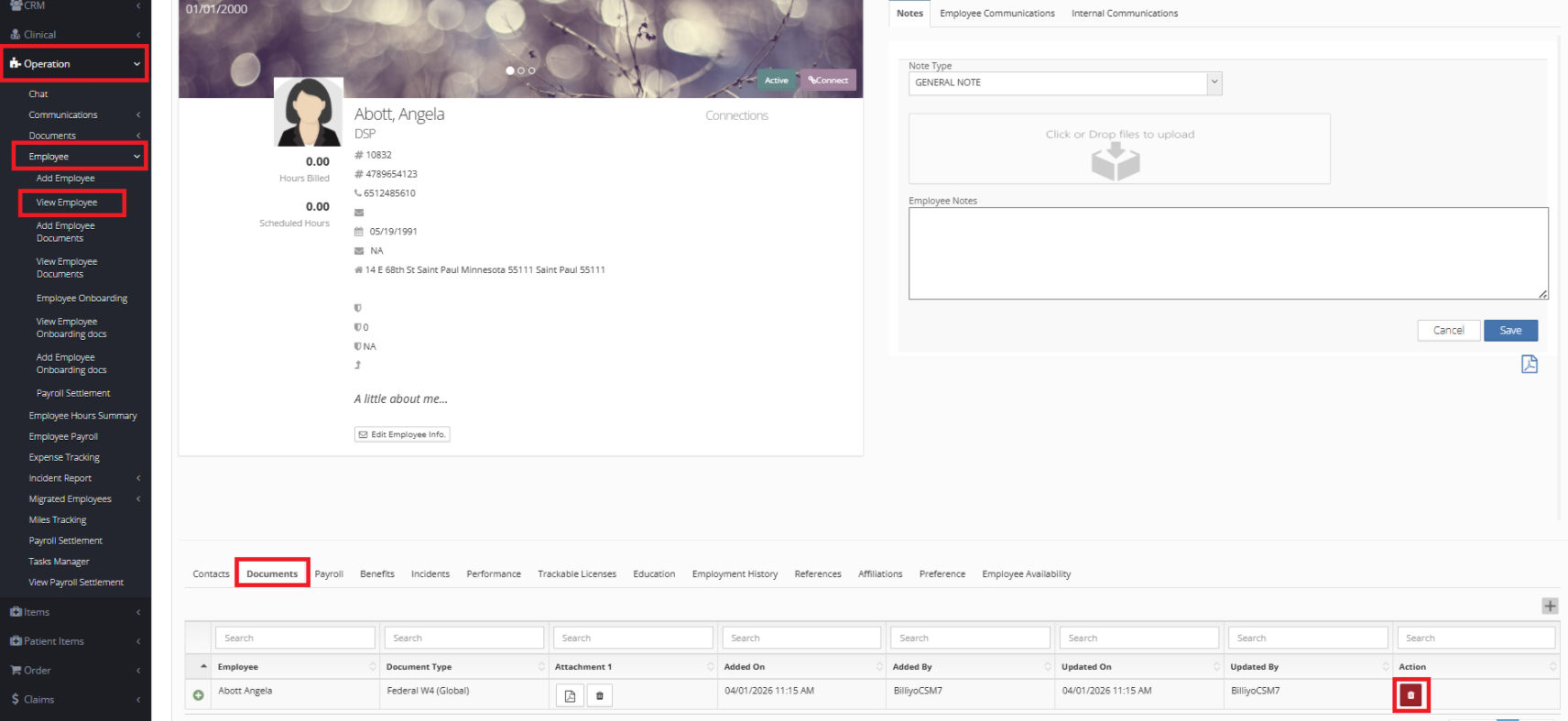
To delete a document from the employee dashboard head on over to Operation>Employee>View Employee and Click on the  and then click on
  .
.
At the bottom of the page you will see Tabs, click on the Documents Tab.
Then click on the  to delete.
A Pop Up will appear.
You will be required to enter Remarks.
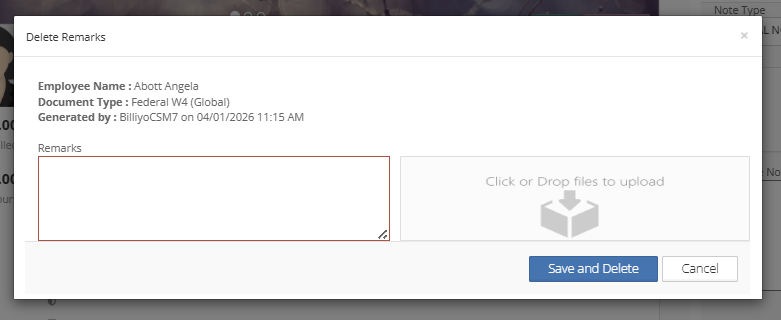
When you are satisfied with your remarks, click  ,
,
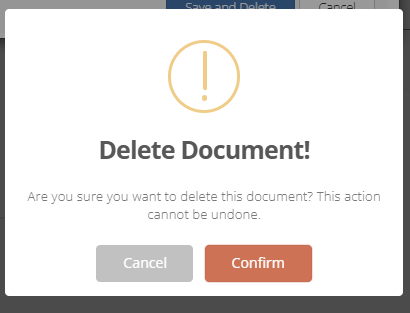
This action cannot be undone.
A Pop Up will appear for you to choose Cancel or Confirm.
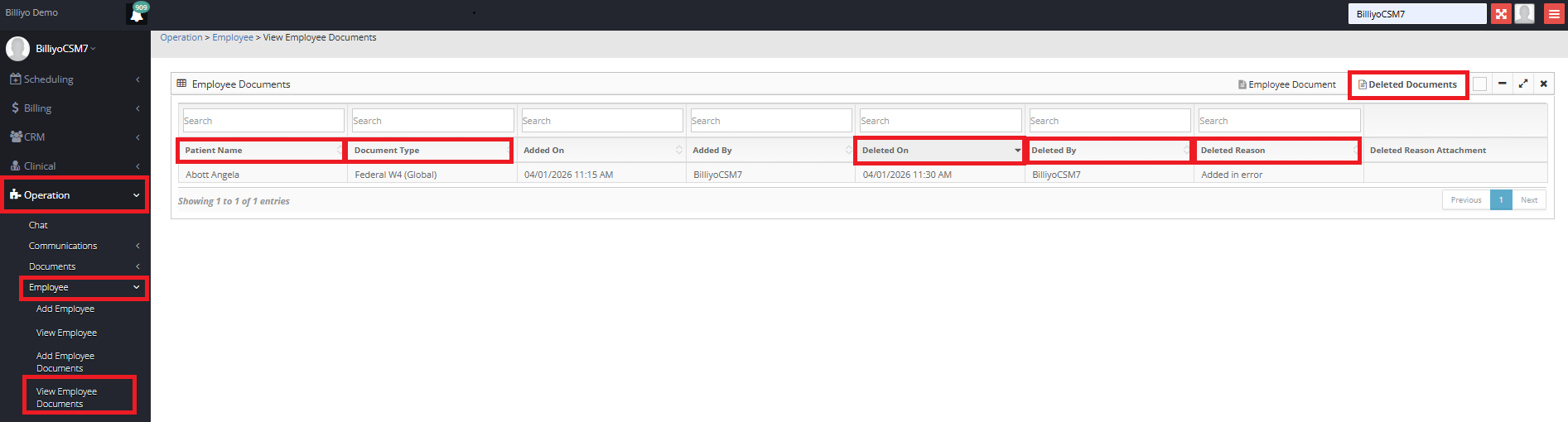
To View Deleted Employee Documents Head on over to Operation>Employee>View Employee Documents.
Click on the Deleted Documents Tab.
Here you can view important information including: Deleted On, Deleted By, and Deleted Reason.
To Delete Employee Documents from the View Employee Documents Page, Head on over to Operation>Employee>View Employee Documents.
To Delete the document click on the  .
.
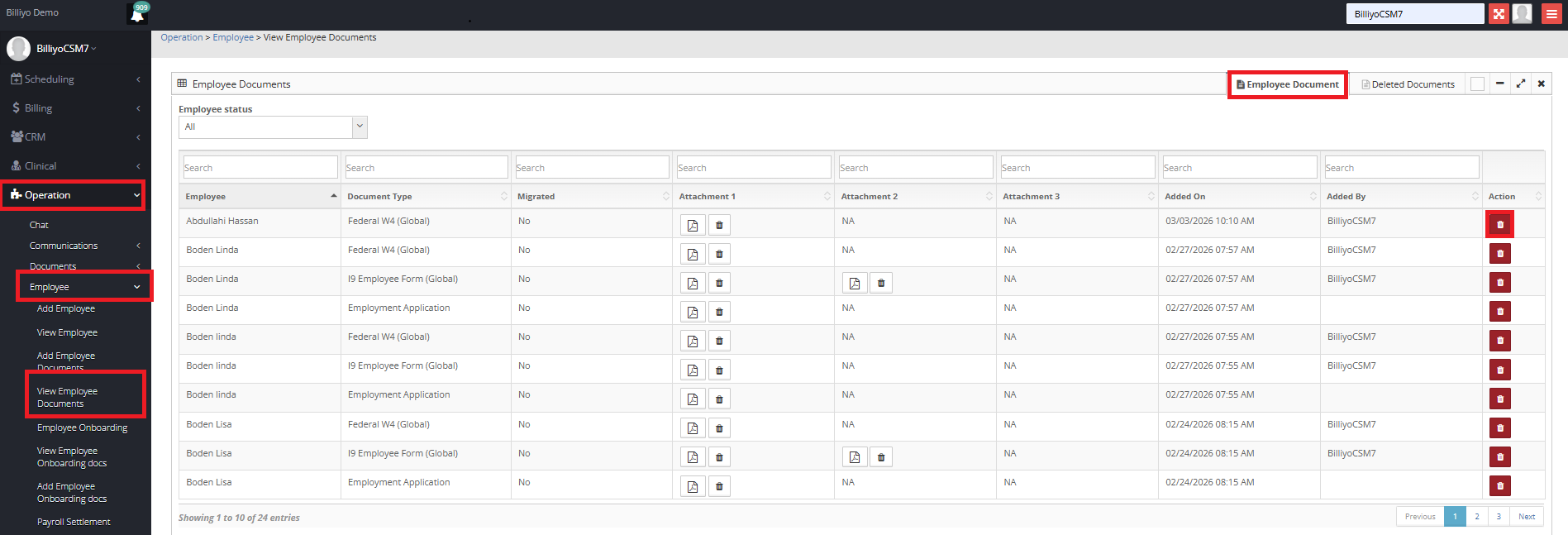
A Pop Up will appear.
You will be required to enter Remarks.
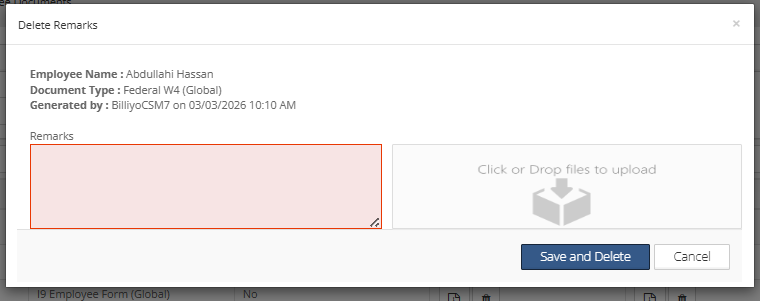
When you are satisfied with your remarks, click ,
This action cannot be undone.
A Pop Up will appear for you to choose Cancel or Confirm.
Once this action is taken, the document is moved to the Deleted Documents Tab.
Here you can view important information including: Deleted On, Deleted By, and Deleted Reason.
