![LOGO BLUE.png]](https://knowledge.billiyo.com/hs-fs/hubfs/LOGO%20BLUE.png?height=40&name=LOGO%20BLUE.png)
Accessing the Company Settings Page
To access this page, head to More > Company > Company Settings in the left menu.
.gif?width=670&height=1080&name=Company%20Settings%20(2).gif)
The Client Document Type Tab
Within the company settings page, click on the Client Document Type tab on the left side of the screen to view a list of any client documents that have been digitalized for your agency.
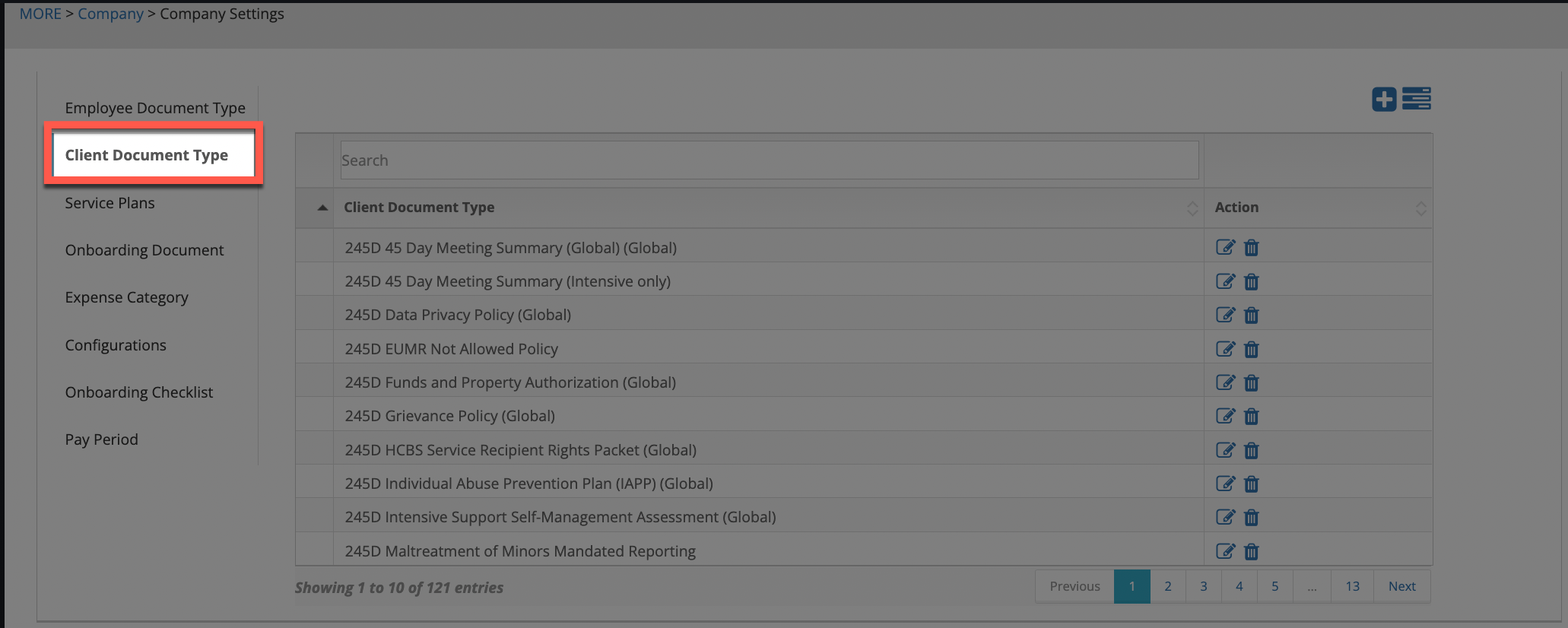
To edit the name of a document, click on the pencil icon under the Action column in the document line.

A pop-up will appear and the document name will show in the field under the Client Document Type text. If any changes are made, click on the Save button.
Keep in mind that names will truncate if they are too long and no special characters are able to be added.
The option to delete a document will also appear, as a trash can icon under the Action column in the document line.

Clicking this icon, and confirming the deletion on the pop-up that appears, will entirely remove the document from the account.
If a document is deleted the only way to get it back would be by talking with your Customer Success Manager about re-digitalizing it. Please know that you may need to resend the original file, as a PDF or Word document, again in this case.
When uploading a document into the Documents tab in a client's profile, if the name of the document does not appear, coming to this screen will provide the option to add the document name.
To add a new document type for your agency, please hit the blue bars  at the top right of the page.
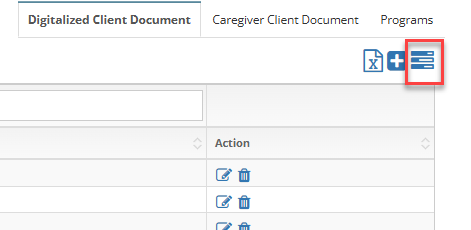
From the drop down that appears, you can search and select the documents types that you want to add.
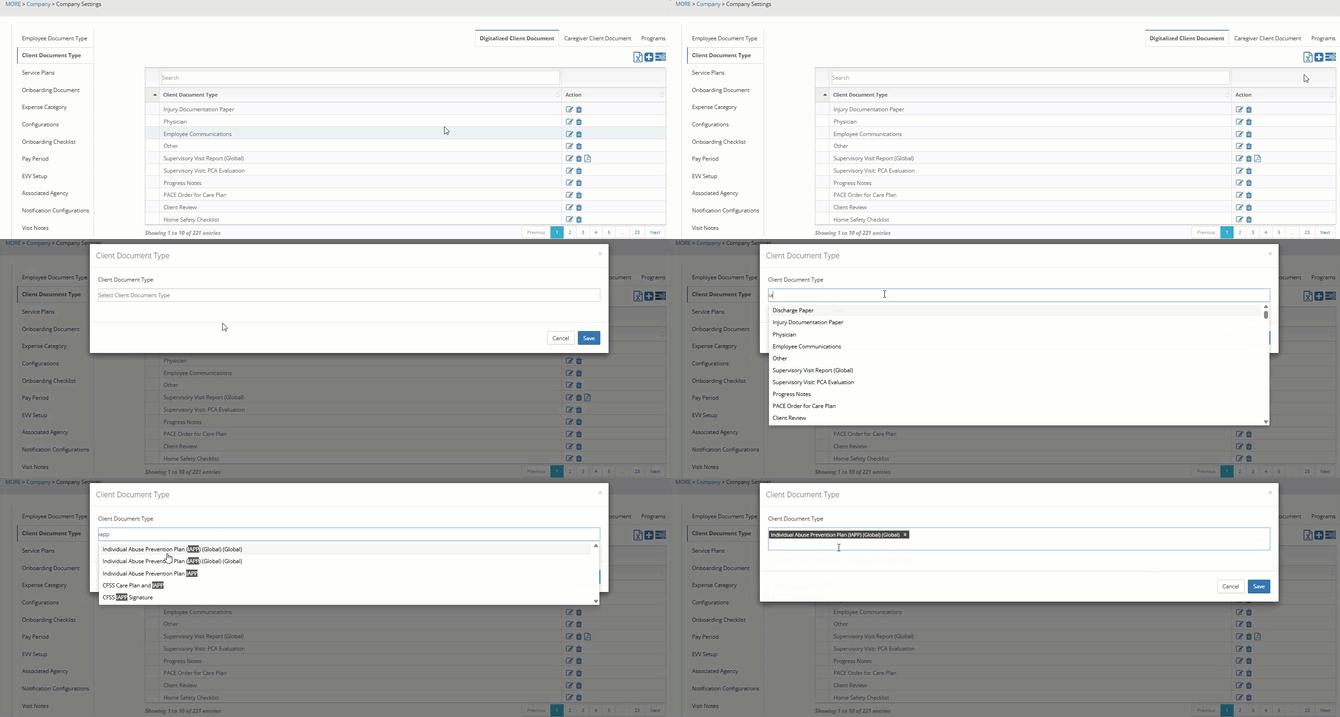
If you want to electronically generate and complete a form after creating it, please reach our to your customer success manager.
If you cannot find the document you need from the list, you can create a custom one by clicking on the + sign in the top right corner above the table.

Upon doing so, a pop-up will appear. In the field below the text Client Document Type, input in the name of the document. Click the Save button to add the document name.
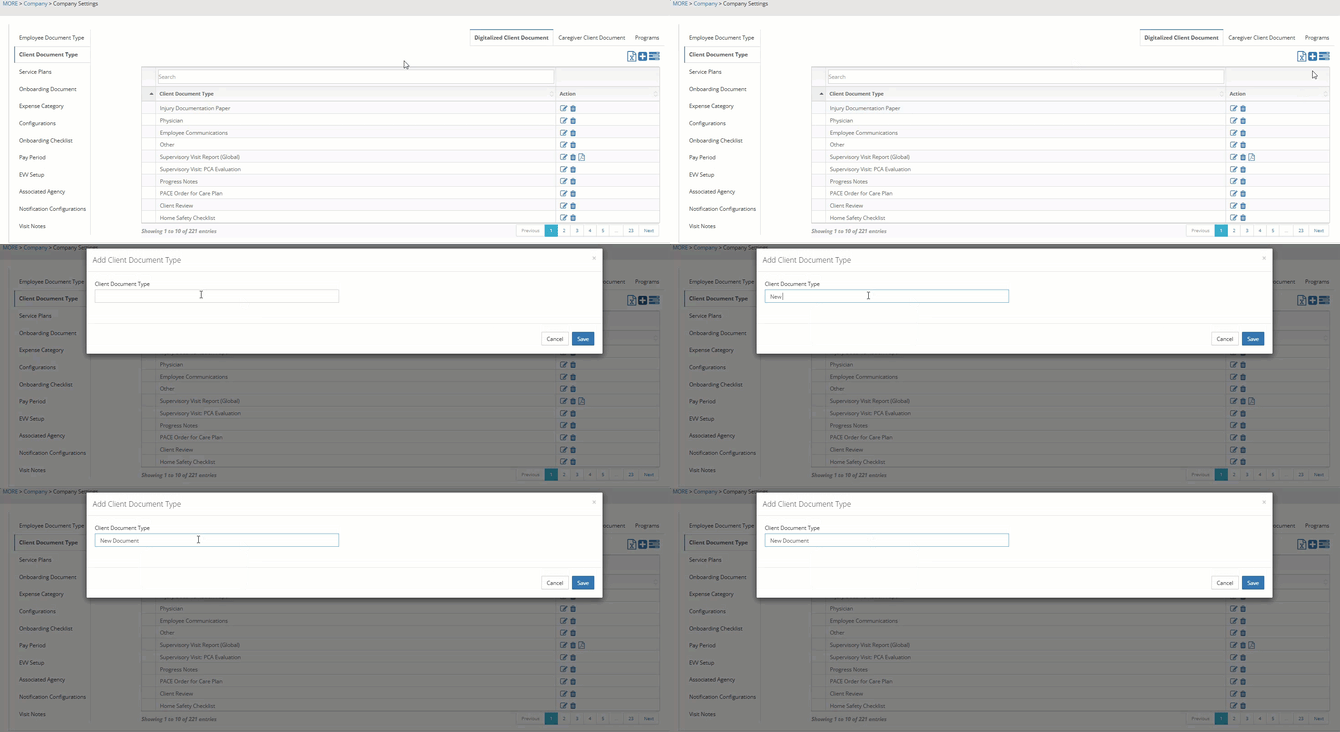
Keep in mind that names will truncate if they are too long and no special characters are able to be added.