![LOGO BLUE.png]](https://knowledge.billiyo.com/hs-fs/hubfs/LOGO%20BLUE.png?height=40&name=LOGO%20BLUE.png)
To learn how to file an expense report with the app, please refer to this article:
Accessing the Company Settings Page
To access this page, head to More > Company > Company Settings in the left menu.
.gif?width=670&height=1080&name=Company%20Settings%20(2).gif)
The Expense Category Tab
Within the company settings page, click on the Expense Category tab on the left side of the screen to add in information about expense reimbursement.
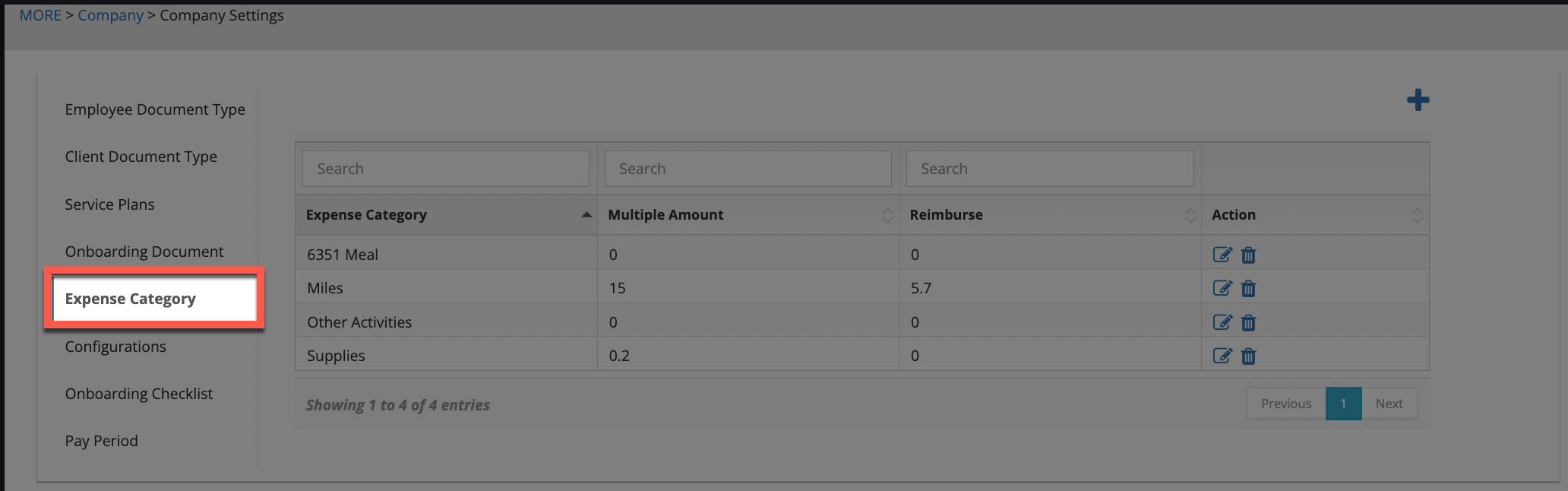
Click on the + sign to add an expense category.

On the pop-up that appears, a drop-down will appear to select a category.
For the category of "Miles" two additional fields will appear to fill out:
- Amount (Multiplier): What's charged to the client.
- Reimburse: What's given to the employee.
Click on the Save button to add the expense category.
To edit an expense category after it has been added, click on the pencil icon that appears under the Action column for the expense line.

If any changes are made, click on the Save button.
To remove an expense category, click on the trash can icon that appears under the Action column for the expense line.
