![LOGO BLUE.png]](https://knowledge.billiyo.com/hs-fs/hubfs/LOGO%20BLUE.png?height=40&name=LOGO%20BLUE.png)
Click here to learn how to create a QP visit with the clinical app
Jump to:
Login
To log into the Billiyo for Clinical App, please your Username and Password.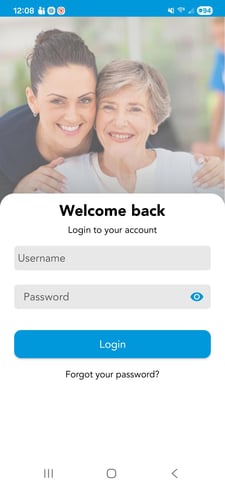
Click here to learn how to create a user role
- If you do not have a user role, please contact your back office.
Home Screen
After logging into the Billiyo Clinical app, you will be taken to the main dashboard. Here you can see the visits that you have been scheduled to work.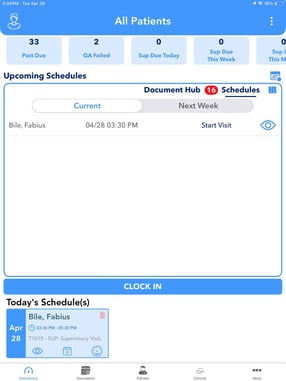
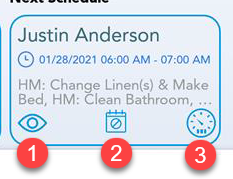
-
 Tap to view schedule details for the appointment. Here you will see the scheduled start and end time, and services/assessment that were ties to th visit..
 Tap to cancel the appointment. You will be prompted to choose a cancelation reason (i.e. hospitalized, client canceled, etc.) You can provide additional details in the comment box.
 Tap to track miles to the client's location. This is only available for appointments on the very next Schedule.
Select and View Client
If you work for more than one client/patient, you will need to make sure the correct client is selected. the in the top right corner of the screen. Then hit the filter
  icon. You can then choose the client that you want to work with as well as the date of your schedule.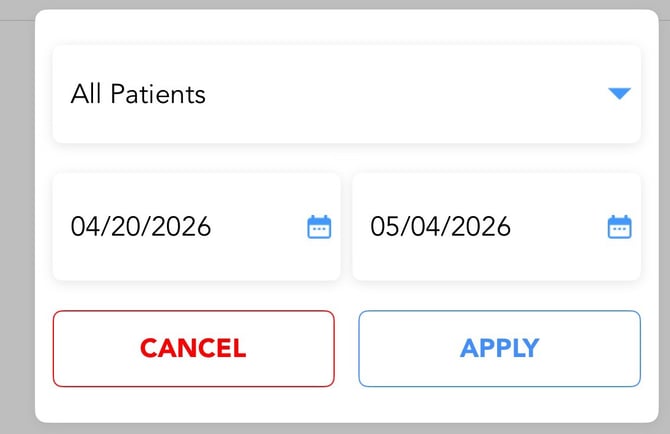
Clocking In
To start you visit, please tap on the blue 'Clock In' button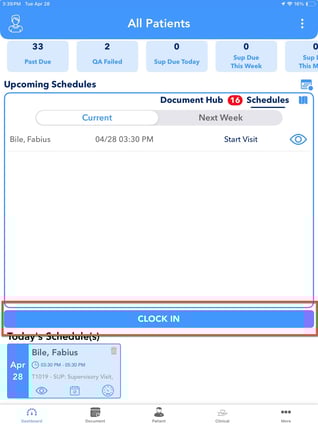
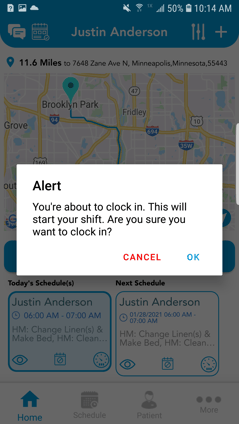
Warning: If you forgot to clock out from a previous appointment, you will be asked to clock out before clocking in for a new appointment.
Documenting Visit
Please click on the following articles to learn how we can document the following tasks in the clinical app:
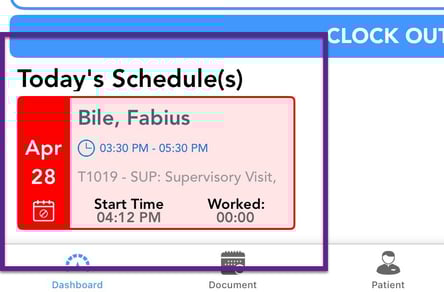
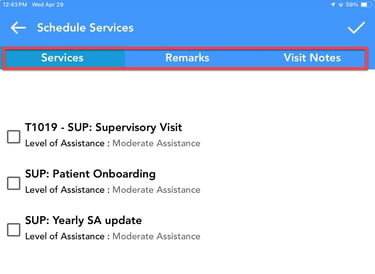

-
-
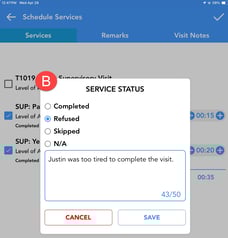
- This will trigger a pop up
 where you can say if the service was "Completed", 'Refused' or 'Skipped'. A Remarks field will then become available to add optional comments.
- Depending on your company settings, these additional service remarks may be required.
- This will trigger a pop up
-
-
- You can add or subtract time spent on each service by toggling the plus and minus icons,
 though this is not required.
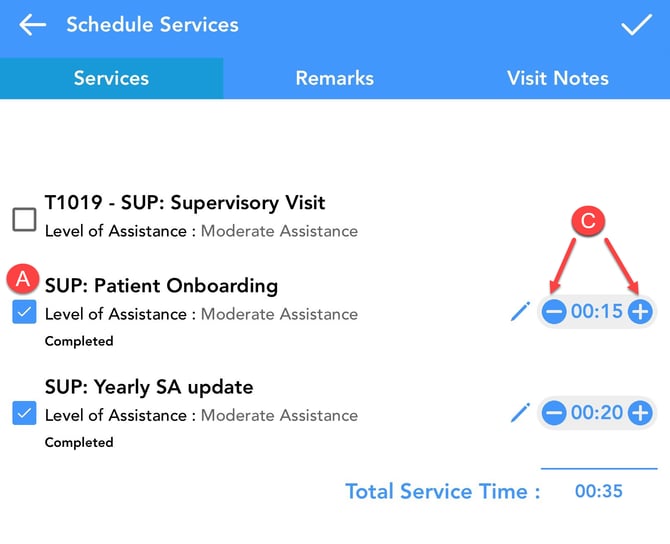
- You can add or subtract time spent on each service by toggling the plus and minus icons,
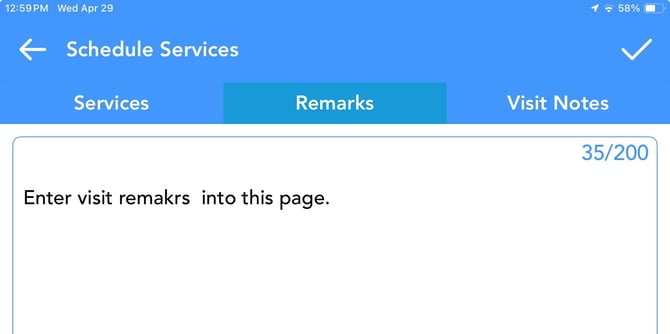
Although not required, please ensure that you are adding information to support the amount of time that you are documenting for services. For example, if you document 2 hours, your summary should support that time. Please be brief but detailed in this area.
The time added to each service must match the time you worked. If not, you will receive a warning message. At this point, adjust the service times to reflect the time you worked.
If you have 'checked' more than one service and added a time for one service, you must also add a time for the remaining checked services.
-
-
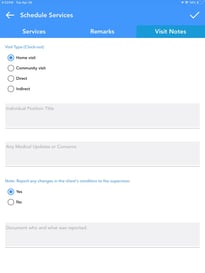
- Client was not feeling well
- Client refused certain services
- Client had to cut shift short
-
Clocking Out
-
-
- When you are done with your shift, tap the blue 'Clock Out' button from the Home screen.
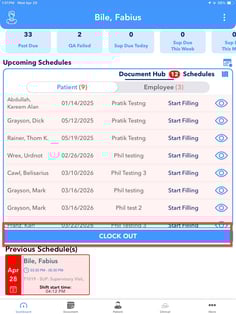
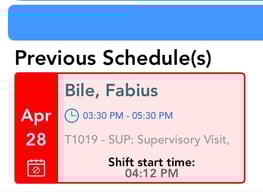
- When you are done with your shift, tap the blue 'Clock Out' button from the Home screen.
-
After clocking out of a visit, you will be taken through our clock out process. Here you will be asked to complete the services, remarks and visit notes that you were preparing during the shift. After completing your shift you will be asked to get a client and employee signature.
Signature
First, request a signature from the client. This is to indicate that they are successfully signing off on the shift.
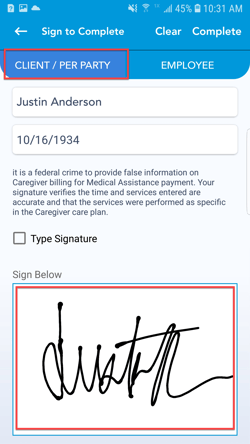
Then you, as the employee, will sign and initial, indicating that all of the information you have provided is accurate.
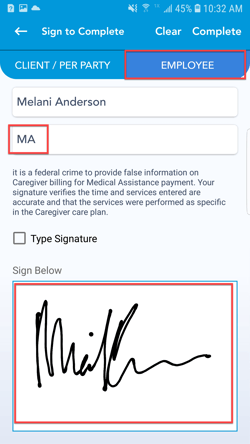
DISCLAIMER: No real Client or Employee information was used