---
title: Client Medication Page
description: Client Medication Page
---
[Skip to content](https://knowledge.billiyo.com/knowledge/client-medication-page#main-content)
English
Show submenu for translations
[![LOGO BLUE.png\]](https://knowledge.billiyo.com/hs-fs/hubfs/LOGO%20BLUE.png?height=40&name=LOGO%20BLUE.png)](https://billiyo.com/)
Open main navigation
Close main navigation
- English
Show submenu for translations
- [Portal Login](https://billiyo.com/App/security/signin.aspx)
[Portal Login](https://billiyo.com/App/security/signin.aspx)
Looking for something specific?
- There are no suggestions because the search field is empty.
1. [Help Center](https://knowledge.billiyo.com/knowledge?hsLang=en)
2. [Clinical & Documentation](https://knowledge.billiyo.com/knowledge/clinical-documentation?hsLang=en)
3. [Medication](https://knowledge.billiyo.com/knowledge/clinical-documentation?hsLang=en#medication)
# Client Medication Page
## View a client's medication list, interactions, medication audits, reviews, reconciliation and medi planner set up all in one place.
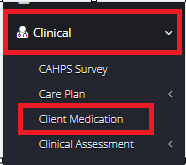
Navigation: [](https://www.billiyo.com/app/Clients/Medication.aspx#ctl00_SiteMap1_SkipLink)Clinical \> Client Medication
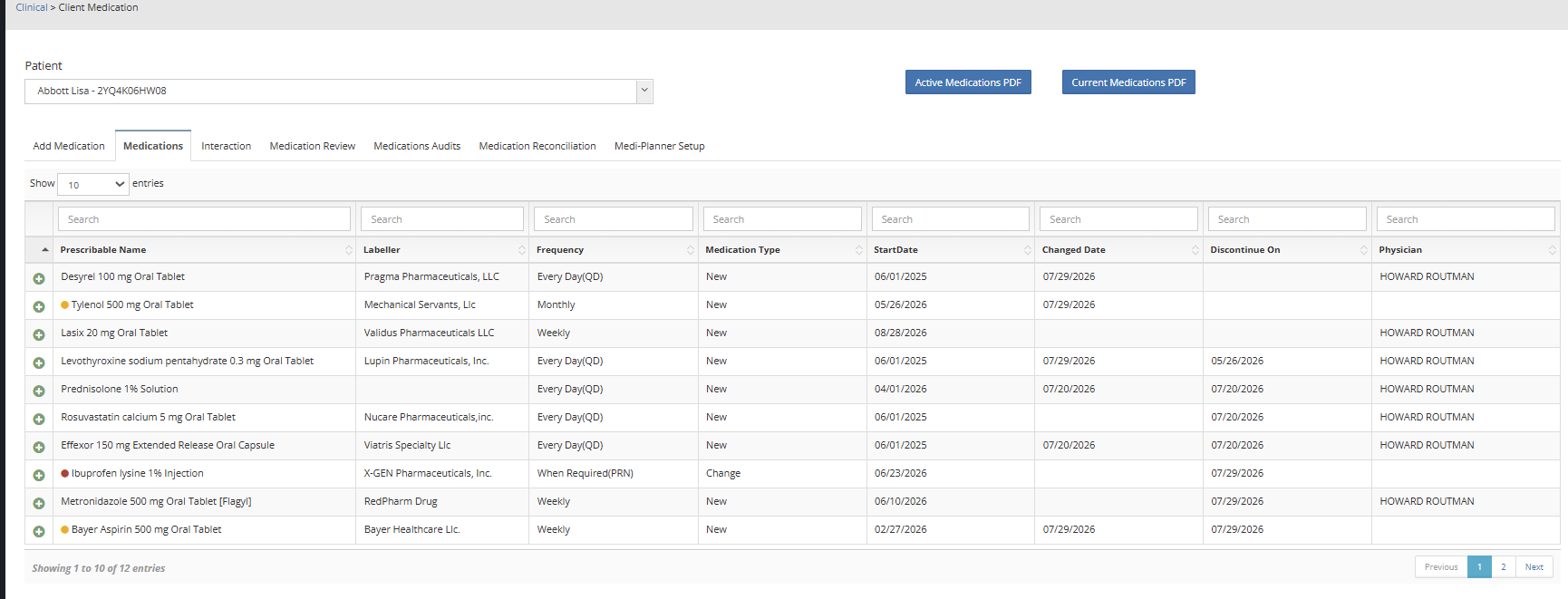
In this page, you will search by patient.

Once searched a client's medications will display.
Here you will have the option to view active medications and current medications in a PDF format.
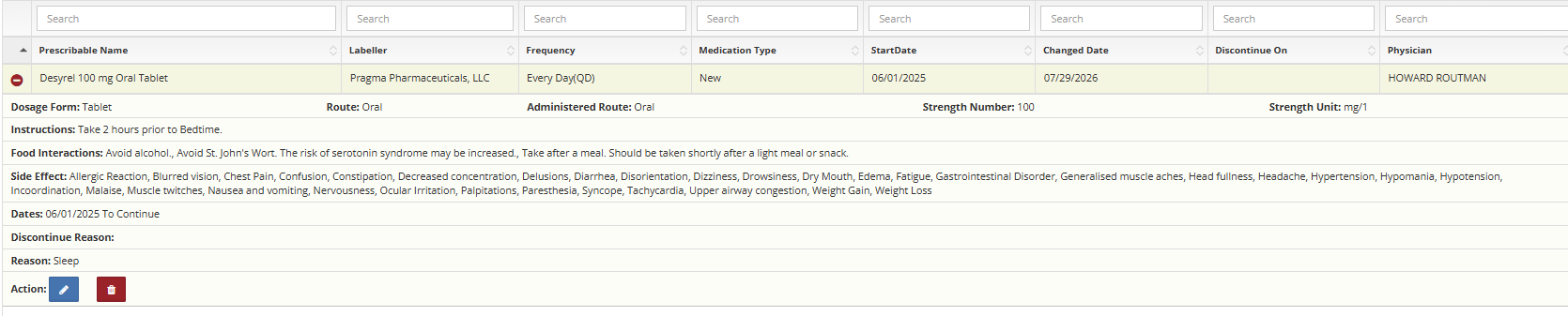
Click on the  to expand the medication and display more information.
You will also have to edit option and the delete option.
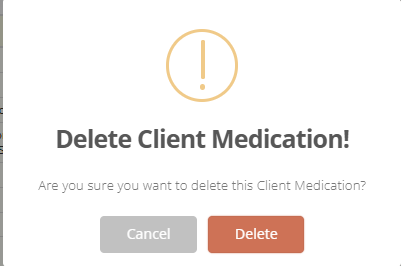
When deleting a medication, be cautious. This is a one way street and cannot be undone.
Next we have interactions, a read only tab.
Click on the for an extended description and management.


In the page you can also add or view a medication review.
Click on the medication review tab to get started.
Don't forget to click 
If you make a mistake you can edit or delete the review.
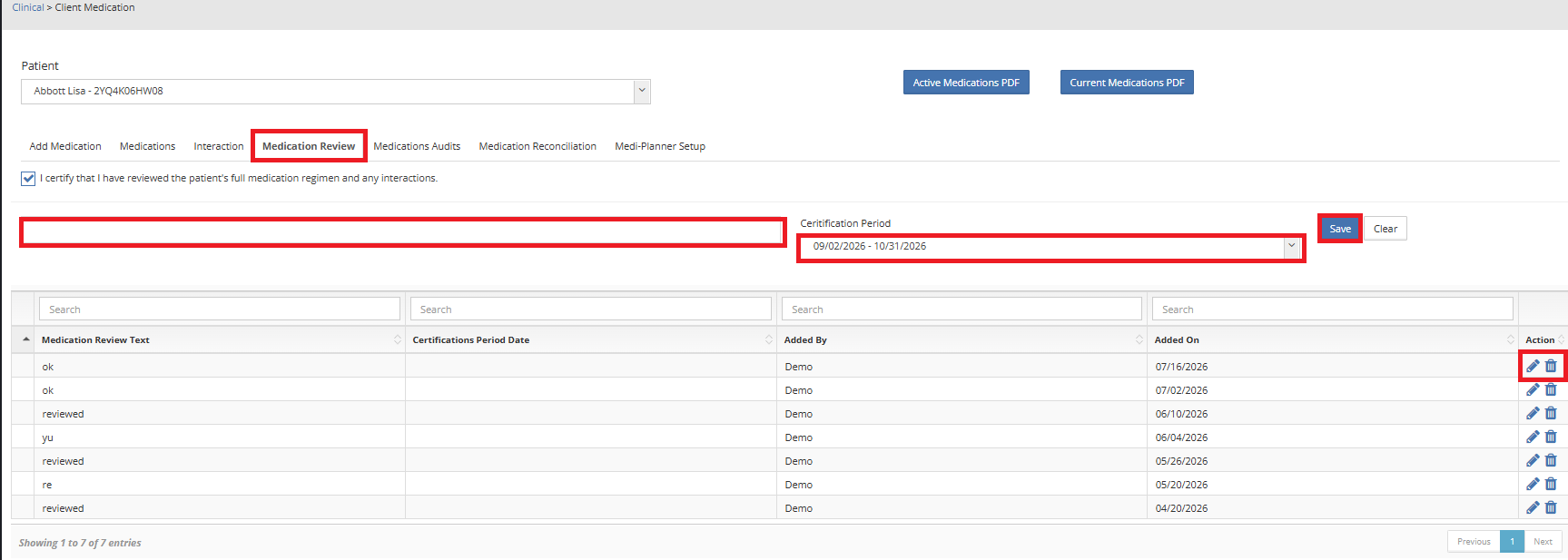
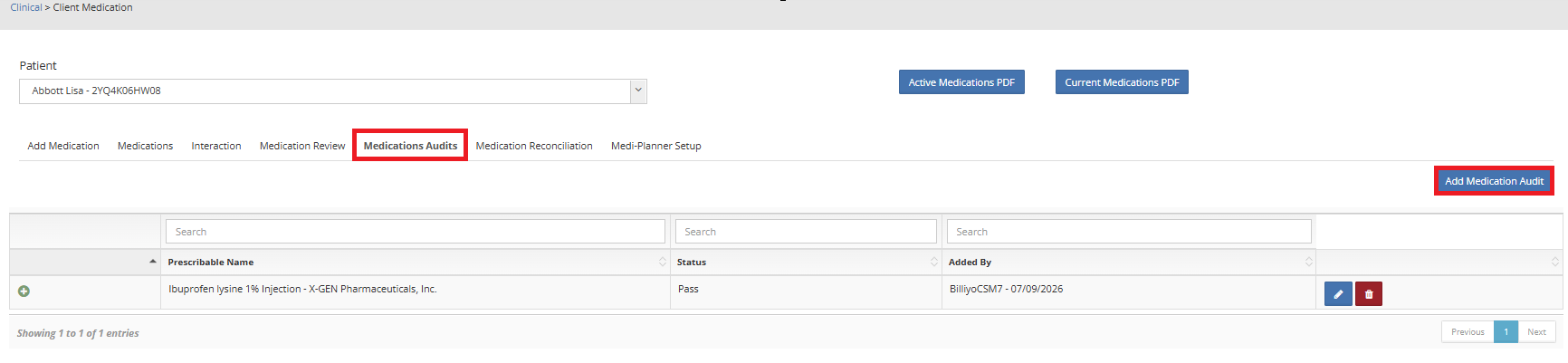
To add or view medication audits, click on the medication audit tab.
To add a medication Audit click .
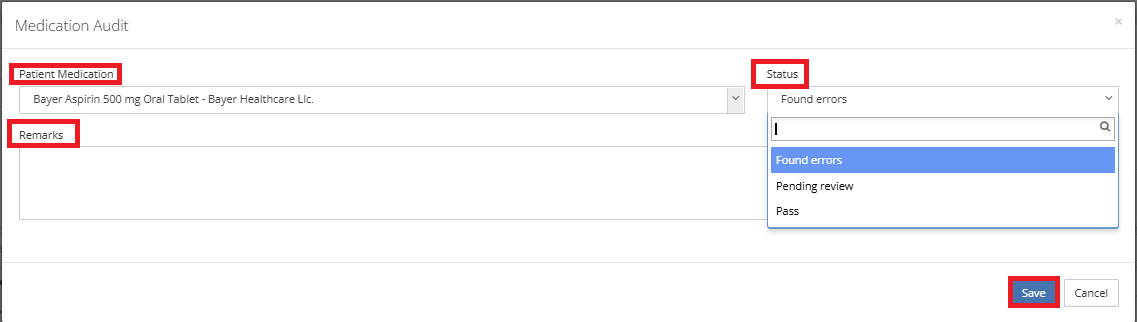
Once the pop up appears be sure to choose the medication you are auditing from the drop down, choose a status and leave remarks.
Don't forget to click .
Medication reconciliation, a read only tab where you can view the medication reconciliation history.
This is coming from medication reconciliations performed on the clinical app.
To expand a selection ,click on the .
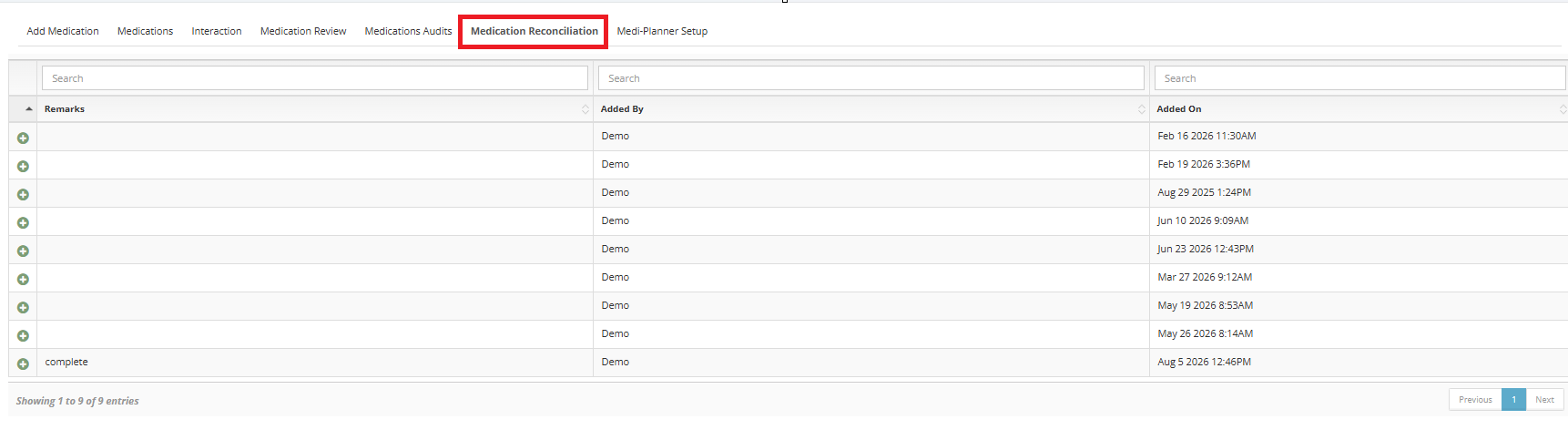
Once expanded you can view the medications that were included in that medication reconciliation.

Medi planner set up.
To expand a selection ,click on the .

Once expanded you can view the medications that were included in that medi planner set up.

To learn more about the medication reconciliation and medi planner set up on the clinical app, please visits our help canter article [Here](https://knowledge.billiyo.com/knowledge/clinical-application-patient-chart?hsLang=en).
- [Getting Started](https://knowledge.billiyo.com/knowledge/getting-started?hsLang=en#main-content)
- [Onboarding trainings](https://knowledge.billiyo.com/knowledge/getting-started?hsLang=en#onboarding-trainings)
- [Clients](https://knowledge.billiyo.com/knowledge/clients?hsLang=en#main-content)
- [Profile related info](https://knowledge.billiyo.com/knowledge/clients?hsLang=en#profile-related-info)
- [Patient onboarding](https://knowledge.billiyo.com/knowledge/clients?hsLang=en#patient-onboarding)
- [Patient dashboard related info](https://knowledge.billiyo.com/knowledge/clients?hsLang=en#patient-dashboard-related-info)
- [Caregiver connection info](https://knowledge.billiyo.com/knowledge/clients?hsLang=en#caregiver-connection-info)
- [Service authorization info](https://knowledge.billiyo.com/knowledge/clients?hsLang=en#service-authorization-info)
- [Care plan info](https://knowledge.billiyo.com/knowledge/clients?hsLang=en#care-plan-info)
- [Recalibrate client location](https://knowledge.billiyo.com/knowledge/clients?hsLang=en#recalibrate-client-location)
- [User accounts & client portal](https://knowledge.billiyo.com/knowledge/clients?hsLang=en#user-accounts-client-portal)
- [Client eligibility](https://knowledge.billiyo.com/knowledge/clients?hsLang=en#client-eligibility)
- [Q and A](https://knowledge.billiyo.com/knowledge/clients?hsLang=en#q-and-a)
- [Deleting Client Documents](https://knowledge.billiyo.com/knowledge/clients?hsLang=en#deleting-client-documents)
- [Services Tab](https://knowledge.billiyo.com/knowledge/clients?hsLang=en#services-tab)
- [Client Onboarding Application](https://knowledge.billiyo.com/knowledge/clients?hsLang=en#client-onboarding-application)
- [Employee](https://knowledge.billiyo.com/knowledge/employee?hsLang=en#main-content)
- [Profile related items](https://knowledge.billiyo.com/knowledge/employee?hsLang=en#profile-related-items)
- [User account info](https://knowledge.billiyo.com/knowledge/employee?hsLang=en#user-account-info)
- [Payroll info](https://knowledge.billiyo.com/knowledge/employee?hsLang=en#payroll-info)
- [Employee Hours Summary](https://knowledge.billiyo.com/knowledge/employee?hsLang=en#employee-hours-summary)
- [Expense info](https://knowledge.billiyo.com/knowledge/employee?hsLang=en#expense-info)
- [Request app user's location](https://knowledge.billiyo.com/knowledge/employee?hsLang=en#request-app-users-location)
- [Caregiver app info](https://knowledge.billiyo.com/knowledge/employee?hsLang=en#caregiver-app-info)
- [Clinical app info](https://knowledge.billiyo.com/knowledge/employee?hsLang=en#clinical-app-info)
- [Telephony](https://knowledge.billiyo.com/knowledge/employee?hsLang=en#telephony)
- [Caregiver dashboard](https://knowledge.billiyo.com/knowledge/employee?hsLang=en#caregiver-dashboard)
- [Employee onboarding URL](https://knowledge.billiyo.com/knowledge/employee?hsLang=en#employee-onboarding-url)
- [Q and A](https://knowledge.billiyo.com/knowledge/employee?hsLang=en#q-and-a)
- [Mobile apps](https://knowledge.billiyo.com/knowledge/employee?hsLang=en#mobile-apps)
- [Deleting Employee Documents](https://knowledge.billiyo.com/knowledge/employee?hsLang=en#deleting-employee-documents)
- [Employee Services Tracking](https://knowledge.billiyo.com/knowledge/employee?hsLang=en#employee-services-tracking)
- [Reset Password](https://knowledge.billiyo.com/knowledge/employee?hsLang=en#reset-password)
- [Scheduling & Timesheets](https://knowledge.billiyo.com/knowledge/scheduling-timesheets?hsLang=en#main-content)
- [Scheduling related info](https://knowledge.billiyo.com/knowledge/scheduling-timesheets?hsLang=en#scheduling-related-info)
- [Schedules approval related info](https://knowledge.billiyo.com/knowledge/scheduling-timesheets?hsLang=en#schedules-approval-related-info)
- [Electronic timesheet info](https://knowledge.billiyo.com/knowledge/scheduling-timesheets?hsLang=en#electronic-timesheet-info)
- [Manual timesheet Info](https://knowledge.billiyo.com/knowledge/scheduling-timesheets?hsLang=en#manual-timesheet-info)
- [Manual clock in/out info](https://knowledge.billiyo.com/knowledge/scheduling-timesheets?hsLang=en#manual-clock-in-out-info)
- [Q and A](https://knowledge.billiyo.com/knowledge/scheduling-timesheets?hsLang=en#q-and-a)
- [Clinical & Documentation](https://knowledge.billiyo.com/knowledge/clinical-documentation?hsLang=en#main-content)
- [Service verification](https://knowledge.billiyo.com/knowledge/clinical-documentation?hsLang=en#service-verification)
- [Clinical forms info](https://knowledge.billiyo.com/knowledge/clinical-documentation?hsLang=en#clinical-forms-info)
- [Nursing visit](https://knowledge.billiyo.com/knowledge/clinical-documentation?hsLang=en#nursing-visit)
- [PDN info](https://knowledge.billiyo.com/knowledge/clinical-documentation?hsLang=en#pdn-info)
- [Progress note](https://knowledge.billiyo.com/knowledge/clinical-documentation?hsLang=en#progress-note)
- [Vitals log](https://knowledge.billiyo.com/knowledge/clinical-documentation?hsLang=en#vitals-log)
- [Health analysis](https://knowledge.billiyo.com/knowledge/clinical-documentation?hsLang=en#health-analysis)
- [eMar info](https://knowledge.billiyo.com/knowledge/clinical-documentation?hsLang=en#emar-info)
- [OASIS submissions](https://knowledge.billiyo.com/knowledge/clinical-documentation?hsLang=en#oasis-submissions)
- [Skilled patient task flow](https://knowledge.billiyo.com/knowledge/clinical-documentation?hsLang=en#skilled-patient-task-flow)
- [QA QI info](https://knowledge.billiyo.com/knowledge/clinical-documentation?hsLang=en#qa-qi-info)
- [Patient Dashboard](https://knowledge.billiyo.com/knowledge/clinical-documentation?hsLang=en#patient-dashboard)
- [Physician orders](https://knowledge.billiyo.com/knowledge/clinical-documentation?hsLang=en#physician-orders)
- [Upload documents info](https://knowledge.billiyo.com/knowledge/clinical-documentation?hsLang=en#upload-documents-info)
- [QP visit documentation](https://knowledge.billiyo.com/knowledge/clinical-documentation?hsLang=en#qp-visit-documentation)
- [Digitalized documents info](https://knowledge.billiyo.com/knowledge/clinical-documentation?hsLang=en#digitalized-documents-info)
- [Q and A](https://knowledge.billiyo.com/knowledge/clinical-documentation?hsLang=en#q-and-a)
- [Medication](https://knowledge.billiyo.com/knowledge/clinical-documentation?hsLang=en#medication)
- [Claims & Invoices](https://knowledge.billiyo.com/knowledge/claims-invoices?hsLang=en#main-content)
- [Claim related info](https://knowledge.billiyo.com/knowledge/claims-invoices?hsLang=en#claim-related-info)
- [Invoice related info](https://knowledge.billiyo.com/knowledge/claims-invoices?hsLang=en#invoice-related-info)
- [EVV claim related info](https://knowledge.billiyo.com/knowledge/claims-invoices?hsLang=en#evv-claim-related-info)
- [Claim Detail Report info](https://knowledge.billiyo.com/knowledge/claims-invoices?hsLang=en#claim-detail-report-info)
- [Denial Analysis Report info](https://knowledge.billiyo.com/knowledge/claims-invoices?hsLang=en#denial-analysis-report-info)
- [Electronic Remittance info](https://knowledge.billiyo.com/knowledge/claims-invoices?hsLang=en#electronic-remittance-info)
- [Q and A](https://knowledge.billiyo.com/knowledge/claims-invoices?hsLang=en#q-and-a)
- [Service Verification Failed](https://knowledge.billiyo.com/knowledge/claims-invoices?hsLang=en#service-verification-failed)
- [Reporting](https://knowledge.billiyo.com/knowledge/reporting?hsLang=en#main-content)
- [Dashboards info (excluding "Caregiver Dashboard")](https://knowledge.billiyo.com/knowledge/reporting?hsLang=en#dashboards-info-excluding-caregiver-dashboard)
- [Contact Masters](https://knowledge.billiyo.com/knowledge/reporting?hsLang=en#contact-masters)
- [ServiceAuth](https://knowledge.billiyo.com/knowledge/reporting?hsLang=en#serviceauth)
- [LEIE](https://knowledge.billiyo.com/knowledge/reporting?hsLang=en#leie)
- [Balance And Aging](https://knowledge.billiyo.com/knowledge/reporting?hsLang=en#balance-and-aging)
- [Batch Detail](https://knowledge.billiyo.com/knowledge/reporting?hsLang=en#batch-detail)
- [Late/Missed Schedule](https://knowledge.billiyo.com/knowledge/reporting?hsLang=en#late-missed-schedule)
- [Dynamic Report](https://knowledge.billiyo.com/knowledge/reporting?hsLang=en#dynamic-report)
- [Cost Report](https://knowledge.billiyo.com/knowledge/reporting?hsLang=en#cost-report)
- [Financial Reports](https://knowledge.billiyo.com/knowledge/reporting?hsLang=en#financial-reports)
- [Q and A](https://knowledge.billiyo.com/knowledge/reporting?hsLang=en#q-and-a)
- [Download Documents](https://knowledge.billiyo.com/knowledge/reporting?hsLang=en#download-documents)
- [Settings & Setup](https://knowledge.billiyo.com/knowledge/settings-setup?hsLang=en#main-content)
- [Billiyo subscription info](https://knowledge.billiyo.com/knowledge/settings-setup?hsLang=en#billiyo-subscription-info)
- [Company settings info](https://knowledge.billiyo.com/knowledge/settings-setup?hsLang=en#company-settings-info)
- [Surveyor user account info](https://knowledge.billiyo.com/knowledge/settings-setup?hsLang=en#surveyor-user-account-info)
- [Service type management info](https://knowledge.billiyo.com/knowledge/settings-setup?hsLang=en#service-type-management-info)
- [Q and A](https://knowledge.billiyo.com/knowledge/settings-setup?hsLang=en#q-and-a)
- [Basic Company Information](https://knowledge.billiyo.com/knowledge/settings-setup?hsLang=en#basic-company-information)
- [Communication & Tasks](https://knowledge.billiyo.com/knowledge/communication-tasks?hsLang=en#main-content)
- [Chat](https://knowledge.billiyo.com/knowledge/communication-tasks?hsLang=en#chat)
- [Tasks](https://knowledge.billiyo.com/knowledge/communication-tasks?hsLang=en#tasks)
- [Mass communications](https://knowledge.billiyo.com/knowledge/communication-tasks?hsLang=en#mass-communications)
- [Reconciling eFax](https://knowledge.billiyo.com/knowledge/communication-tasks?hsLang=en#reconciling-efax)
- [View Fax](https://knowledge.billiyo.com/knowledge/communication-tasks?hsLang=en#view-fax)
- [Patient Dashboard Communications](https://knowledge.billiyo.com/knowledge/communication-tasks?hsLang=en#patient-dashboard-communications)
- [Employee Communications](https://knowledge.billiyo.com/knowledge/communication-tasks?hsLang=en#employee-communications)
- [Product Updates](https://knowledge.billiyo.com/knowledge/product-updates?hsLang=en#main-content)
- [Product updates](https://knowledge.billiyo.com/knowledge/product-updates?hsLang=en#product-updates)
- [Electronic Visit Verification (EVV)](https://knowledge.billiyo.com/knowledge/electronic-visit-verification-evv?hsLang=en#main-content)
- [Minnesota (MN) EVV](https://knowledge.billiyo.com/knowledge/electronic-visit-verification-evv?hsLang=en#minnesota-mn-evv)
- [Review EVV](https://knowledge.billiyo.com/knowledge/electronic-visit-verification-evv?hsLang=en#review-evv)
- [More](https://knowledge.billiyo.com/knowledge/more?hsLang=en#main-content)
- [Company](https://knowledge.billiyo.com/knowledge/more?hsLang=en#company)
- [User Account](https://knowledge.billiyo.com/knowledge/more?hsLang=en#user-account)
- [Product Updates](https://knowledge.billiyo.com/knowledge/more?hsLang=en#product-updates)
- [Mobile Apps](https://knowledge.billiyo.com/knowledge/mobile-apps?hsLang=en#main-content)
- [Billiyo for Caregiver App](https://knowledge.billiyo.com/knowledge/mobile-apps?hsLang=en#billiyo-for-caregiver-app)
- [Billiyo Clinical App](https://knowledge.billiyo.com/knowledge/mobile-apps?hsLang=en#billiyo-clinical-app)
- [Mobile Applications](https://knowledge.billiyo.com/knowledge/mobile-apps?hsLang=en#mobile-applications)
- [Billiyo for Adult Day Care App](https://knowledge.billiyo.com/knowledge/mobile-apps?hsLang=en#billiyo-for-adult-day-care-app)
- [CRM](https://knowledge.billiyo.com/knowledge/crm?hsLang=en#main-content)
- [Service Auths](https://knowledge.billiyo.com/knowledge/crm?hsLang=en#service-auths)
- [Dashboards](https://knowledge.billiyo.com/knowledge/dashboards?hsLang=en#main-content)
- [Document Hub](https://knowledge.billiyo.com/knowledge/dashboards?hsLang=en#document-hub)
- [Announcements](https://knowledge.billiyo.com/knowledge/announcements?hsLang=en)
- [Adult Day Care](https://knowledge.billiyo.com/knowledge/adult-day-care?hsLang=en#main-content)
- [Adult Daycare App](https://knowledge.billiyo.com/knowledge/adult-day-care?hsLang=en#adult-daycare-app)
[](http://billiyo.com)
Billiyo Help Center
Copyright © 2026, Billiyo Health Inc.