![LOGO BLUE.png]](https://knowledge.billiyo.com/hs-fs/hubfs/LOGO%20BLUE.png?height=40&name=LOGO%20BLUE.png)
Jump To
Navigation
Reviewing Client Contacts
Download
To create a contact, we will need to use the Client Profile.
After entering a client's profile, please head to the bottom of the page and click into the "Contacts" tab.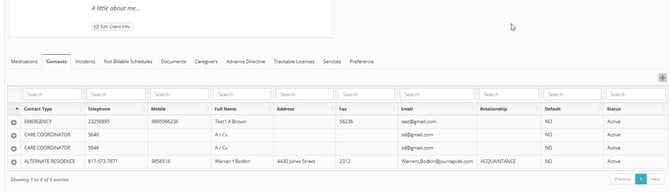
To add a contact, hit the grey plus icon.. Then fill out the fields that show in the popup and click Save.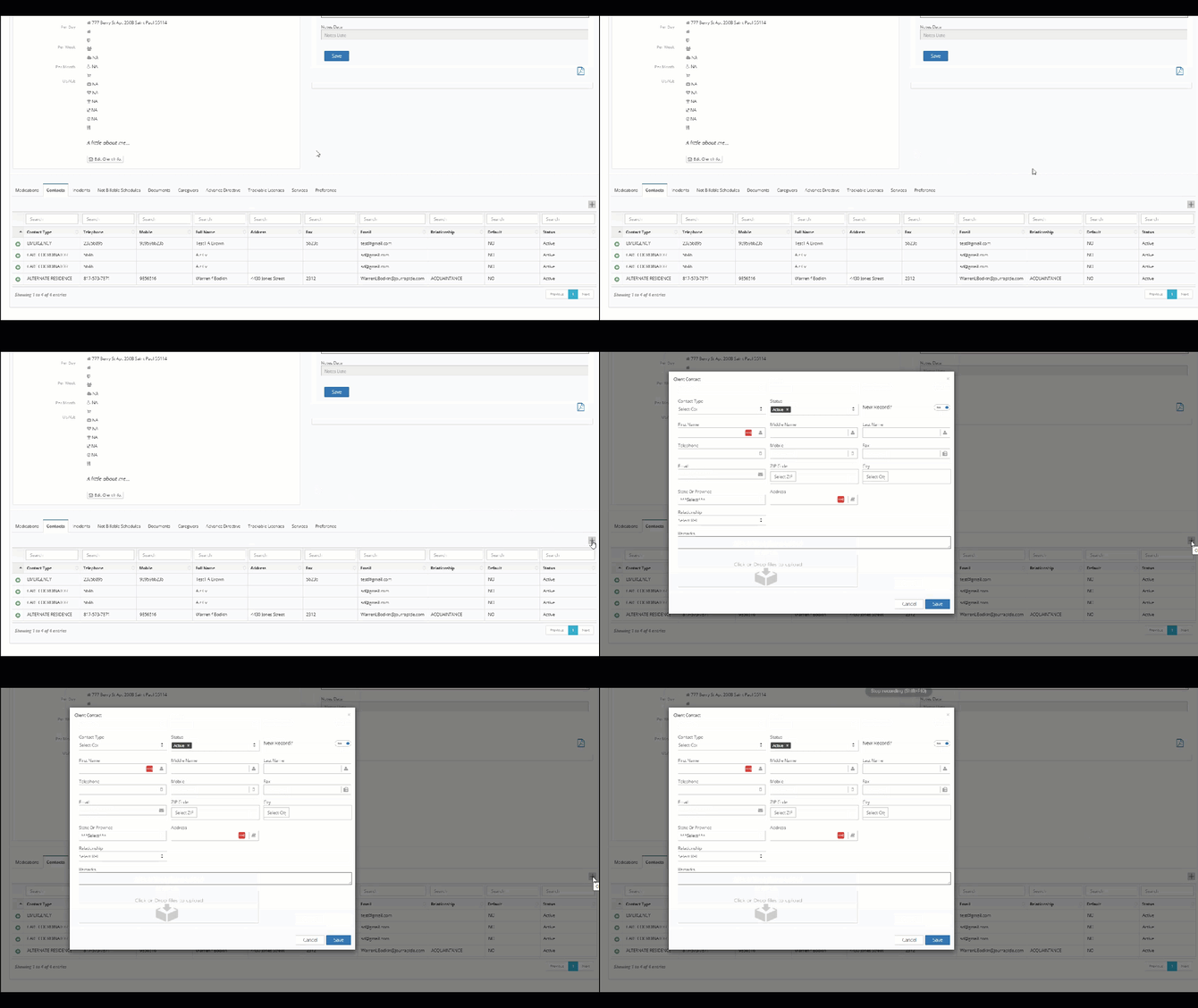
To view and edit a contact, click the green plus icon to the left of them. To edit their information, click the blue pencil icon.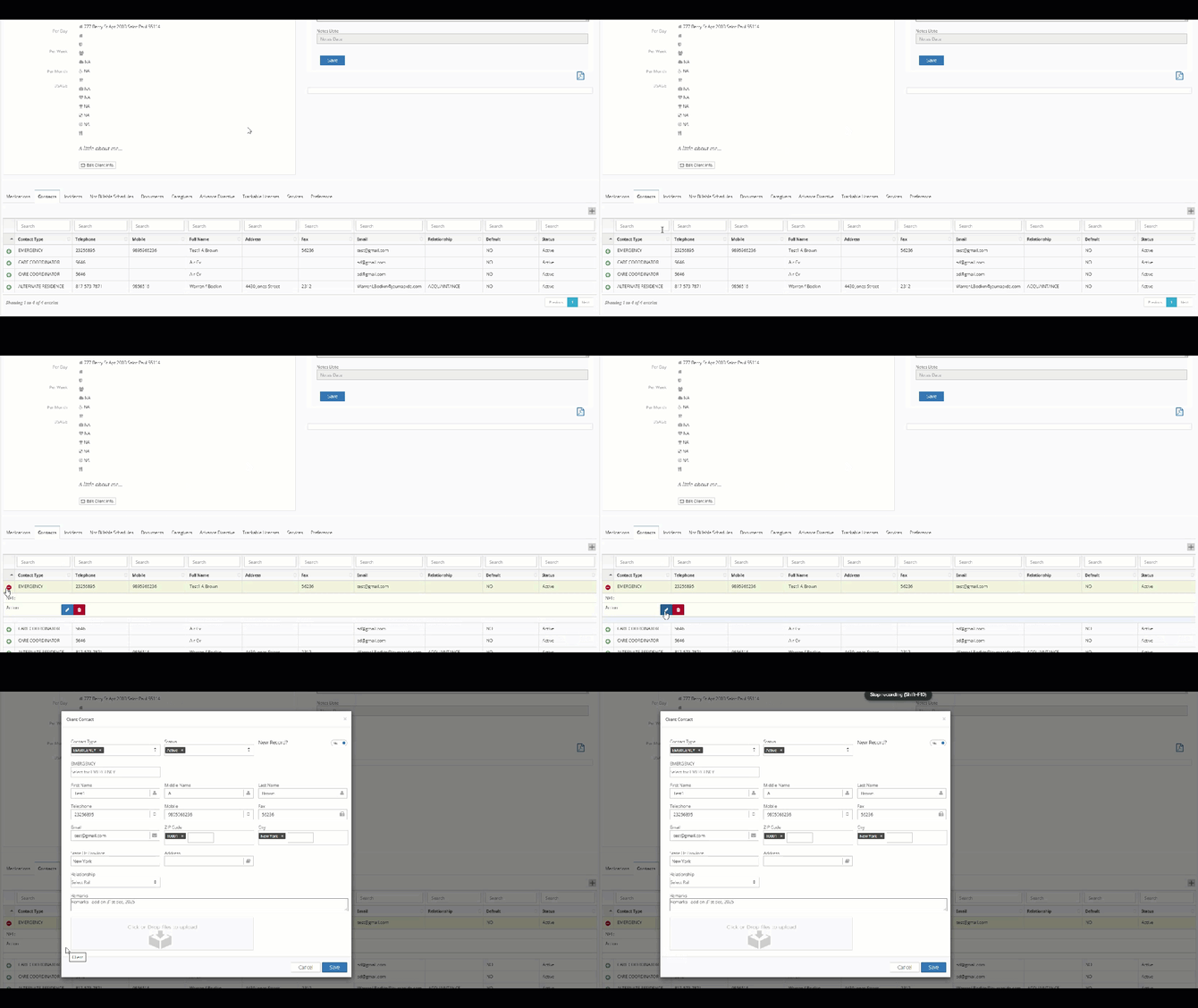
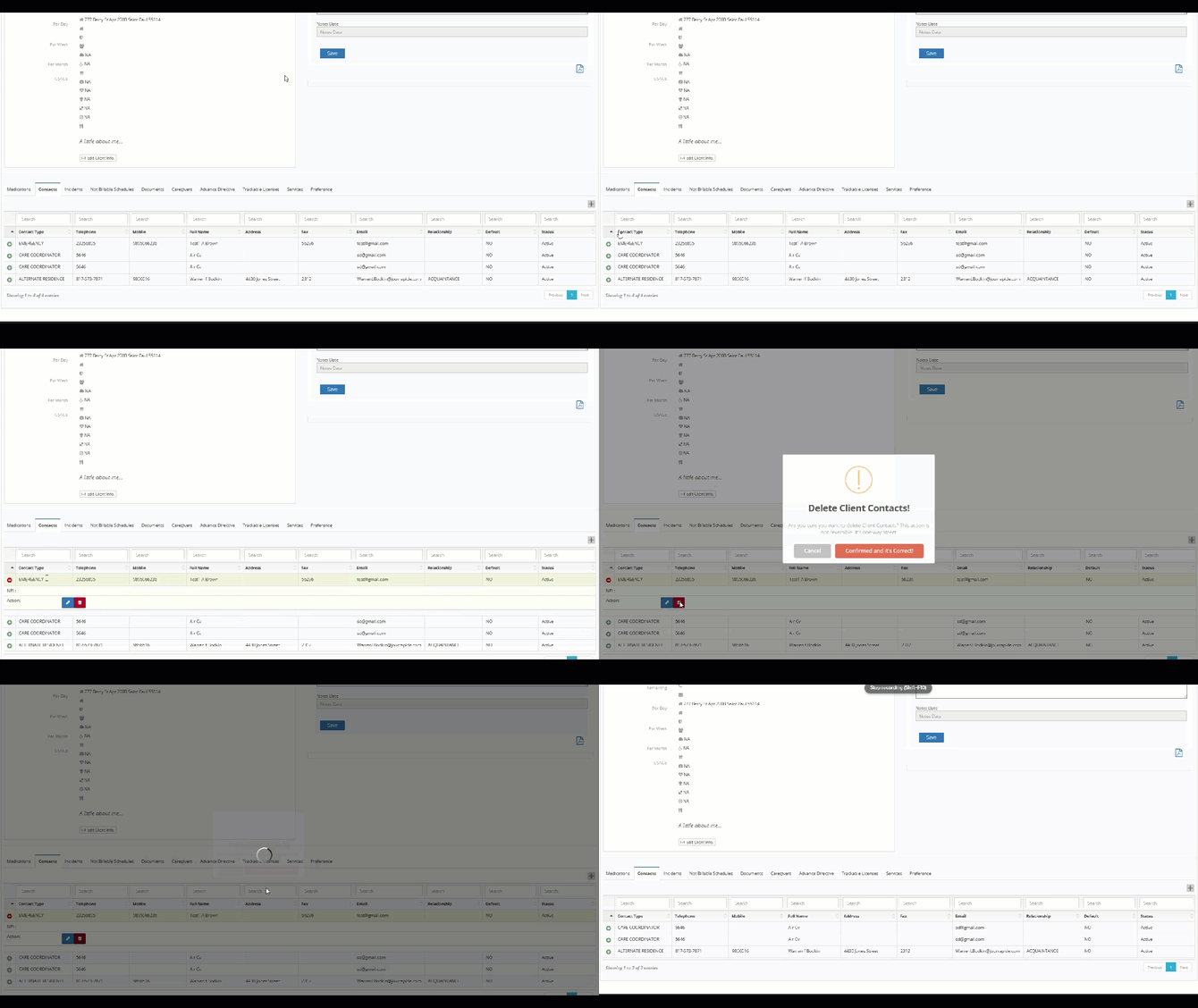
To delete a contact, click the red trash can icon. A “Delete Client Contacts!” popup will appear; to confirm click the Confirmed and it’s Correct button.
Navigation
To locate the Client Contacts page, please navigate to "Reports" in the main menu and then select "Client Contacts"
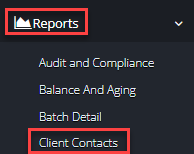
Reviewing Client Contacts
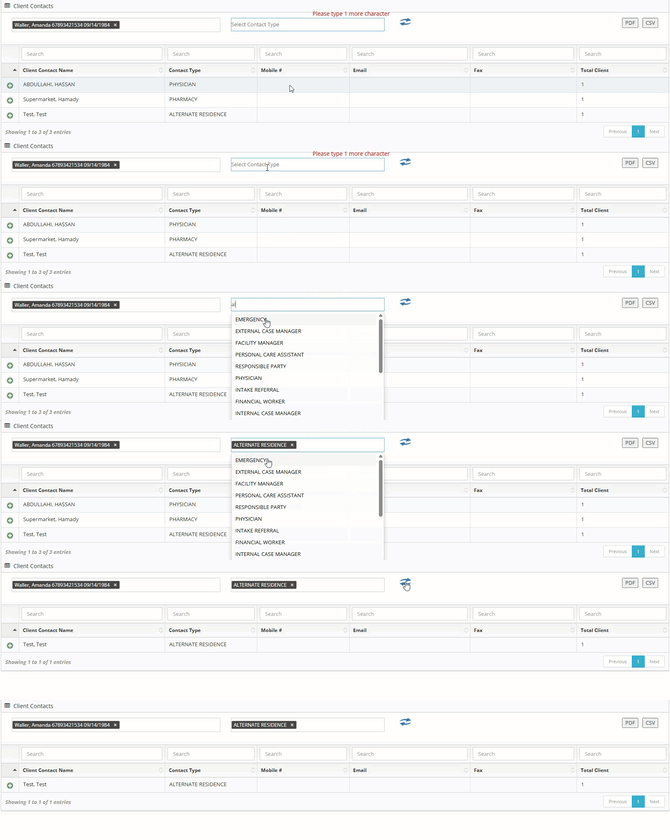
In the page that loads up, we can see all contacts that have been entered into your system.
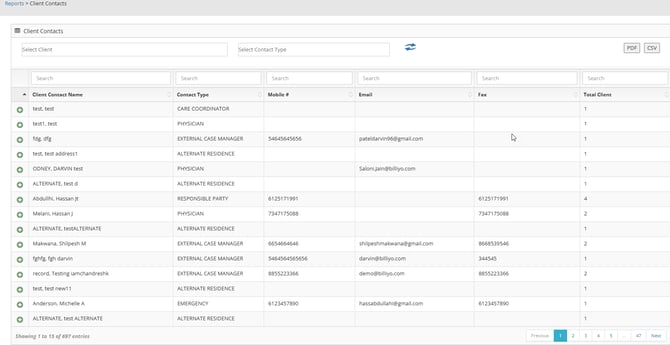
To see the clients are are connected to your contact, please hit the green plus sign next to the contacts name: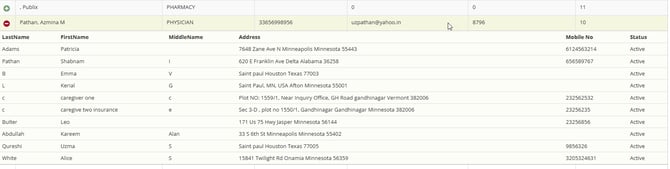
If you would like to see the contacts associated to a single client, then we can search for the client's name with the filter at the top of the page.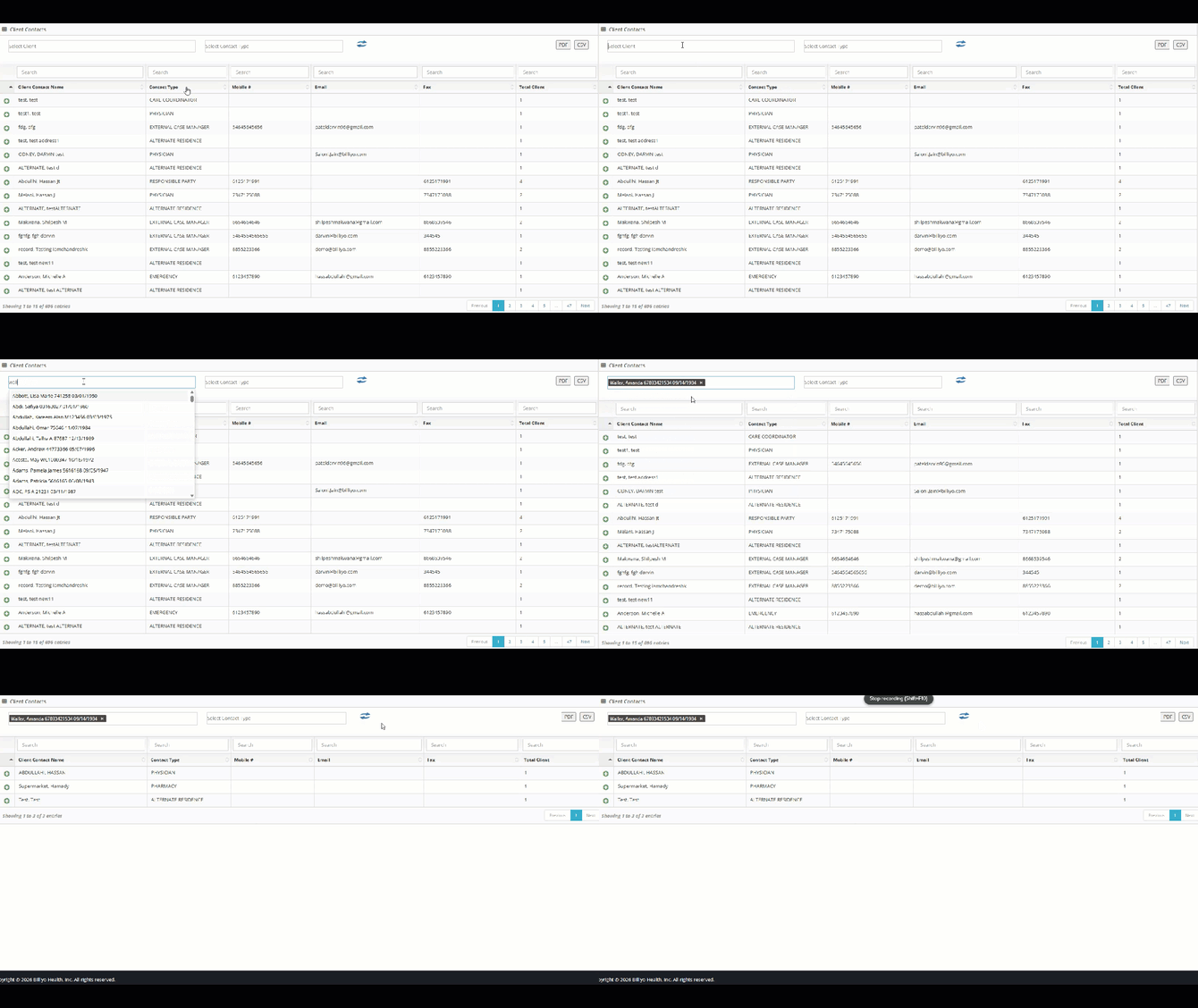
You can also search for a contact by using the "Select Client Contact Type" field.
Download
To download your contacts, we can use the PDF or CSV buttons to the top right of the page.
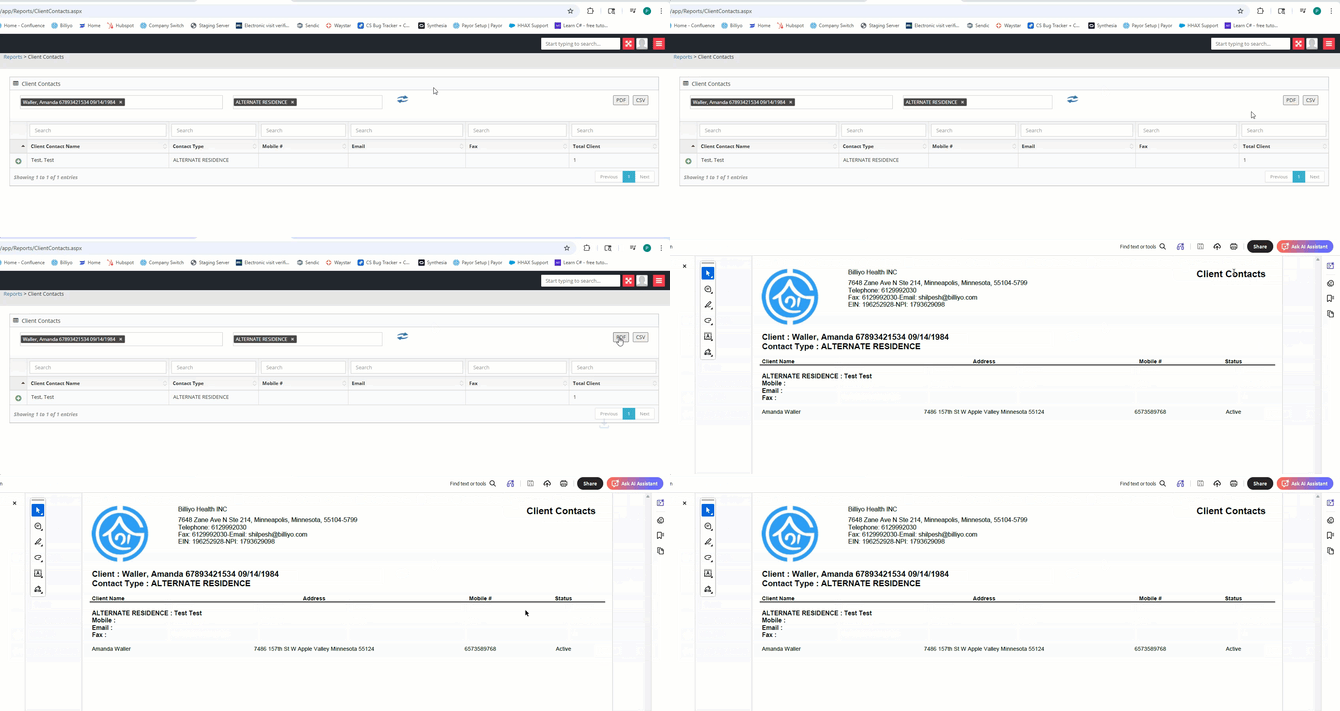 With this report it easy to get a list of all client contacts in your agency.