![LOGO BLUE.png]](https://knowledge.billiyo.com/hs-fs/hubfs/LOGO%20BLUE.png?height=40&name=LOGO%20BLUE.png)
Table of Contents
- Quick Notes
- Signature Requirements
- Allow Multiple EVV Worked Visit Sign Off for Client/RP ("Sign Once")
Quick Notes
- To learn about creating a client caregiver connection, check out this article.
- To learn about editing a client caregiver connection, check out this article.
- To learn about the client portal, check out this article.
- Settings in the client caregiver connection can differ based on procedure code/modifier, learn more about this here.
Signature Requirements
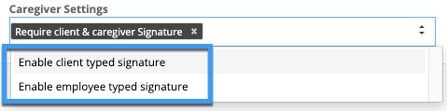
Within the client caregiver connection setup, a field for Caregiver Settings will appear. This field is used to manage signature requirements.
- If Require client & caregiver signature is selected, both the client and caregiver will need to provide their signature when the caregiver clocks out.
- If Do not require client and caregiver signature is selected, no signatures need to be provided — and the client and caregiver should not see signature capture fields appear.
- A sub option will appear after selecting this for Do not require RP signature. If selected, no signatures will be required to be captured.
- If Do not require client signature is selected, when the caregiver clocks out the client's signature will not be asked for.
- A sub option will appear after selecting this for Do not require RP signature. If selected, no signatures will be required to be captured.
If a signature is set to do not require, it does not need to be captured in order to generate a timesheet.
All selection options that require signature will also have the option to allow the signature to be typed (instead of drawn).
Typed signature should be used sparingly, only in cases where an individual is not able to physically provide a drawn signature.
Allow Multiple EVV Worked Visit Sign Off for Client/RP ("Sign Once")
Required pre-setup
- Check the Enable Sign Once checkbox company setting.
- In the client caregiver connection, set the Electronic Visit Verification field to Enable EVV or Enable EVV and Geo Tracking.
- In the client caregiver connection, set the Caregiver Settings field to Require client & caregiver signature.
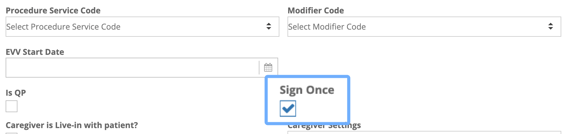
To allow a client/RP to add their signature to multiple worked visits at one time, after an employee has clocked out, use the Sign Once setting.
- This option will only appear if all points of the Required pre-setup above have been done.
- If the Sign Once checkbox is checked, the feature is turned on and clients/RPs will have the option to add their signature to multiple worked visits at once in the client portal.
- If the Sign Once checkbox is not checked, the feature is turned off and clients/RPs will have to add their signature to each individual worked visit in the client portal.