![LOGO BLUE.png]](https://knowledge.billiyo.com/hs-fs/hubfs/LOGO%20BLUE.png?height=40&name=LOGO%20BLUE.png)
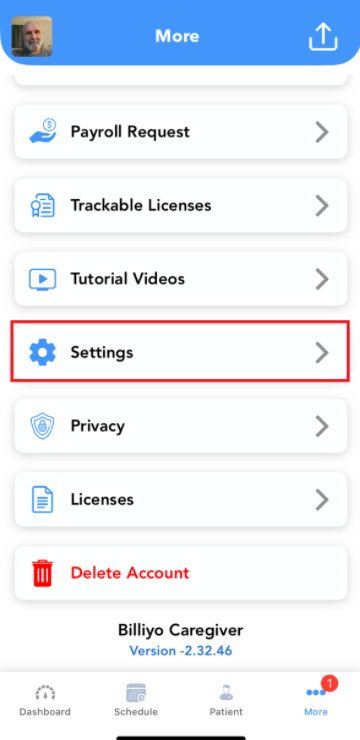
To get started head on over to the More Tab in the app.
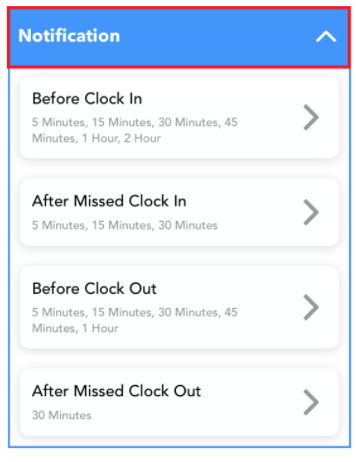
At the top of the screen you will see notifications.
Notifications can be enabled to remind you to clock in and clock out.
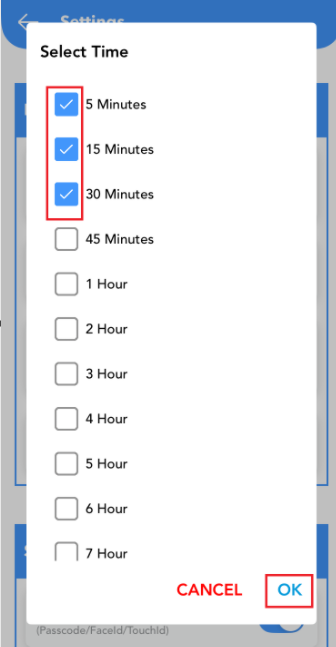
Choose the time that you would like to be notified by checking the check box.
Don't forget to click  .
.
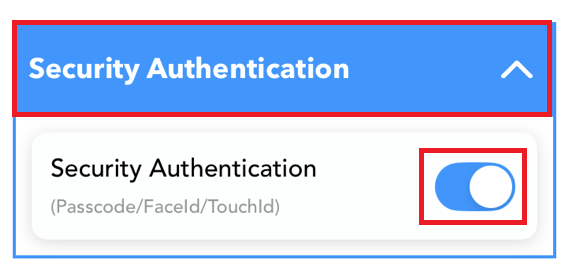
Scroll down to enable Face Id.
Use the toggle to turn it on.
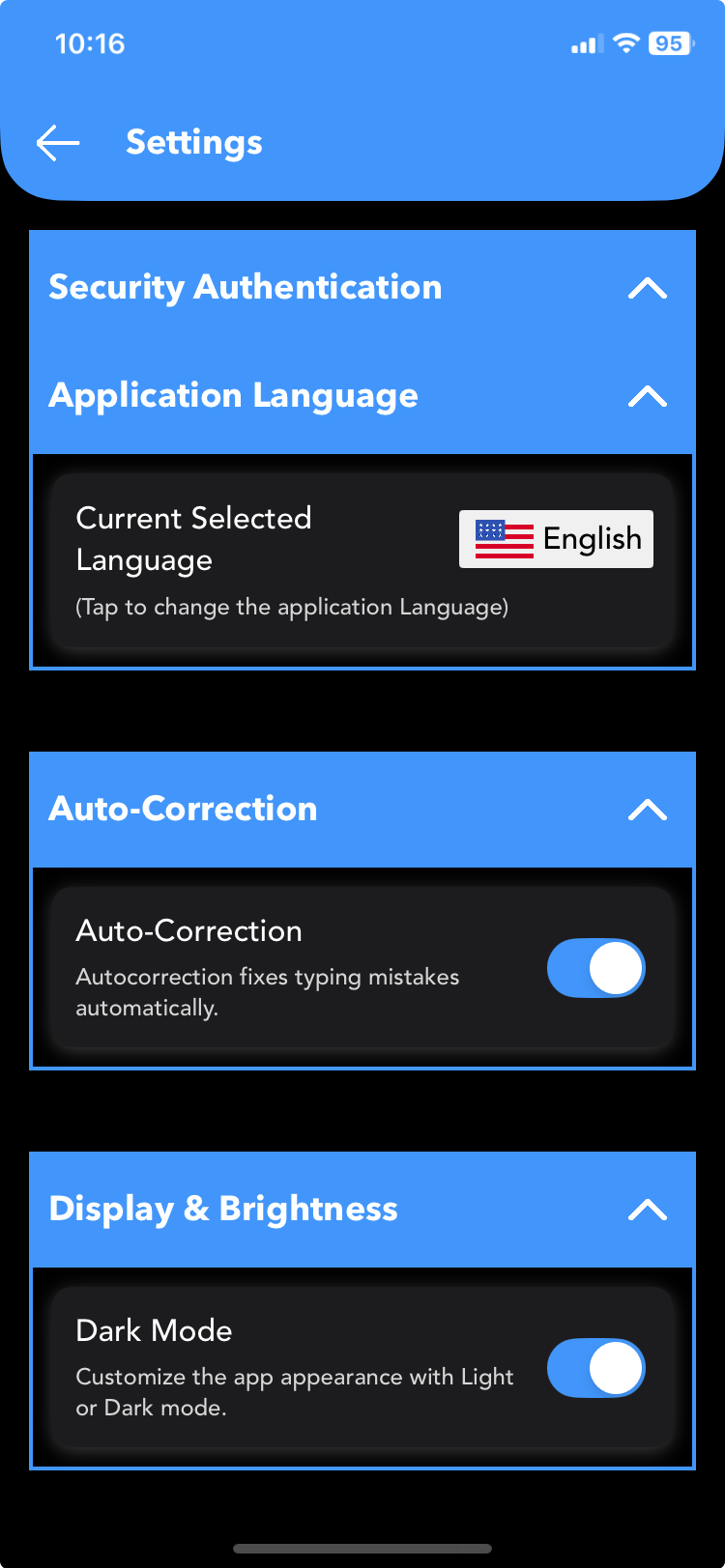
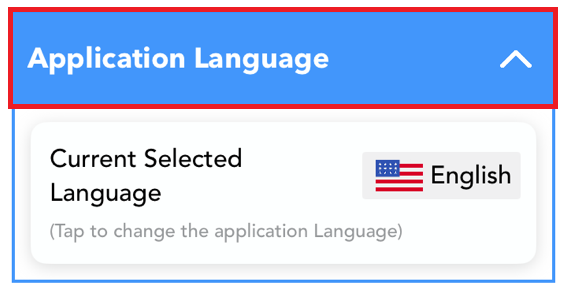
Next you will see Application Language.
Here you can change the apps language to your desired language.
By default the app is set to English.
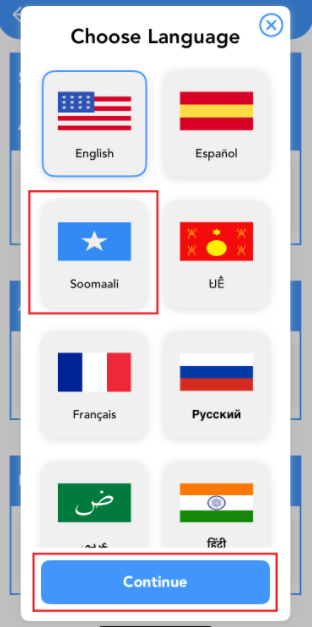
Click on the preferred language and click  .
.
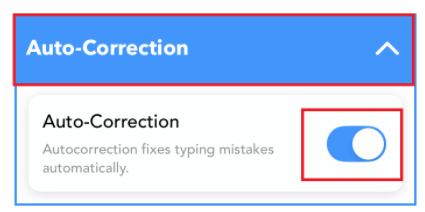
Then we have auto-correction.
Use the toggle to turn it on.
When enabled the app will automatically fix typing mistakes.
At the bottom you will see Display and Brightness.
Here you can turn on Dark Mode.
Use the toggle to turn it on.
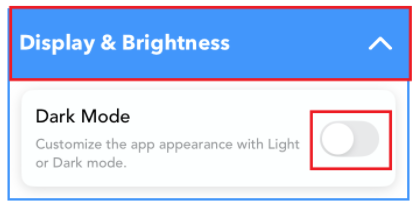
Once enabled the entire app will be displayed in dark mode.