![LOGO BLUE.png]](https://knowledge.billiyo.com/hs-fs/hubfs/LOGO%20BLUE.png?height=40&name=LOGO%20BLUE.png)
Jump To
Navigation
Overview
Generate Report
Locate and Download Report
Navigation:
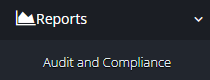
To locate the audit and compliance report, please head to Reports in the left menu and then select Audit and Compliance
Overview
In the page that loads up, we can see the the Audit reports that were downloaded.
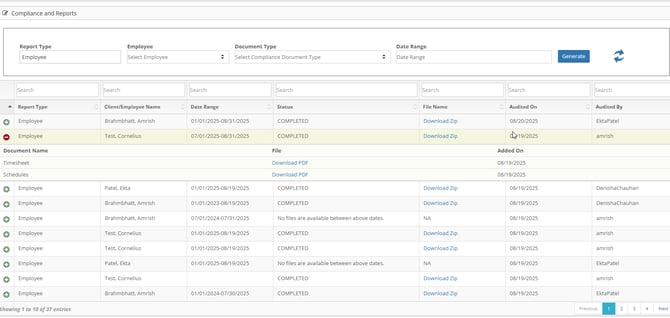 Each report is generated for a single client or employee and contains a series of documents that were selected when the report was firs mage.

Generate Report
To generate a new compliance and report, we will need to fill out the filters at the top of the page.
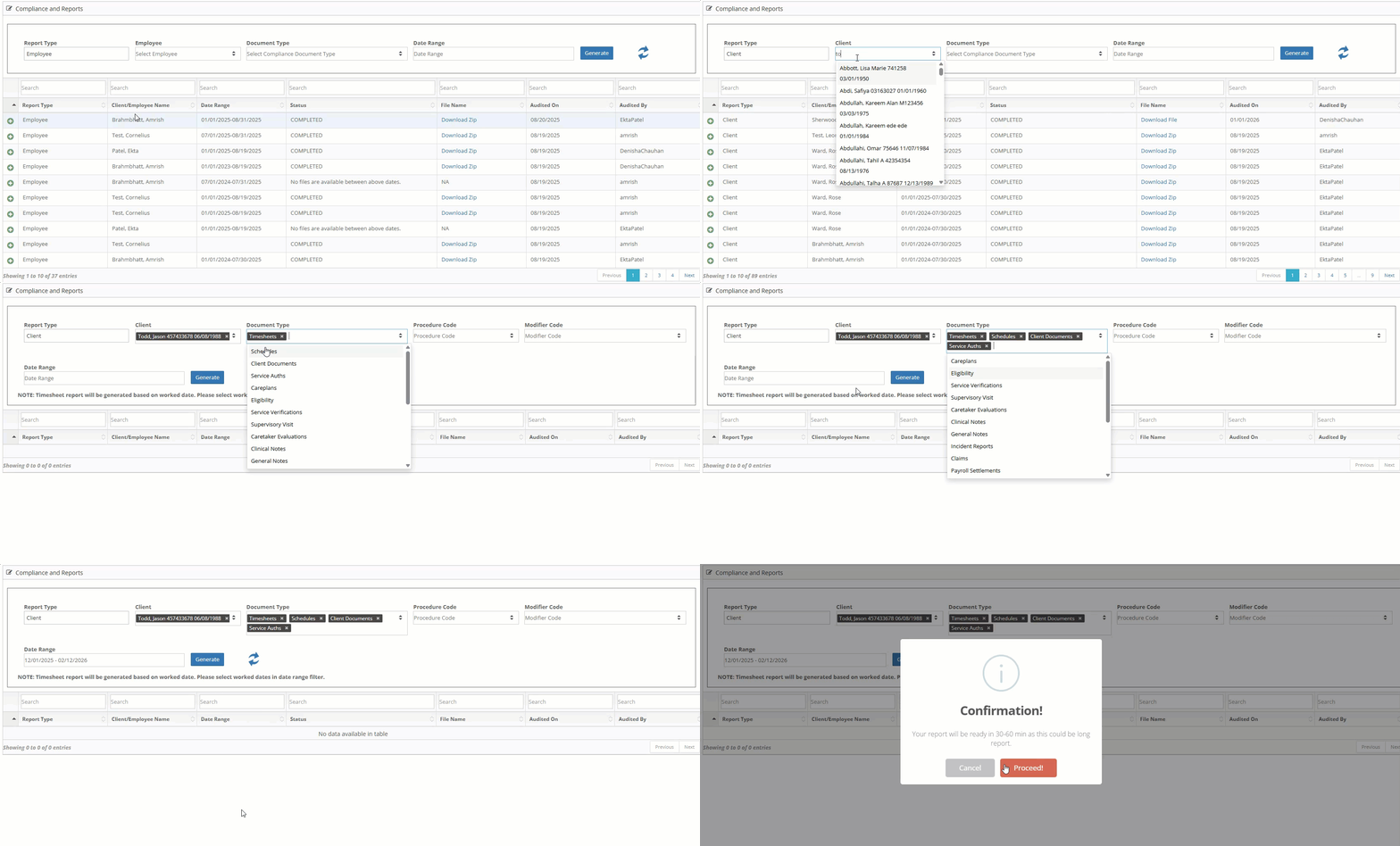
- Report Type - Are you generating a report for a client or employee
- Required
- Client/Employee - The Name of the person you are generating a report for
- Required
- Document type - The documents you want to inclide in the report
- Required
- Procedure Code - The procedure code you want to pull records for
- If you leave this blank then the report will be pulled for all procedure codes
- Modifier - The modifier you want to pull records for
- If you leave this blank then the report will be pulled for all modifiers that are attached to the procedure code you selected
- Date Range - The generated date for the forms you are pulling.
Because the reports can include a lot of information, they may not immediately download. In that case, the form will be prepared in the background as you use Billiyo.
Locate and Download Report
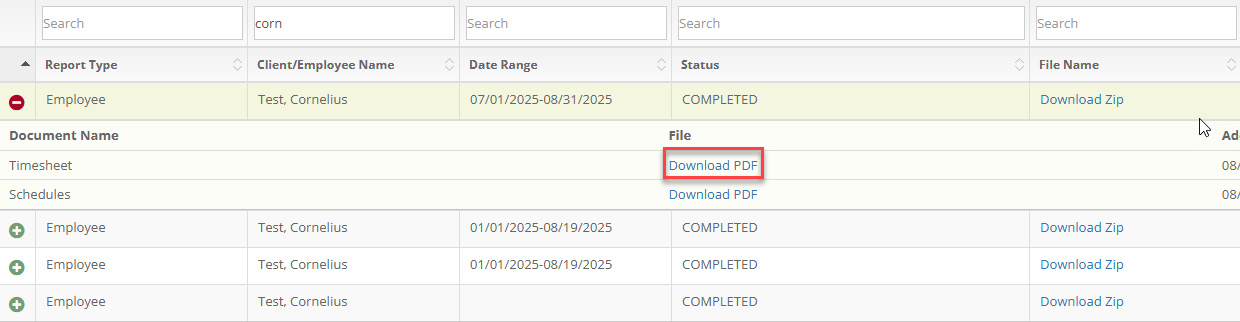
To locate a specific report, we can use the search fields at the top of the page.
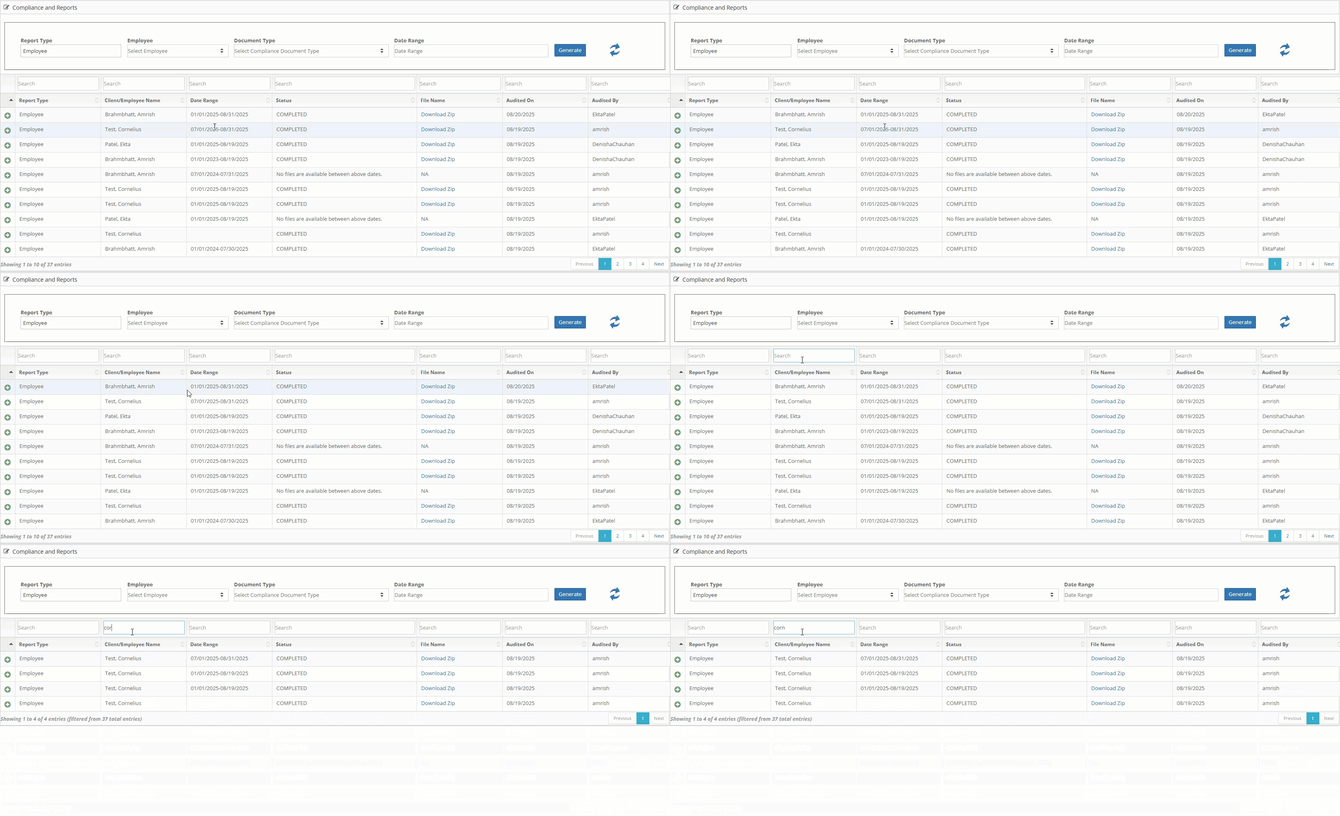
After locating a report, you can download it. To download the entire report, including all forms that were attached to it, please select "Download Zip." This will download a Zip file. Every document type that was selected in the report will receive its own file. 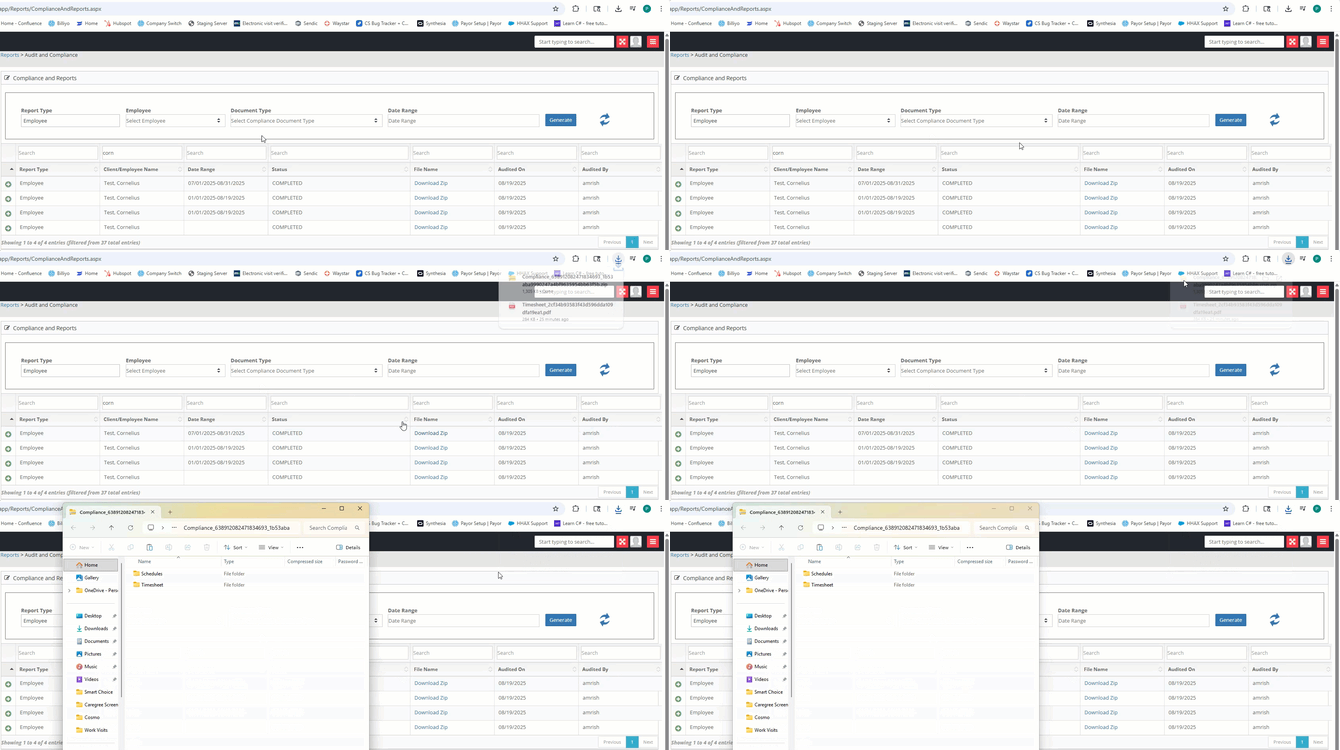
To only download one type of document, please hit the green plus sign to the left of the report and, in the expanded view, please select the "Download PDF" button that is next to the form type.