---
title: Automated Care Plans and Schedules
description: "With the Billiyo AI Assistant, we can create care plans and schedules from the \"View Service Auth\" page. We can also replicate the care plans and schedules that were previously entered when making a new SA."
---
[Skip to content](https://knowledge.billiyo.com/knowledge/au#main-content)
English
Show submenu for translations
[![LOGO BLUE.png\]](https://knowledge.billiyo.com/hs-fs/hubfs/LOGO%20BLUE.png?height=40&name=LOGO%20BLUE.png)](https://billiyo.com/)
Open main navigation
Close main navigation
- English
Show submenu for translations
- [Portal Login](https://billiyo.com/App/security/signin.aspx)
[Portal Login](https://billiyo.com/App/security/signin.aspx)
Looking for something specific?
- There are no suggestions because the search field is empty.
1. [Help Center](https://knowledge.billiyo.com/knowledge?hsLang=en)
2. [CRM](https://knowledge.billiyo.com/knowledge/crm?hsLang=en)
3. [Service Auths](https://knowledge.billiyo.com/knowledge/crm?hsLang=en#service-auths)
# Automated Care Plans and Schedules
## With the Billiyo AI Assistant, we can create care plans and schedules from the "View Service Auth" page. We can also replicate the care plans and schedules that were previously entered when making a new SA.
Please [click here](https://knowledge.billiyo.com/knowledge/add-view-sa?hsLang=en) to learn how to enter/review Service Authorizations into Billiyo
**Jump To**
[Overview](https://knowledge.billiyo.com/knowledge/au#overview)[Creating Initial Schedules and Care Plans](https://knowledge.billiyo.com/knowledge/au#create)
[Replicating Schedules and Care Plans](https://knowledge.billiyo.com/knowledge/au#Replicate)
[Example](https://knowledge.billiyo.com/knowledge/au#example)
### Overview
In the past, Service Authorizations, Care Plans and Schedules were created in separate pages. While those pages are not going anywhere, we now have the Billiyo AI assistant. With this new feature we can now build service auths, care plans and scheduled within a single page
Better yet, after entering an initial Care Plan and Schedule, Billiyo AI can automatically create schedules whenever a service authorization is renewed.
### Creating Initial Schedules and Care Plans
To use the AI assistant, a Service Authorization will first need to be added into Billiyo. We can do this with either [manual entry or automation](https://knowledge.billiyo.com/knowledge/add-view-sa?hsLang=en). After entering an agreement, we will be presented with a pop up.
**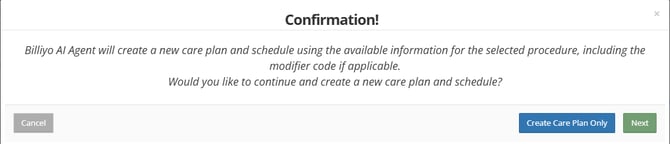**
This pop up as three options:
**Cancel -** Save the service auth, but exit the AI assistant.
**Create Care Plan Only -** Create a care plan for the agreement that you just entered
**Next -** Create a care plan and schedule for the service authorization that you just entered
If you select 'Create Care Plan Only' or 'Next' the confirmation pop-up will expand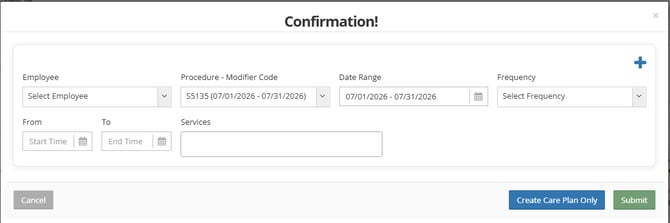
If "Create Care Plan Only" is chosen, the "From" and "To" time fields will not appear.
You can get back into the AI Assistant by clicking on the green "Billiyo AI" button.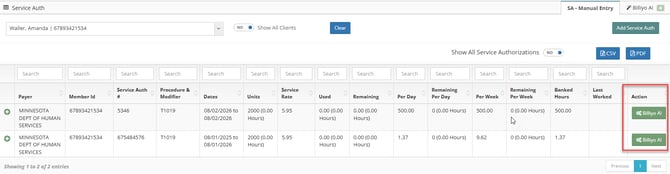
In this pop-up we will tell the AI Assistant what care plans or schedules we want to make. To do this, we will fill out the following fields:
- Employee - The caregiver that is assigned to the care plan and schedule that is being built
- To select an employee, they need to first have a caregiver connection with the client
- Procedure Code/Modifier Code - This is pulled from the service agreement that is being entered.
- For agreements that include multiple procedure codes, each code will get its own line in the confirmation pop up
- The services that can be selected are determined by the procedure
- Date Range - This is pulled from the service authorization.
- The care plan will be active during the dates of these selected dates
- The schedule will have visits populate within the selected date range as determined by the frequency.
- Frequency -
- Options like "Weekly" and "Monthly" start on the first day of the schedule. So if the first day was a Tuesday, and the frequency was weekly, then the AI Assistant will have a schedule every Tuesday.
- Based on the frequency you select, you may be asked to enter days. The days you choose will be the days that your visits are scheduled on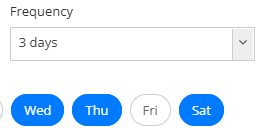
- From/To - The Clock in and out time of each visit
- Services - The Services that will be preformed in the visit
- These services are determined by the selected procedure code. [Click her](https://knowledge.billiyo.com/knowledge/company-settings-service-plans?hsLang=en)e to learn how to assign services to a procedure code.
If you need to make multiple schedules, then you can add extra lines by hitting the  button. To remove a line hit the button
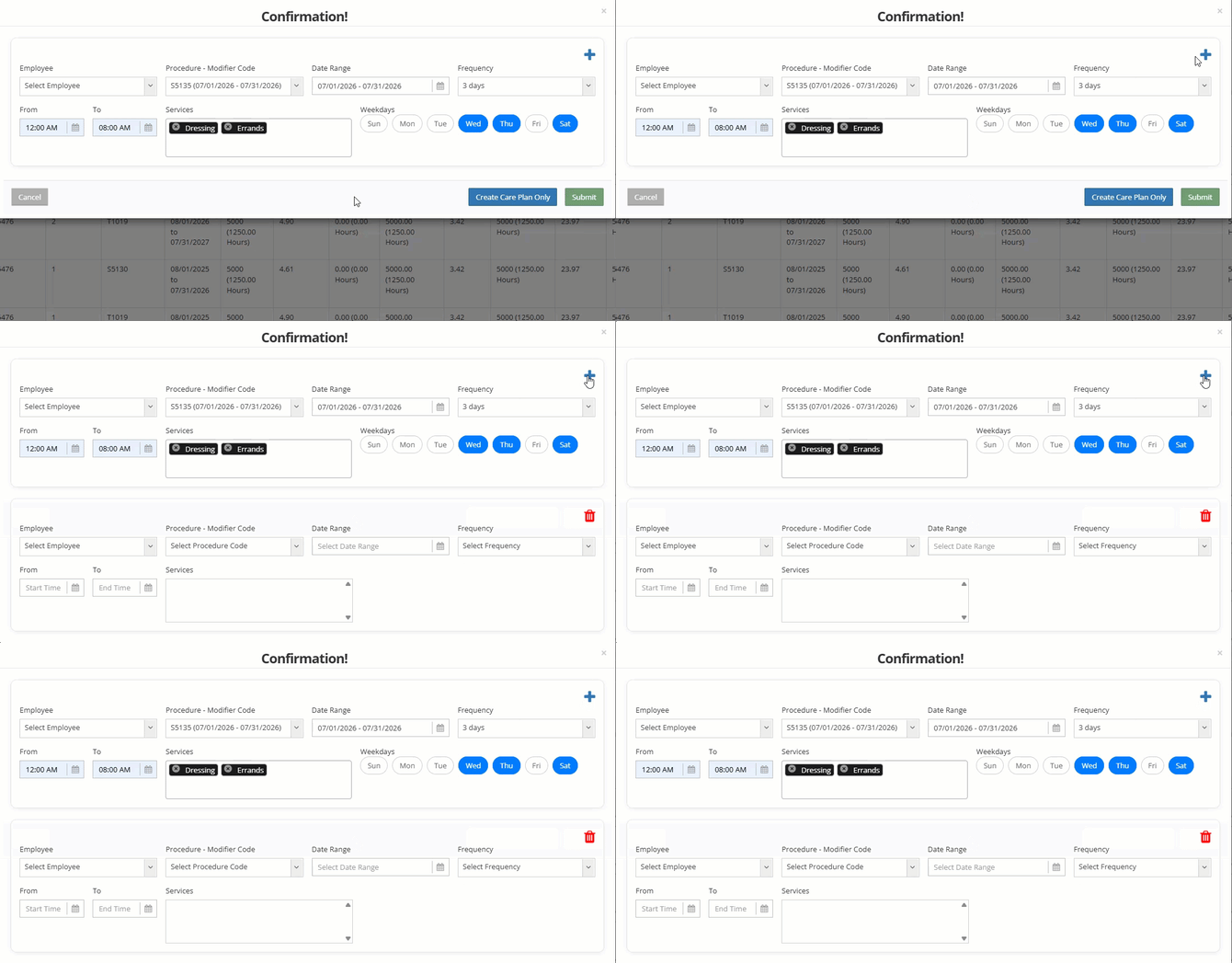
For each line you create, you can build a new schedule. So, if you wanted to schedule two employees then you would need two lines. If you wanted to schedule a single employee for two visit times then you would also need to schedules.
### Replicating Schedules and Care Plans
When a service authorization is reissued the AI Assistant can replicate the schedules and care plan that was initially made. To do this, add you reissued authorization into Billiyo. The AI Assistant will then check this new agreement with the other authorizations that have been entered for the client.
Criteria for Replication
1. The same client
2. The same procedure code
If the new service authorization fulfills the criteria for replication we will receive another confirmation pop up.
****
If we select "Copy Care Plan Only" or "Next" a confirmation pop up will appear. 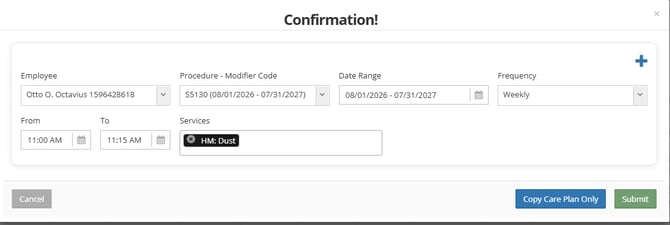
"Copy Care Plan Only" will allow you to copy your previous care plan onto the new agreement that was entered. However, no schedule will be made.
"Next" will allow you to create new schedules for this agreement.
After selecting "Next" the confirmation pop up will be auto filled with the information that was entered into the previous schedules we made. However, the date range will be mapped to the dates that were entered into the new service auth. This way we can create new schedules quickly and without needing to make any adjustments. Of course we can review and edit this information however we need. Additionally, if we need to add new schedules we can do so by hitting the  button.
### Example
Lets say we got a new client and their authorization provided for t1019 and s5130 services to be provided in 2025. We will enter this agreement into Billiyo like normal.
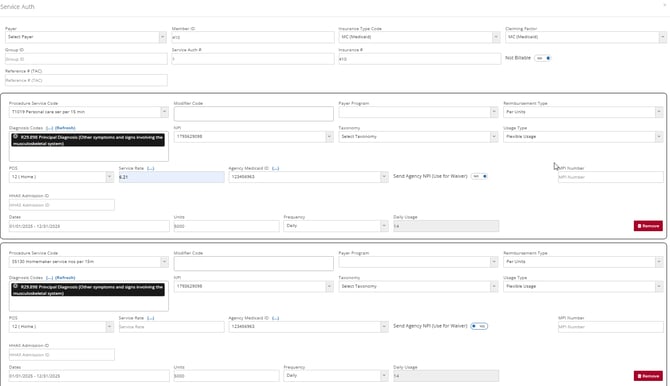
Then, when we hit 'validate and save', a confirmation pop up will appear.
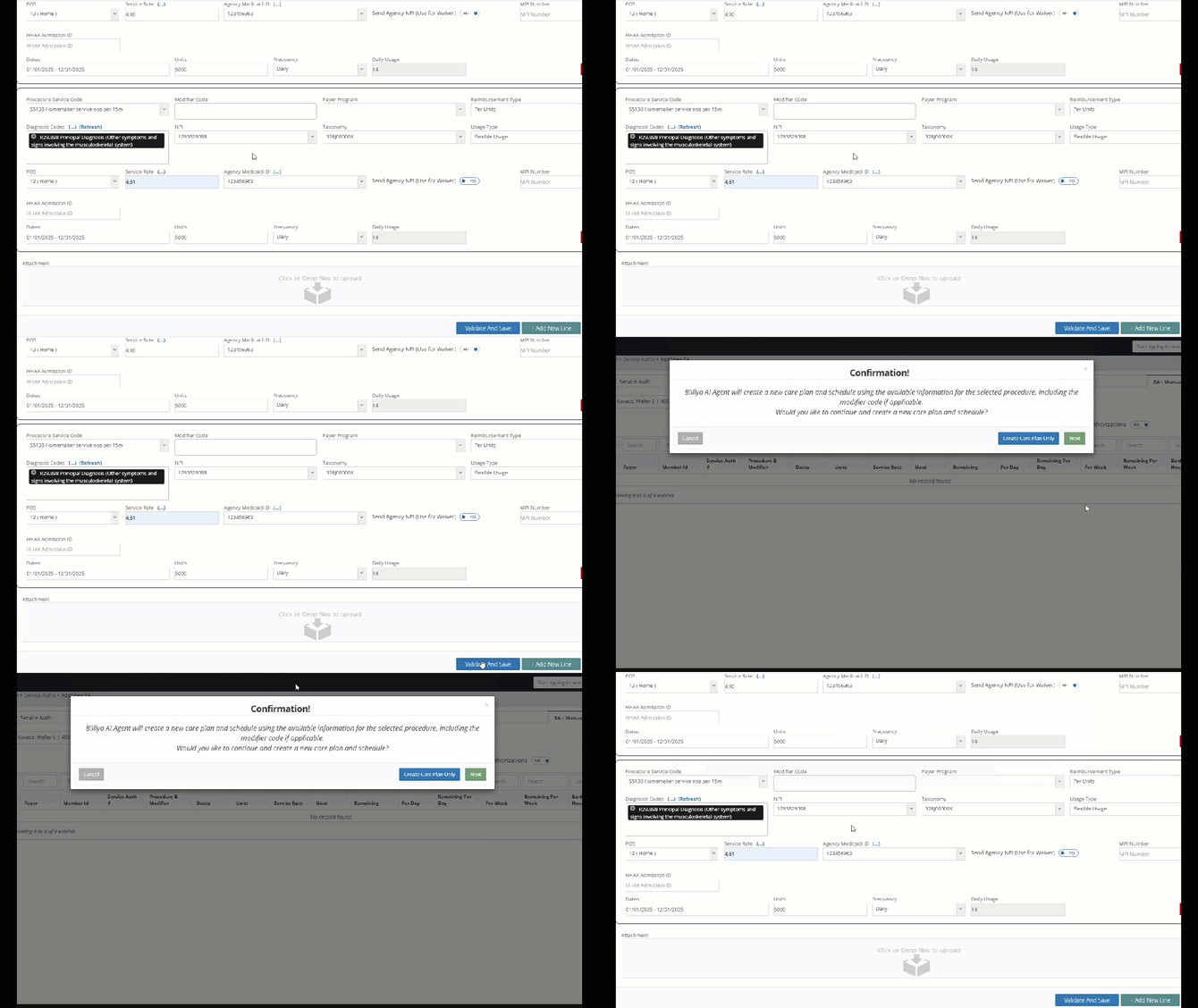
We want to create a schedule, so we will hit the green next button.
Because we entered two procedure codes, we will see two lines, one for the t1019 and one for the s5130
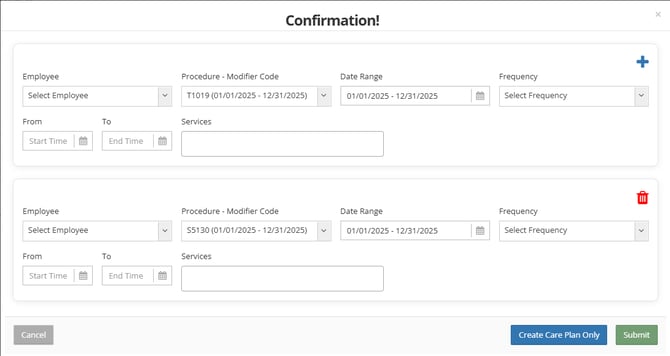
We can now create schedules.
The client has three caregivers. Ashley Williams and Kaiden Alenko work the t1019 and Frodo Baggins does the s5130. Also, the client receives s5130 care every day, but Frodo works in the morning on the weekends and in the evening on the weekdays. So to accommodate all this we will need to make four schedules. One schedule for each employee and an extra schedule for Frodo's evening visits. To do this we will hit the button and create four schedule lines.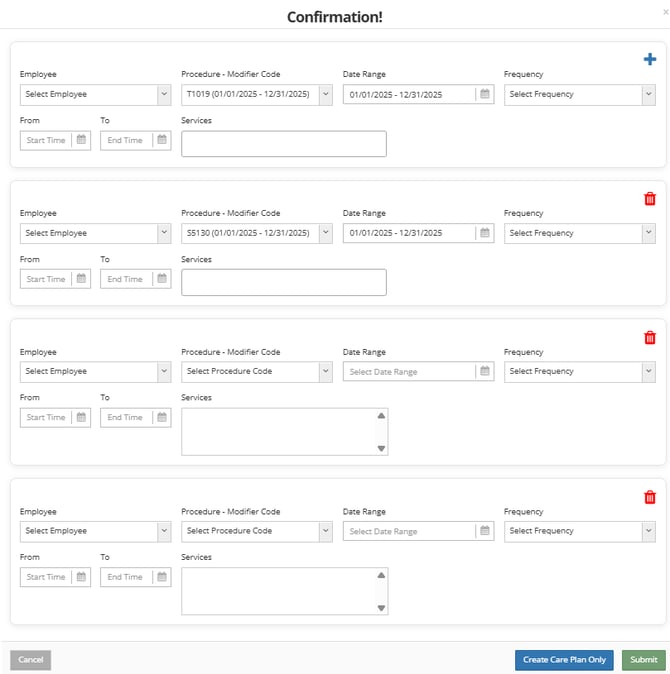
Then in each line I will create my schedules.
So to start with, Ashley Williams works a t1019 visit on Monday and Tuesday from 5:00am to 7:00 am. While working these t1019s she completes grooming and mobility services. With this information in mind we will create her care plan and schedule.
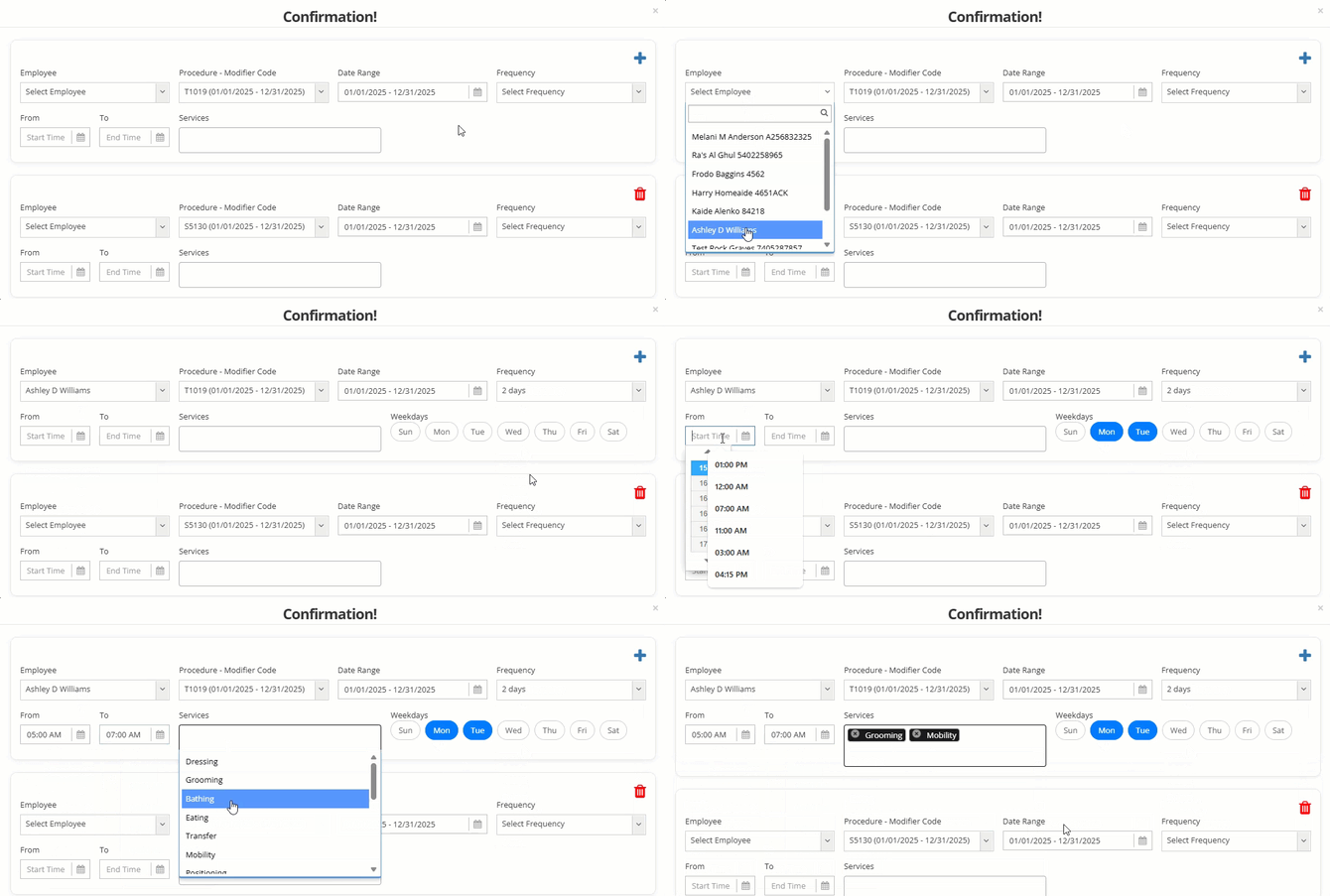
When we are done we will see:
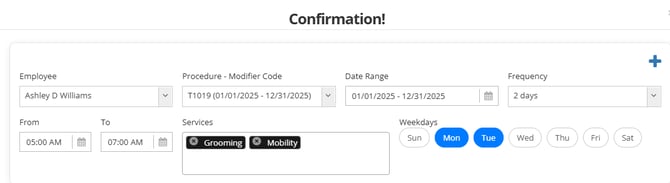
Then we want to schedule Kaiden's t1019 visits. To do this, we will go into the next line and choose s5130 as the procedure code.
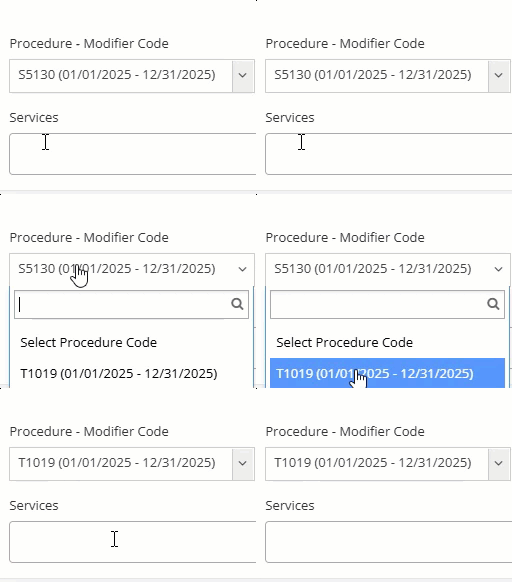
We can then enter the visits that Kaiden works.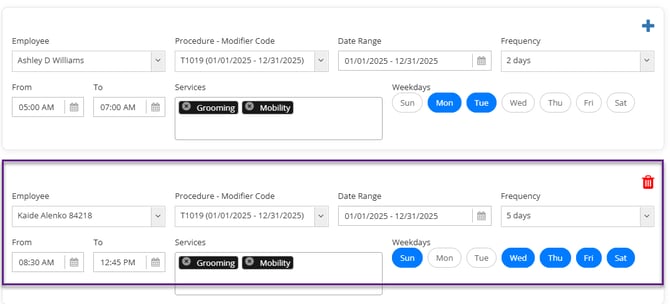
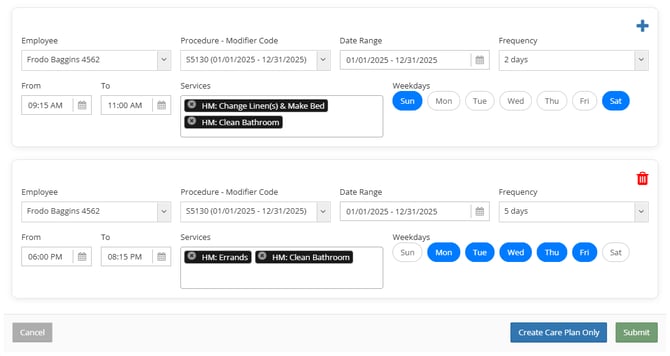
Next we need to schedule Frodo's s5130 visits. Because Frodo works some days in the morning and other in the evening, we will need to complete two lines. One line will be for their weekend visits and the schedule is made for the morning. The other line is for their evening shifts.
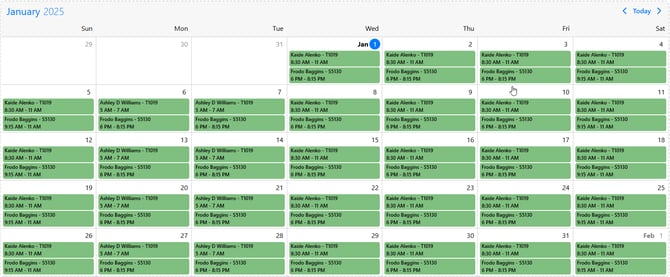
Next, this client receives a new t1019 and s5130 service auth for 2026. In that case, we will enter the agreement like normal and in the confirmation pop up, after hitting next, we will see that my schedules are auto-filling.
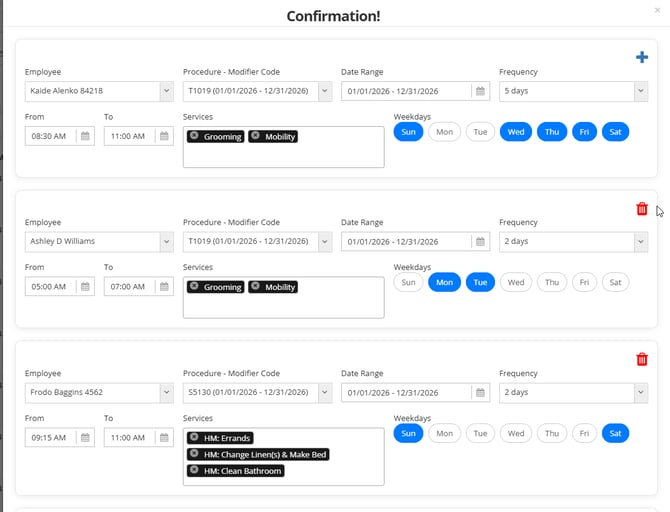
The information that autofill the schedules was pulled from the previous schedules that we created for 2025. I can now hit "Submit" and my 2026 visits will be created.
- [Getting Started](https://knowledge.billiyo.com/knowledge/getting-started?hsLang=en#main-content)
- [Onboarding trainings](https://knowledge.billiyo.com/knowledge/getting-started?hsLang=en#onboarding-trainings)
- [Clients](https://knowledge.billiyo.com/knowledge/clients?hsLang=en#main-content)
- [Profile related info](https://knowledge.billiyo.com/knowledge/clients?hsLang=en#profile-related-info)
- [Patient onboarding](https://knowledge.billiyo.com/knowledge/clients?hsLang=en#patient-onboarding)
- [Patient dashboard related info](https://knowledge.billiyo.com/knowledge/clients?hsLang=en#patient-dashboard-related-info)
- [Caregiver connection info](https://knowledge.billiyo.com/knowledge/clients?hsLang=en#caregiver-connection-info)
- [Service authorization info](https://knowledge.billiyo.com/knowledge/clients?hsLang=en#service-authorization-info)
- [Care plan info](https://knowledge.billiyo.com/knowledge/clients?hsLang=en#care-plan-info)
- [Recalibrate client location](https://knowledge.billiyo.com/knowledge/clients?hsLang=en#recalibrate-client-location)
- [User accounts & client portal](https://knowledge.billiyo.com/knowledge/clients?hsLang=en#user-accounts-client-portal)
- [Client eligibility](https://knowledge.billiyo.com/knowledge/clients?hsLang=en#client-eligibility)
- [Q and A](https://knowledge.billiyo.com/knowledge/clients?hsLang=en#q-and-a)
- [Deleting Client Documents](https://knowledge.billiyo.com/knowledge/clients?hsLang=en#deleting-client-documents)
- [Services Tab](https://knowledge.billiyo.com/knowledge/clients?hsLang=en#services-tab)
- [Client Onboarding Application](https://knowledge.billiyo.com/knowledge/clients?hsLang=en#client-onboarding-application)
- [Employee](https://knowledge.billiyo.com/knowledge/employee?hsLang=en#main-content)
- [Profile related items](https://knowledge.billiyo.com/knowledge/employee?hsLang=en#profile-related-items)
- [User account info](https://knowledge.billiyo.com/knowledge/employee?hsLang=en#user-account-info)
- [Payroll info](https://knowledge.billiyo.com/knowledge/employee?hsLang=en#payroll-info)
- [Employee Hours Summary](https://knowledge.billiyo.com/knowledge/employee?hsLang=en#employee-hours-summary)
- [Expense info](https://knowledge.billiyo.com/knowledge/employee?hsLang=en#expense-info)
- [Request app user's location](https://knowledge.billiyo.com/knowledge/employee?hsLang=en#request-app-users-location)
- [Caregiver app info](https://knowledge.billiyo.com/knowledge/employee?hsLang=en#caregiver-app-info)
- [Clinical app info](https://knowledge.billiyo.com/knowledge/employee?hsLang=en#clinical-app-info)
- [Telephony](https://knowledge.billiyo.com/knowledge/employee?hsLang=en#telephony)
- [Caregiver dashboard](https://knowledge.billiyo.com/knowledge/employee?hsLang=en#caregiver-dashboard)
- [Employee onboarding URL](https://knowledge.billiyo.com/knowledge/employee?hsLang=en#employee-onboarding-url)
- [Q and A](https://knowledge.billiyo.com/knowledge/employee?hsLang=en#q-and-a)
- [Mobile apps](https://knowledge.billiyo.com/knowledge/employee?hsLang=en#mobile-apps)
- [Deleting Employee Documents](https://knowledge.billiyo.com/knowledge/employee?hsLang=en#deleting-employee-documents)
- [Employee Services Tracking](https://knowledge.billiyo.com/knowledge/employee?hsLang=en#employee-services-tracking)
- [Reset Password](https://knowledge.billiyo.com/knowledge/employee?hsLang=en#reset-password)
- [Scheduling & Timesheets](https://knowledge.billiyo.com/knowledge/scheduling-timesheets?hsLang=en#main-content)
- [Scheduling related info](https://knowledge.billiyo.com/knowledge/scheduling-timesheets?hsLang=en#scheduling-related-info)
- [Schedules approval related info](https://knowledge.billiyo.com/knowledge/scheduling-timesheets?hsLang=en#schedules-approval-related-info)
- [Electronic timesheet info](https://knowledge.billiyo.com/knowledge/scheduling-timesheets?hsLang=en#electronic-timesheet-info)
- [Manual timesheet Info](https://knowledge.billiyo.com/knowledge/scheduling-timesheets?hsLang=en#manual-timesheet-info)
- [Manual clock in/out info](https://knowledge.billiyo.com/knowledge/scheduling-timesheets?hsLang=en#manual-clock-in-out-info)
- [Q and A](https://knowledge.billiyo.com/knowledge/scheduling-timesheets?hsLang=en#q-and-a)
- [Clinical & Documentation](https://knowledge.billiyo.com/knowledge/clinical-documentation?hsLang=en#main-content)
- [Service verification](https://knowledge.billiyo.com/knowledge/clinical-documentation?hsLang=en#service-verification)
- [Clinical forms info](https://knowledge.billiyo.com/knowledge/clinical-documentation?hsLang=en#clinical-forms-info)
- [Nursing visit](https://knowledge.billiyo.com/knowledge/clinical-documentation?hsLang=en#nursing-visit)
- [PDN info](https://knowledge.billiyo.com/knowledge/clinical-documentation?hsLang=en#pdn-info)
- [Progress note](https://knowledge.billiyo.com/knowledge/clinical-documentation?hsLang=en#progress-note)
- [Vitals log](https://knowledge.billiyo.com/knowledge/clinical-documentation?hsLang=en#vitals-log)
- [Health analysis](https://knowledge.billiyo.com/knowledge/clinical-documentation?hsLang=en#health-analysis)
- [eMar info](https://knowledge.billiyo.com/knowledge/clinical-documentation?hsLang=en#emar-info)
- [OASIS submissions](https://knowledge.billiyo.com/knowledge/clinical-documentation?hsLang=en#oasis-submissions)
- [Skilled patient task flow](https://knowledge.billiyo.com/knowledge/clinical-documentation?hsLang=en#skilled-patient-task-flow)
- [QA QI info](https://knowledge.billiyo.com/knowledge/clinical-documentation?hsLang=en#qa-qi-info)
- [Patient Dashboard](https://knowledge.billiyo.com/knowledge/clinical-documentation?hsLang=en#patient-dashboard)
- [Physician orders](https://knowledge.billiyo.com/knowledge/clinical-documentation?hsLang=en#physician-orders)
- [Upload documents info](https://knowledge.billiyo.com/knowledge/clinical-documentation?hsLang=en#upload-documents-info)
- [QP visit documentation](https://knowledge.billiyo.com/knowledge/clinical-documentation?hsLang=en#qp-visit-documentation)
- [Digitalized documents info](https://knowledge.billiyo.com/knowledge/clinical-documentation?hsLang=en#digitalized-documents-info)
- [Q and A](https://knowledge.billiyo.com/knowledge/clinical-documentation?hsLang=en#q-and-a)
- [Medication](https://knowledge.billiyo.com/knowledge/clinical-documentation?hsLang=en#medication)
- [Claims & Invoices](https://knowledge.billiyo.com/knowledge/claims-invoices?hsLang=en#main-content)
- [Claim related info](https://knowledge.billiyo.com/knowledge/claims-invoices?hsLang=en#claim-related-info)
- [Invoice related info](https://knowledge.billiyo.com/knowledge/claims-invoices?hsLang=en#invoice-related-info)
- [EVV claim related info](https://knowledge.billiyo.com/knowledge/claims-invoices?hsLang=en#evv-claim-related-info)
- [Claim Detail Report info](https://knowledge.billiyo.com/knowledge/claims-invoices?hsLang=en#claim-detail-report-info)
- [Denial Analysis Report info](https://knowledge.billiyo.com/knowledge/claims-invoices?hsLang=en#denial-analysis-report-info)
- [Electronic Remittance info](https://knowledge.billiyo.com/knowledge/claims-invoices?hsLang=en#electronic-remittance-info)
- [Q and A](https://knowledge.billiyo.com/knowledge/claims-invoices?hsLang=en#q-and-a)
- [Service Verification Failed](https://knowledge.billiyo.com/knowledge/claims-invoices?hsLang=en#service-verification-failed)
- [Reporting](https://knowledge.billiyo.com/knowledge/reporting?hsLang=en#main-content)
- [Dashboards info (excluding "Caregiver Dashboard")](https://knowledge.billiyo.com/knowledge/reporting?hsLang=en#dashboards-info-excluding-caregiver-dashboard)
- [Contact Masters](https://knowledge.billiyo.com/knowledge/reporting?hsLang=en#contact-masters)
- [ServiceAuth](https://knowledge.billiyo.com/knowledge/reporting?hsLang=en#serviceauth)
- [LEIE](https://knowledge.billiyo.com/knowledge/reporting?hsLang=en#leie)
- [Balance And Aging](https://knowledge.billiyo.com/knowledge/reporting?hsLang=en#balance-and-aging)
- [Batch Detail](https://knowledge.billiyo.com/knowledge/reporting?hsLang=en#batch-detail)
- [Late/Missed Schedule](https://knowledge.billiyo.com/knowledge/reporting?hsLang=en#late-missed-schedule)
- [Dynamic Report](https://knowledge.billiyo.com/knowledge/reporting?hsLang=en#dynamic-report)
- [Cost Report](https://knowledge.billiyo.com/knowledge/reporting?hsLang=en#cost-report)
- [Financial Reports](https://knowledge.billiyo.com/knowledge/reporting?hsLang=en#financial-reports)
- [Q and A](https://knowledge.billiyo.com/knowledge/reporting?hsLang=en#q-and-a)
- [Download Documents](https://knowledge.billiyo.com/knowledge/reporting?hsLang=en#download-documents)
- [Settings & Setup](https://knowledge.billiyo.com/knowledge/settings-setup?hsLang=en#main-content)
- [Billiyo subscription info](https://knowledge.billiyo.com/knowledge/settings-setup?hsLang=en#billiyo-subscription-info)
- [Company settings info](https://knowledge.billiyo.com/knowledge/settings-setup?hsLang=en#company-settings-info)
- [Surveyor user account info](https://knowledge.billiyo.com/knowledge/settings-setup?hsLang=en#surveyor-user-account-info)
- [Service type management info](https://knowledge.billiyo.com/knowledge/settings-setup?hsLang=en#service-type-management-info)
- [Q and A](https://knowledge.billiyo.com/knowledge/settings-setup?hsLang=en#q-and-a)
- [Basic Company Information](https://knowledge.billiyo.com/knowledge/settings-setup?hsLang=en#basic-company-information)
- [Communication & Tasks](https://knowledge.billiyo.com/knowledge/communication-tasks?hsLang=en#main-content)
- [Chat](https://knowledge.billiyo.com/knowledge/communication-tasks?hsLang=en#chat)
- [Tasks](https://knowledge.billiyo.com/knowledge/communication-tasks?hsLang=en#tasks)
- [Mass communications](https://knowledge.billiyo.com/knowledge/communication-tasks?hsLang=en#mass-communications)
- [Reconciling eFax](https://knowledge.billiyo.com/knowledge/communication-tasks?hsLang=en#reconciling-efax)
- [View Fax](https://knowledge.billiyo.com/knowledge/communication-tasks?hsLang=en#view-fax)
- [Patient Dashboard Communications](https://knowledge.billiyo.com/knowledge/communication-tasks?hsLang=en#patient-dashboard-communications)
- [Employee Communications](https://knowledge.billiyo.com/knowledge/communication-tasks?hsLang=en#employee-communications)
- [Product Updates](https://knowledge.billiyo.com/knowledge/product-updates?hsLang=en#main-content)
- [Product updates](https://knowledge.billiyo.com/knowledge/product-updates?hsLang=en#product-updates)
- [Electronic Visit Verification (EVV)](https://knowledge.billiyo.com/knowledge/electronic-visit-verification-evv?hsLang=en#main-content)
- [Minnesota (MN) EVV](https://knowledge.billiyo.com/knowledge/electronic-visit-verification-evv?hsLang=en#minnesota-mn-evv)
- [Review EVV](https://knowledge.billiyo.com/knowledge/electronic-visit-verification-evv?hsLang=en#review-evv)
- [More](https://knowledge.billiyo.com/knowledge/more?hsLang=en#main-content)
- [Company](https://knowledge.billiyo.com/knowledge/more?hsLang=en#company)
- [User Account](https://knowledge.billiyo.com/knowledge/more?hsLang=en#user-account)
- [Product Updates](https://knowledge.billiyo.com/knowledge/more?hsLang=en#product-updates)
- [Mobile Apps](https://knowledge.billiyo.com/knowledge/mobile-apps?hsLang=en#main-content)
- [Billiyo for Caregiver App](https://knowledge.billiyo.com/knowledge/mobile-apps?hsLang=en#billiyo-for-caregiver-app)
- [Billiyo Clinical App](https://knowledge.billiyo.com/knowledge/mobile-apps?hsLang=en#billiyo-clinical-app)
- [Mobile Applications](https://knowledge.billiyo.com/knowledge/mobile-apps?hsLang=en#mobile-applications)
- [Billiyo for Adult Day Care App](https://knowledge.billiyo.com/knowledge/mobile-apps?hsLang=en#billiyo-for-adult-day-care-app)
- [CRM](https://knowledge.billiyo.com/knowledge/crm?hsLang=en#main-content)
- [Service Auths](https://knowledge.billiyo.com/knowledge/crm?hsLang=en#service-auths)
- [Dashboards](https://knowledge.billiyo.com/knowledge/dashboards?hsLang=en#main-content)
- [Document Hub](https://knowledge.billiyo.com/knowledge/dashboards?hsLang=en#document-hub)
- [Announcements](https://knowledge.billiyo.com/knowledge/announcements?hsLang=en)
- [Adult Day Care](https://knowledge.billiyo.com/knowledge/adult-day-care?hsLang=en#main-content)
- [Adult Daycare App](https://knowledge.billiyo.com/knowledge/adult-day-care?hsLang=en#adult-daycare-app)
[](http://billiyo.com)
Billiyo Help Center
Copyright © 2026, Billiyo Health Inc.